
Pizza Builder
What is Pizza Builder?
Pizza Builder is a custom pizza configuration feature designed specifically for pizza shops. Rather than a simple product editor, Pizza Builder uses a template + pricing rules approach: merchants configure pizza templates in the Back Office first, then apply those templates to specific pizza products.
Pizza Builder is ideal for products that require:
- Size selection (e.g., Small / Medium / Large)
- Base option selection (e.g., crust, sauce, cheese)
- Topping selection with support for whole, half, and quarter pizza zones
- Different pricing based on size, toppings, and quantity
- Consistent rules across POS, Online Ordering, KDS, printing, and receipts
Supported Platforms
| Module | Support Status |
|---|---|
| Back Office | Configuration required |
| Tablet POS | Supported |
| Online Ordering | Supported |
| Kiosk | Not yet supported; planned for future release |
| Printing Receipt | Supported |
| KDS / CDS | Supported |
Key Features
1. Size-Based Pricing: Configure different pizza sizes (Small, Medium, Large) with unique base prices and topping prices for each size.
2. Two Types of Modifiers: Configure different modifier types to handle various pricing scenarios:
- Free Modifier: Base options with no additional charge (e.g., crust type, sauce)
- Fixed Price Modifier: Add-on options with a fixed extra charge regardless of size
3. Topping Groups with Zone Support: Organize toppings into groups (e.g., Meat Toppings, Vegetable Toppings) with support for whole pizza, half pizza (Left/Right), and quarter pizza (TL/TR/BL/BR) placement.
4. Quantity Multipliers: Allow customers to select portion sizes (Light, Normal, Extra) that affect topping pricing with configurable multipliers.
5. Flexible Portion Pricing: Choose between proportional pricing (50% per half, 25% per quarter) or highest-half pricing for half-and-half pizzas.
6. Free Topping Rules: Configure promotional rules to automatically waive the cheapest or most expensive N toppings.
7. Template Reusability: Create a single pizza template and apply it to multiple pizza products, reducing configuration overhead.
8. Order Record Preservation: All order details are captured at the time of ordering, ensuring historical orders, refunds, and reprints remain accurate even if templates or prices change later.
Important Notes Before Setting Up Pizza Builder
Before setting up Pizza Builder:
-
Ensure your POS tablet is running version 4.4.7 or later.
-
Prepare the required foundational data for your template:
-
Create Pizza Sizes — Define all size options (e.g., Small, Medium, Large) that your pizzas will offer.
-
Create Modifiers — Set up the two types of modifiers:
- Free Modifier: Base options with no additional charge (e.g., crust type, sauce)
- Fixed Price Modifier: Add-on options with a fixed extra charge regardless of pizza size
-
Create Topping Groups — Organize your toppings into logical groups and configure size-based pricing.
-
Note:
-
If a Size is already associated with a template or product, it cannot be deleted directly. You must first remove the association or confirm it will not affect existing products.
-
Pizza Builder template configuration in the Back Office must be completed before publishing Pizza Builder products.
-
After upgrading to version 4.4.7, reset or update print templates before going live. Otherwise, Pizza Builder details may not display correctly on kitchen tickets or receipts.
How to Set Up Pizza Builder
Step 1: Create Pizza Sizes
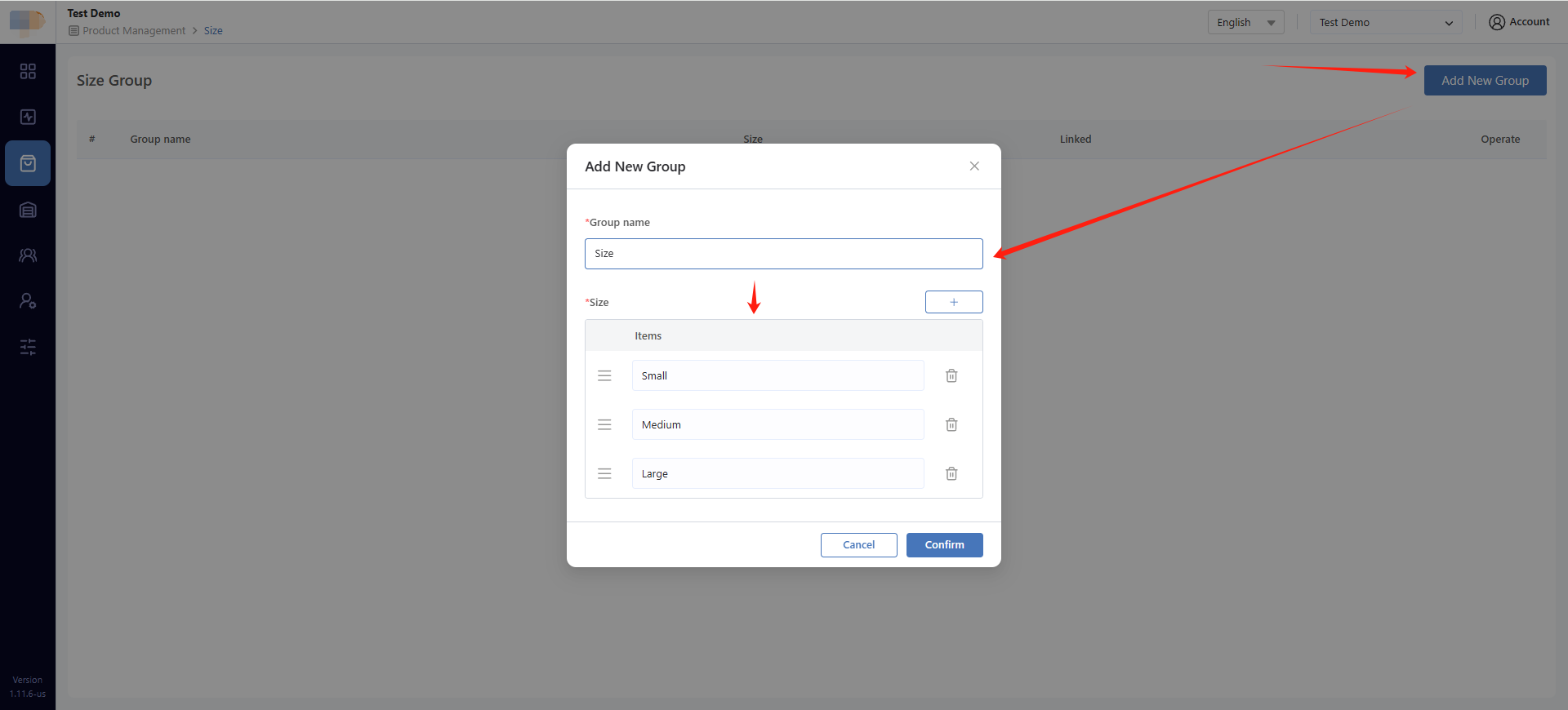
- Navigate to Menu → Product Management → Size in the Back Office.
- Create your pizza sizes (e.g., Small, Medium, Large).
Each size can later be associated with different base prices and affect topping pricing.
When configuring modifiers, determine Selection Type:
- Whether the selection is required
- Whether multiple selections from the same group are allowed
- Maximum selection quantity per option
Step 2: Create Modifiers
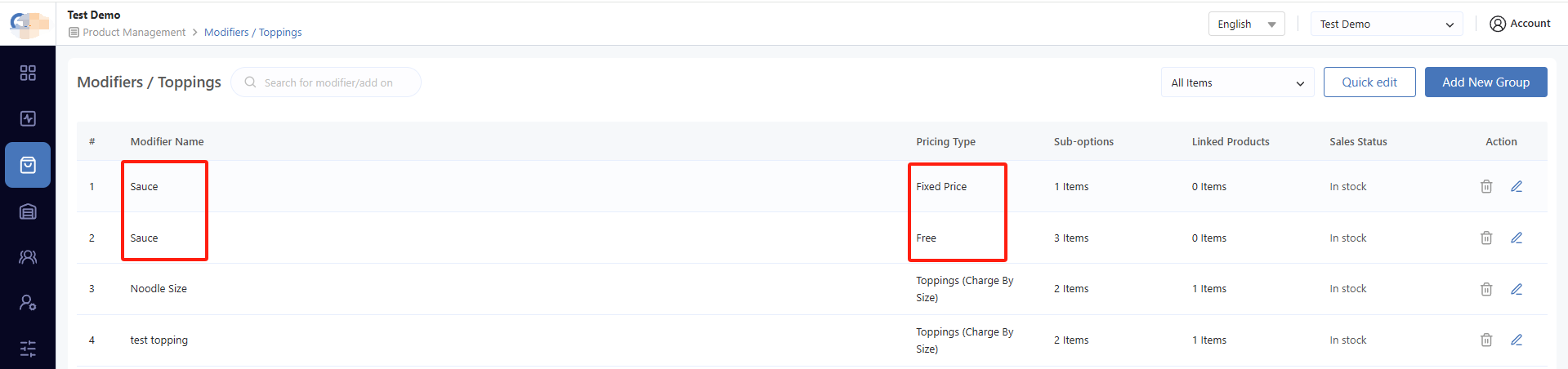
- Navigate to Menu → Product Management → Modifiers / Toppings in the Back Office.
- Create your Modifiers (e.g., Crust, Sauce, Cheese).
Pizza Builder supports different types of modifiers to handle different pricing scenarios:
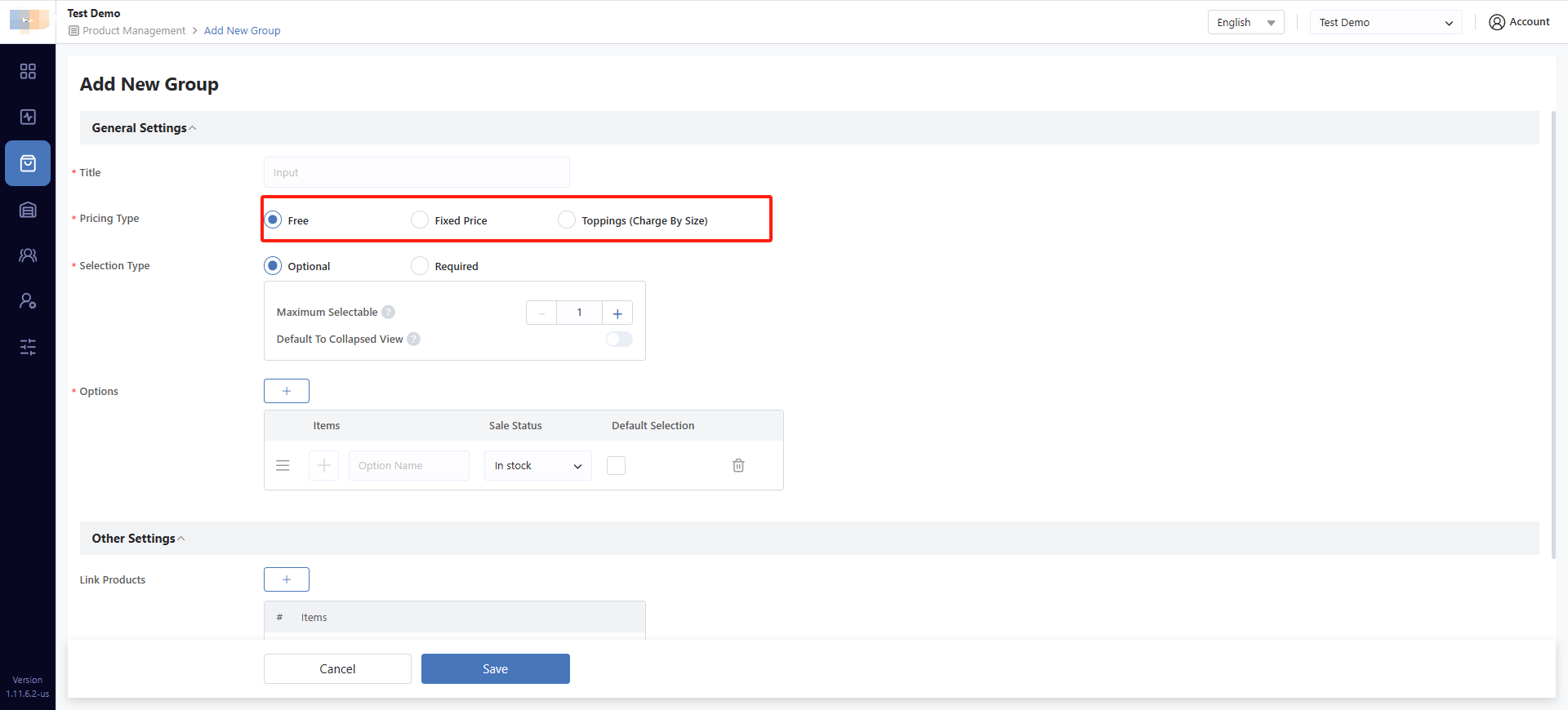
Free Modifier
Free Modifiers are base options that do not add any extra charge to the pizza price. These are typically included in the base pizza price.
Examples:
- Crust: Thin Crust, Thick Crust, Hand-Tossed
- Sauce: Tomato Sauce, BBQ Sauce, White Sauce
- Cheese: Regular Cheese, Light Cheese
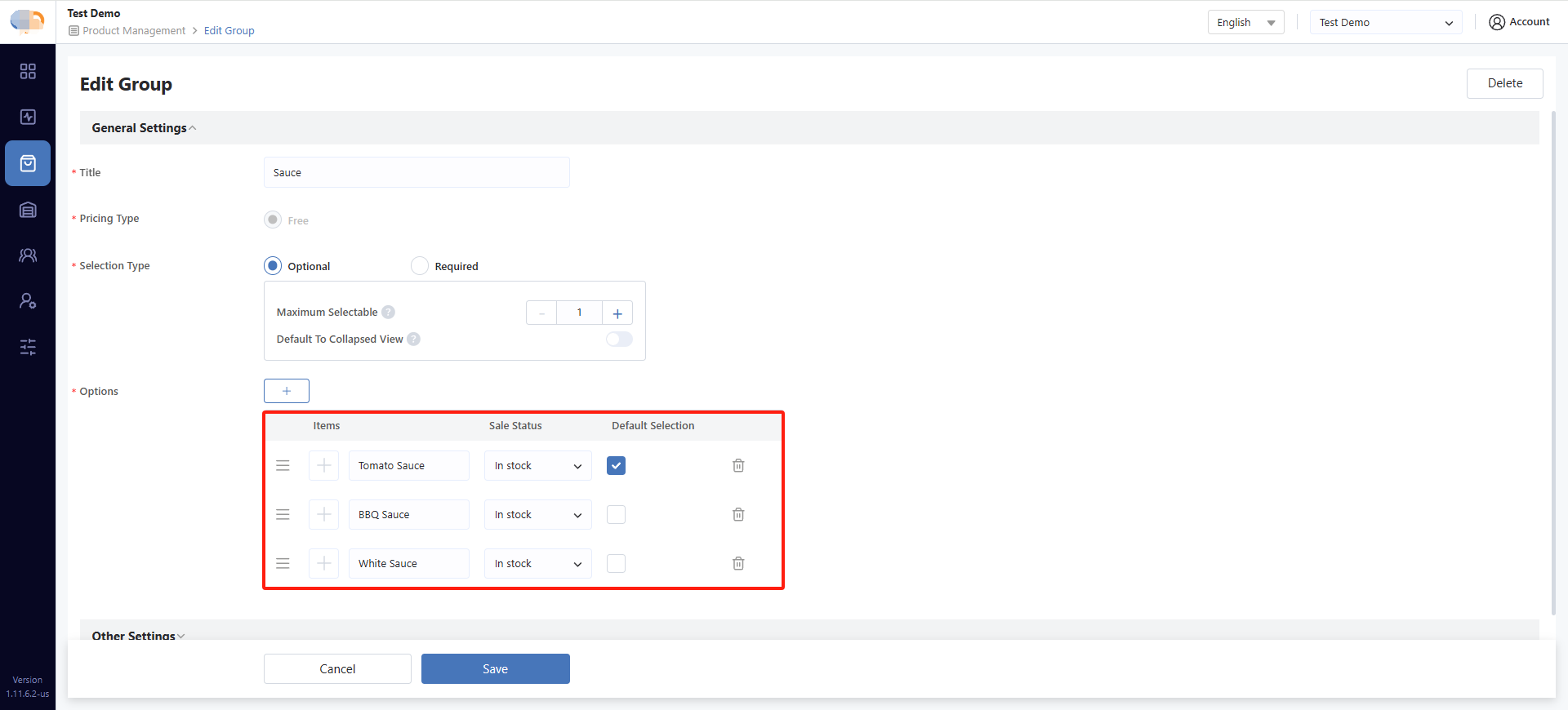
Fixed Price Modifier
Fixed Price Modifiers are add-on options that charge a fixed extra fee regardless of the pizza size selected.
Examples:
- Premium Sauce: Truffle Sauce (+$1.50)
- Extra Cheese: Extra Mozzarella (+$2.00)
- Special Add-ons: Garlic Bread Side (+$3.00)
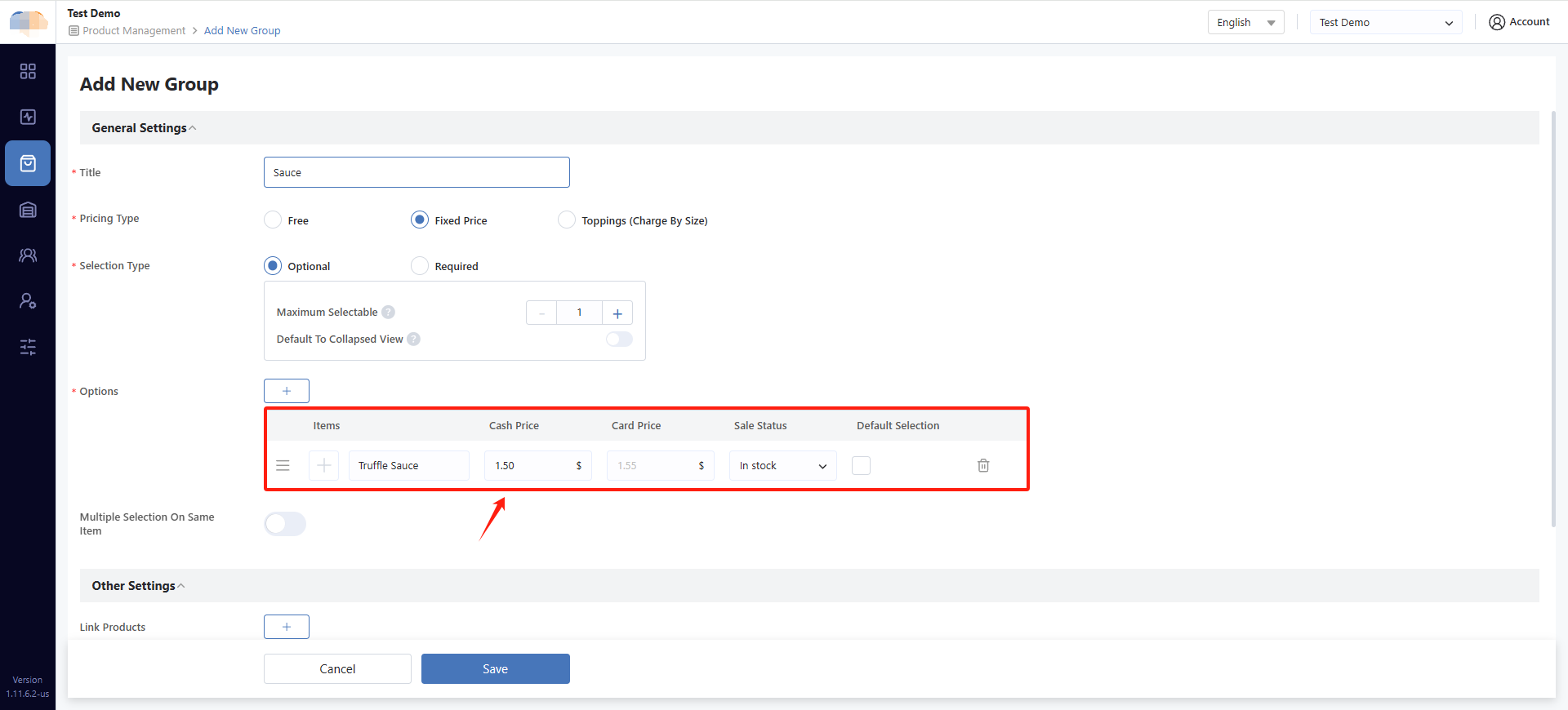
You can distinguish their types using Pricing Type on this interface.
Step 3: Create Topping Groups
Topping Groups organize your pizza toppings (e.g., Meat Toppings, Vegetable Toppings).
- Enter the topping group name.
- Associate the group with applicable sizes.
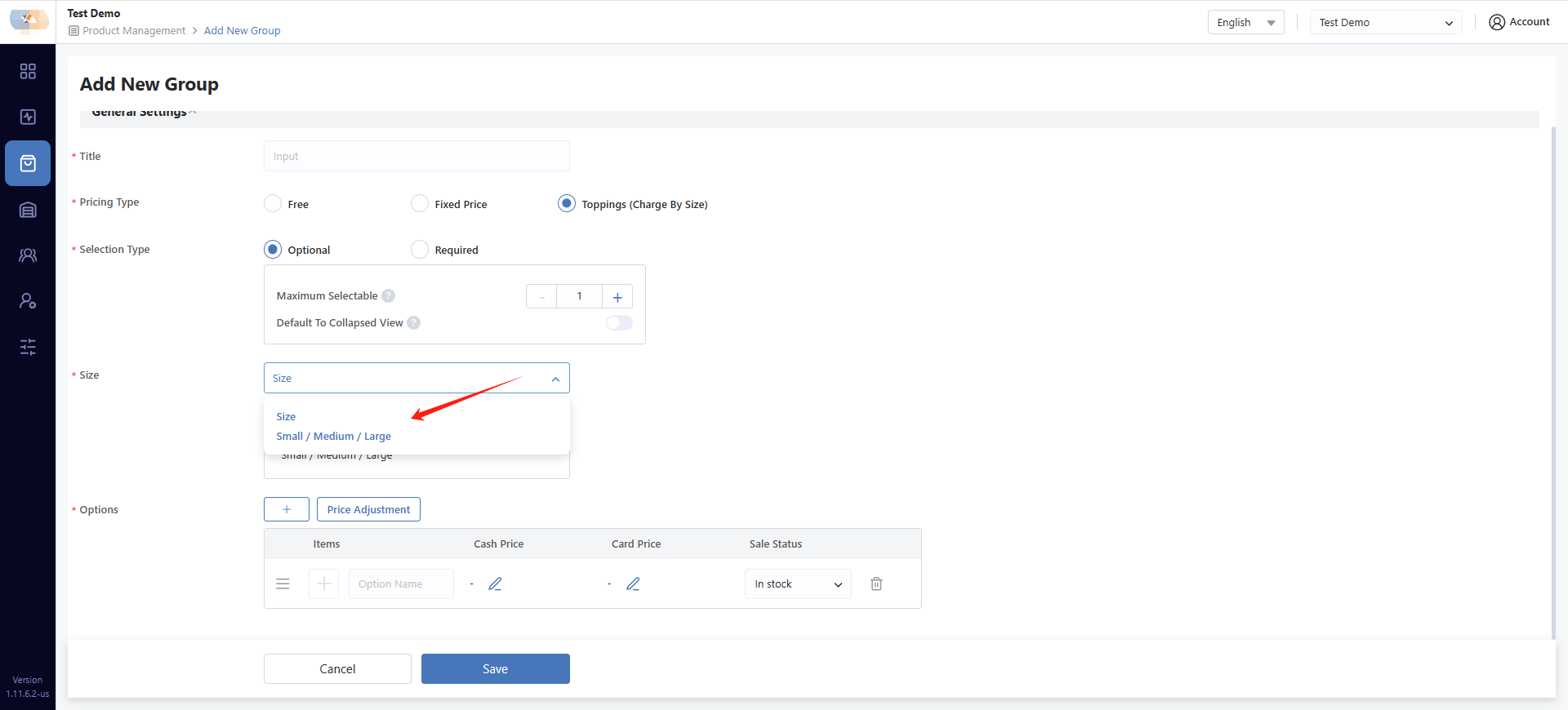
- Set default topping prices for each size.
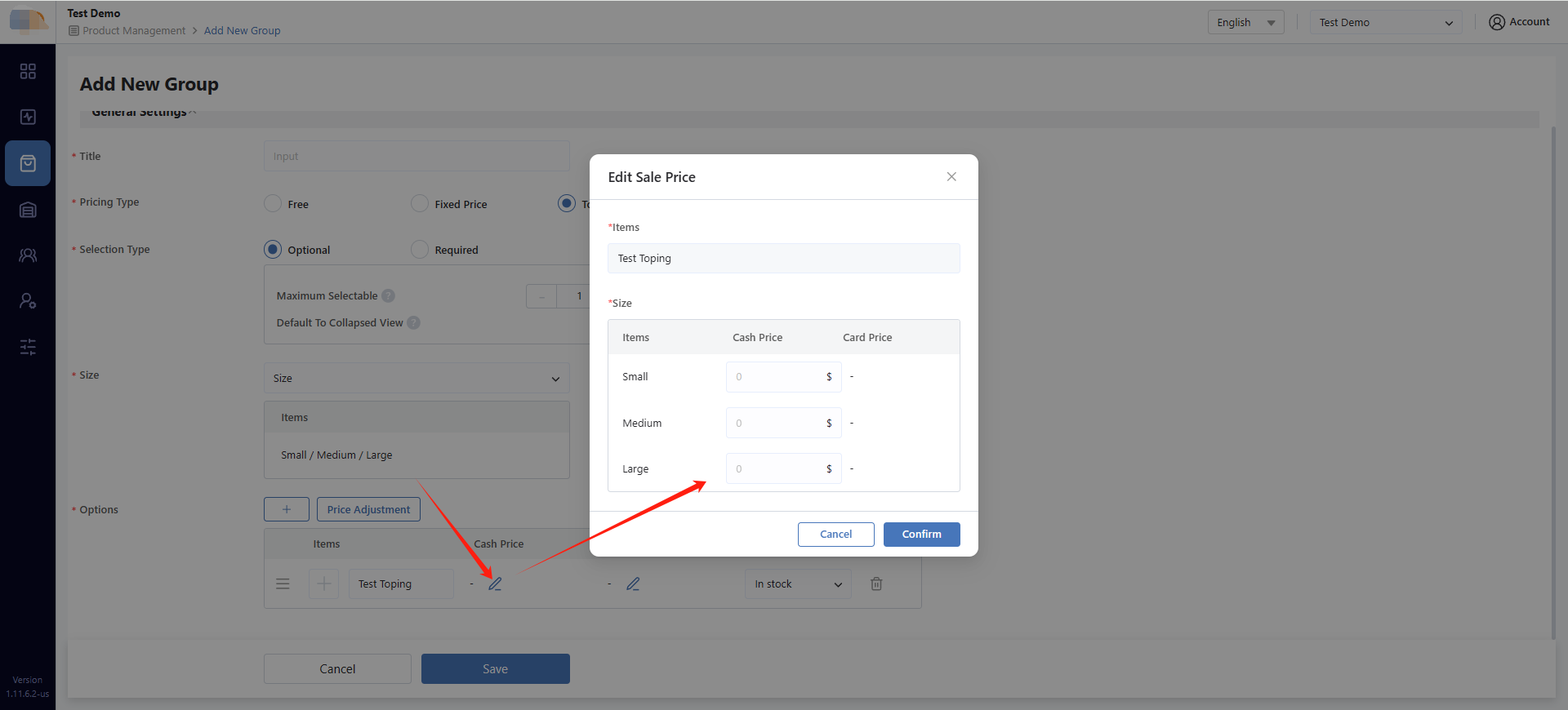
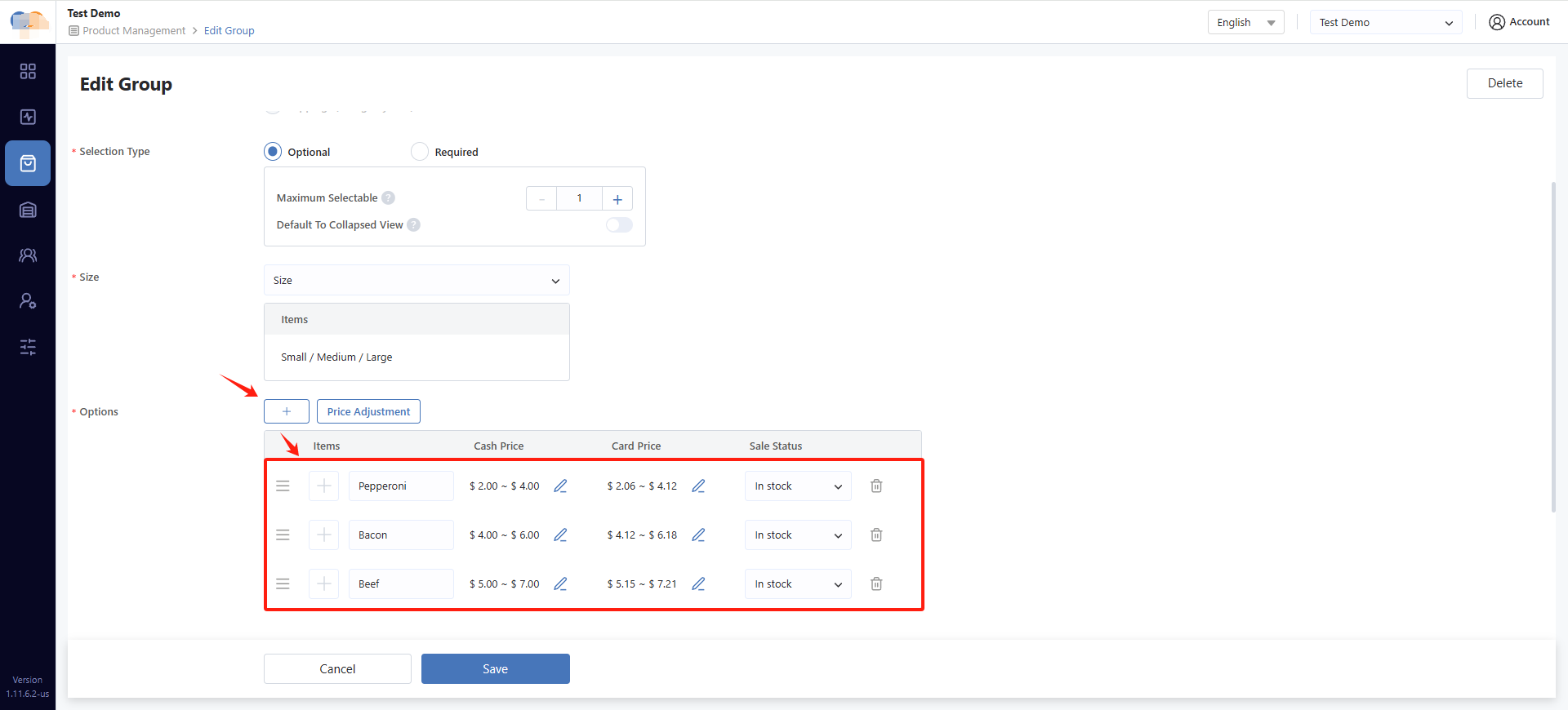
- Add individual toppings to the group.
Example Topping Pricing:
| Topping | Small | Medium | Large |
|---|---|---|---|
| Pepperoni | $2.00 | $3.00 | $4.00 |
| Bacon | $4.00 | $5.00 | $6.00 |
| Beef | $5.00 | $6.00 | $7.00 |
Step 4: Create Pizza Builder Template
Templates combine sizes, modifiers, toppings, zones, quantities, and pricing rules. One template can be applied to multiple pizza products.
- Navigate to Menu → Product Management → Pizza Builder Templates in the Back Office.
- Click on Add New Template, create your Pizza Builder Template.
Steps Configuration:
1. Add Configuration Steps
-
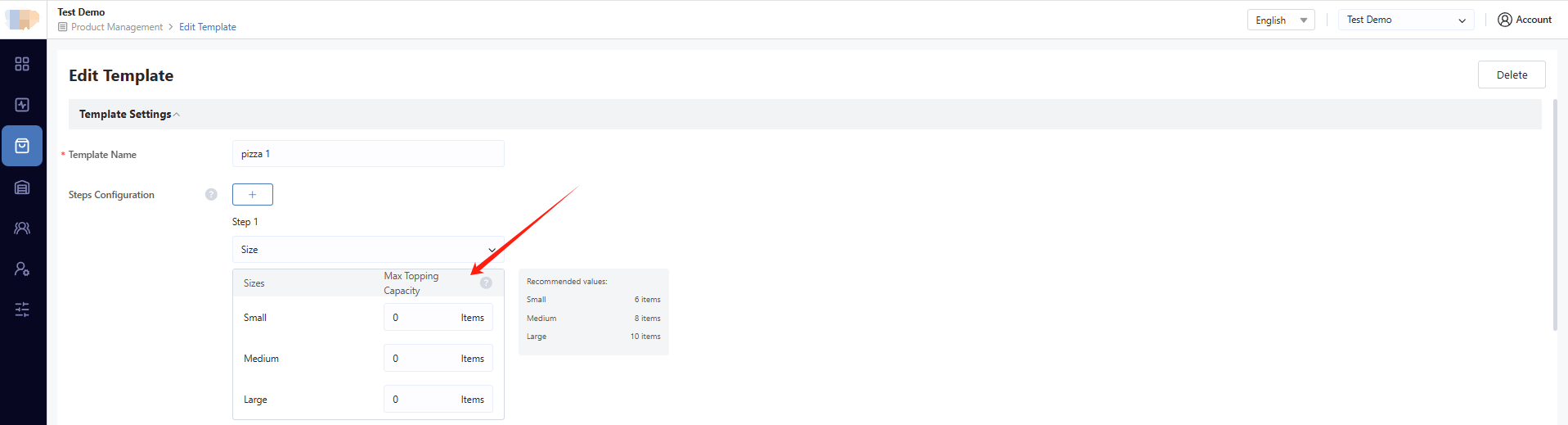
Step 1: Add Size Step — Add a Size step to allow customers to select pizza size (e.g., Small, Medium, Large).
-
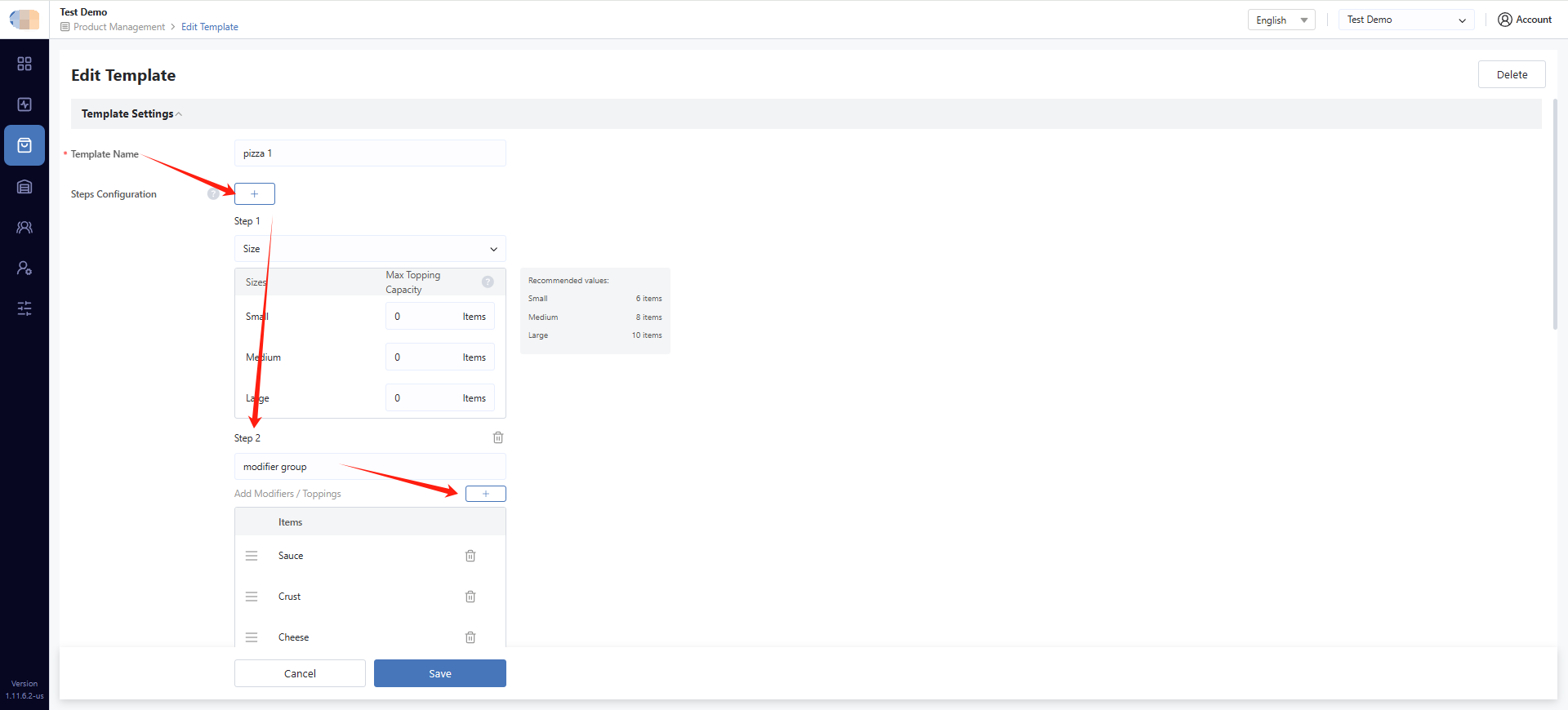
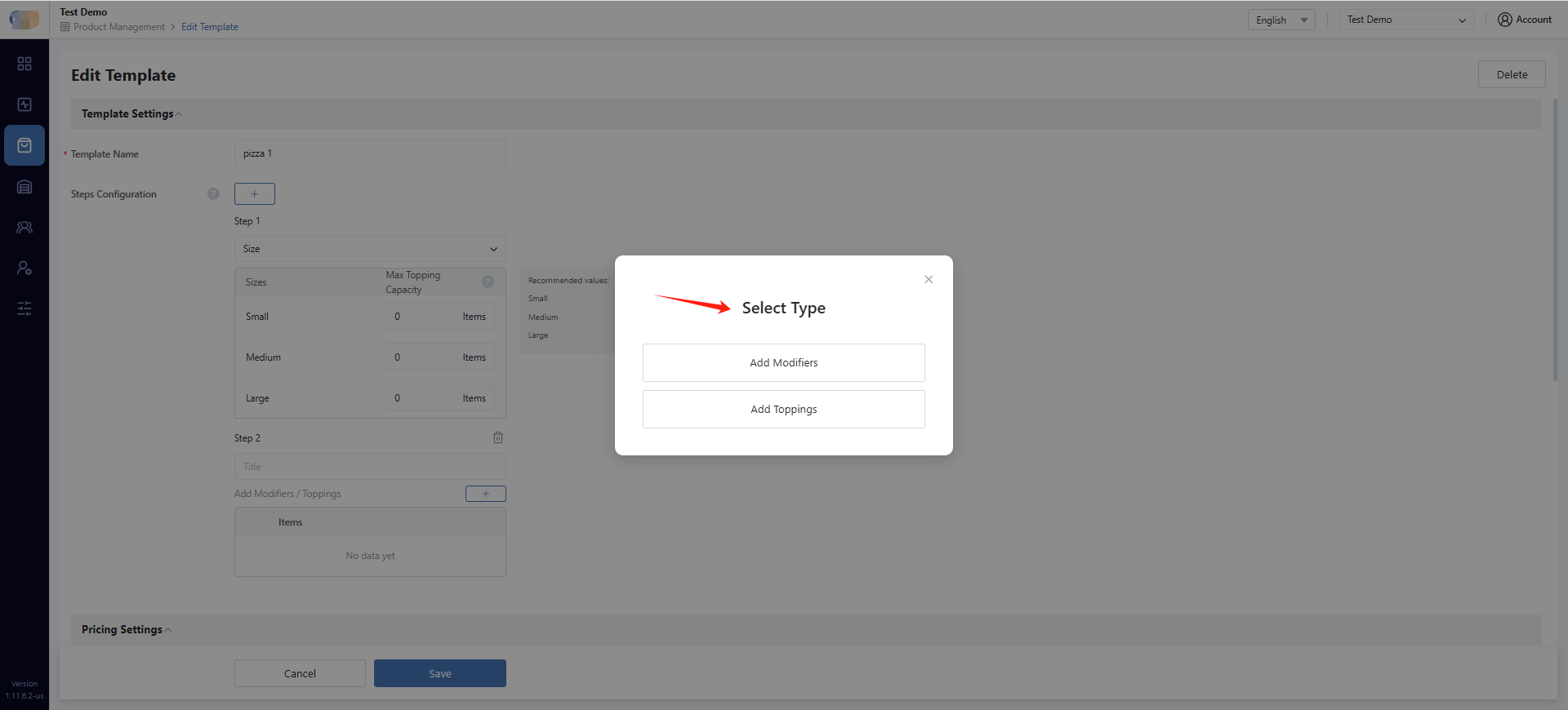
Step 2: Add Modifier Step — Add a Modifier step to include Free Modifiers and Fixed Price Modifiers (e.g., crust, sauce, premium add-ons).
-
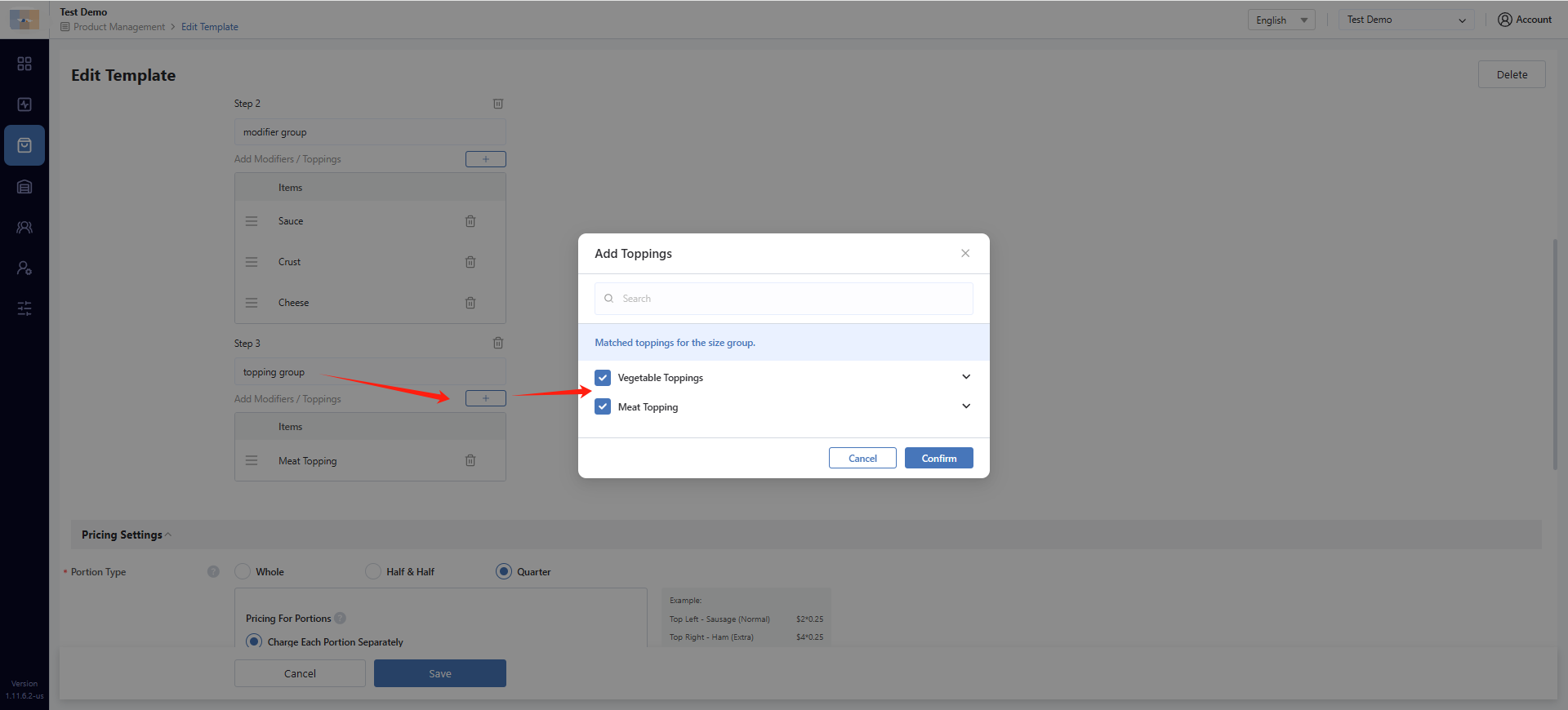
Step 3: Add Toppings Step — Add a Toppings step to include Toppings (Charge By Size) Modifiers. The Toppings step can include multiple Topping Groups (e.g., Meat Toppings, Vegetable Toppings).
2. Configure Zone Support
Enable or disable zone options based on your business needs. You can choose from three zone configurations:
- Whole — Toppings are applied to the entire pizza. In POS, customers select toppings directly without zone selection.
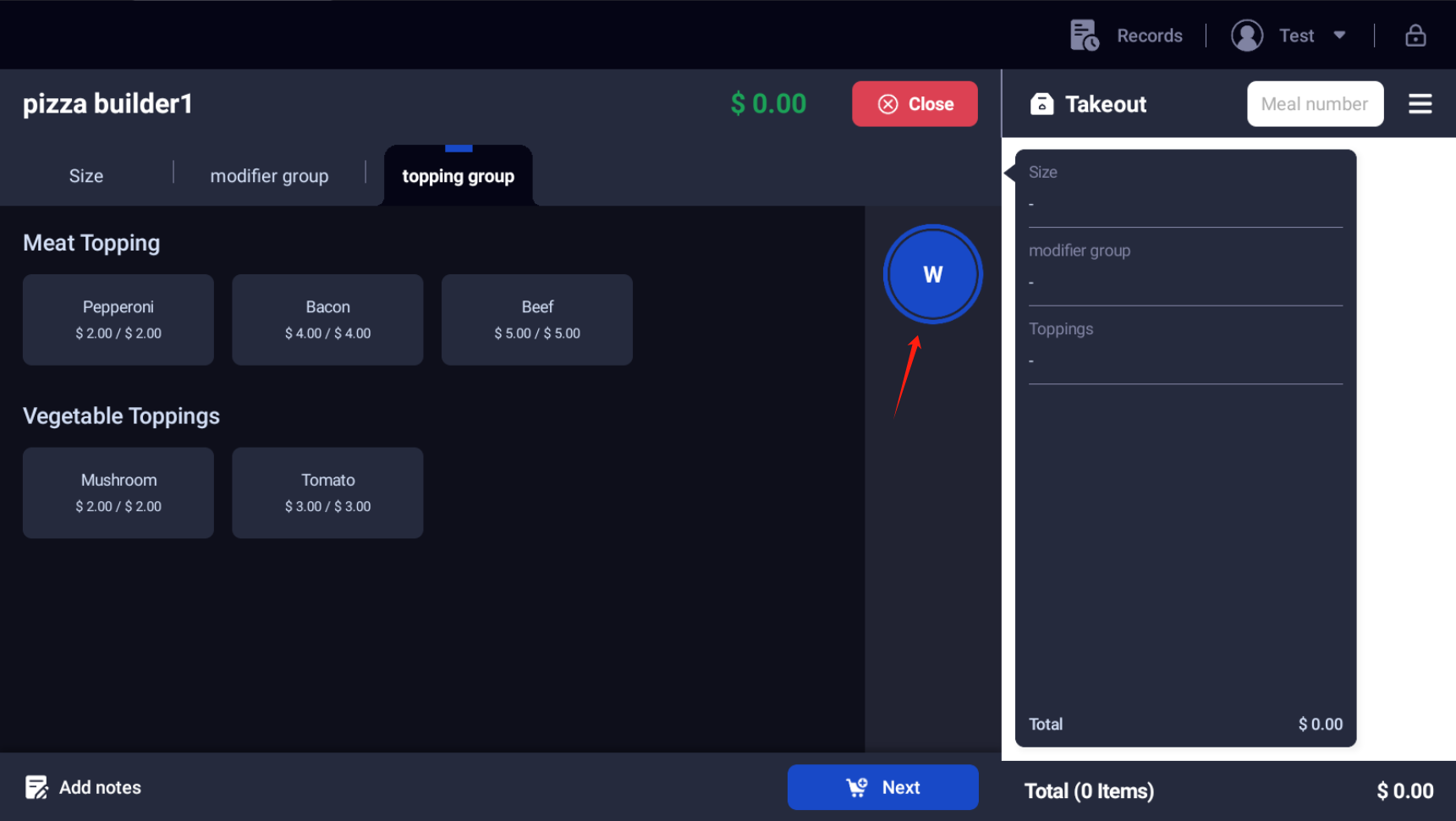
- Half & Half — Customers can split the pizza into Left and Right halves, with different toppings on each side. In POS, customers first select a zone (Whole, Left, or Right), then add toppings to that zone.
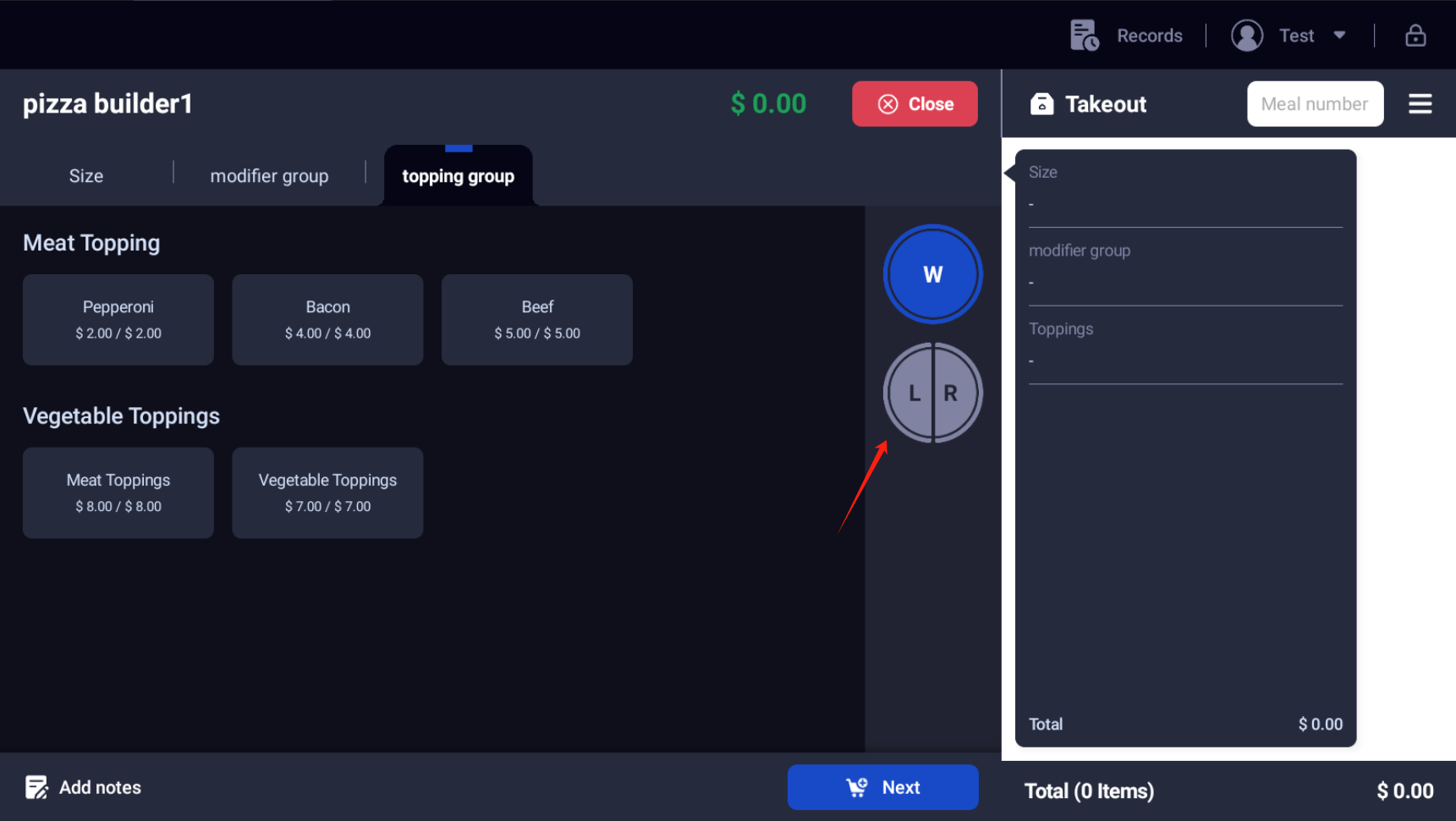
- Quarter — Customers can split the pizza into four quarters (TL, TR, BL, BR), with different toppings in each section. In POS, customers first select a zone (Whole, Left, Right, TL, TR, BL, or BR), then add toppings to that zone.
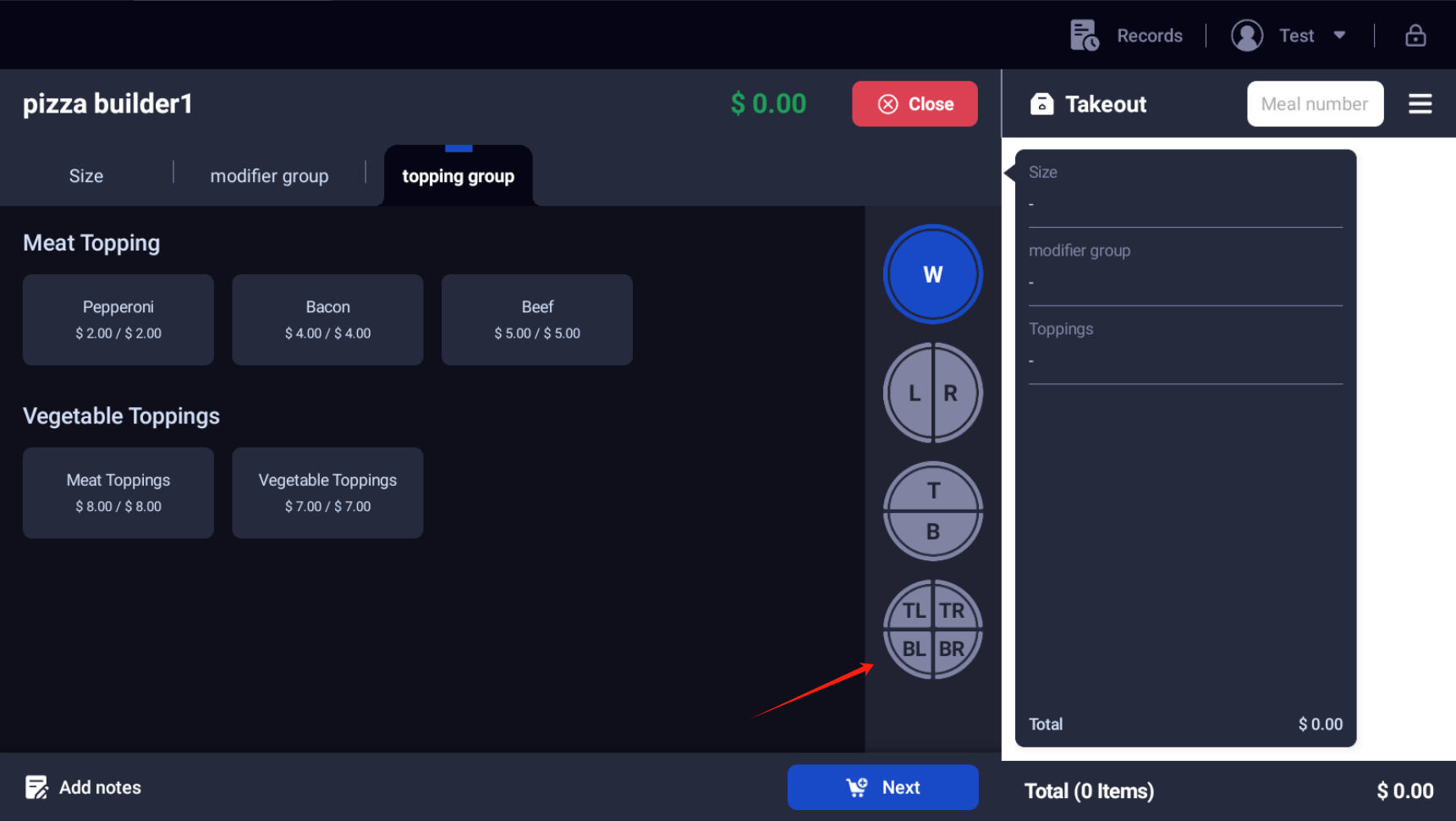
Note: The zone options are cumulative — selecting "Quarter" automatically enables all zone options (Whole, Left, Right, and all four quarters). Selecting "Half & Half" enables Whole, Left, and Right. Selecting only "Whole" restricts the pizza to whole-pizza toppings only.
3. Set Portion Pricing Rules
| Pricing Mode | Description | Use Case |
|---|---|---|
| Charge Each Portion Separately | 50% per half, 25% per quarter | Customers pay for their selected zones |
| Charge The Highest-Priced Portion | Charge the highest-priced side or portion instead of adding each portion proportionally | Common half-and-half pricing |
Charge Each Portion Separately Example:
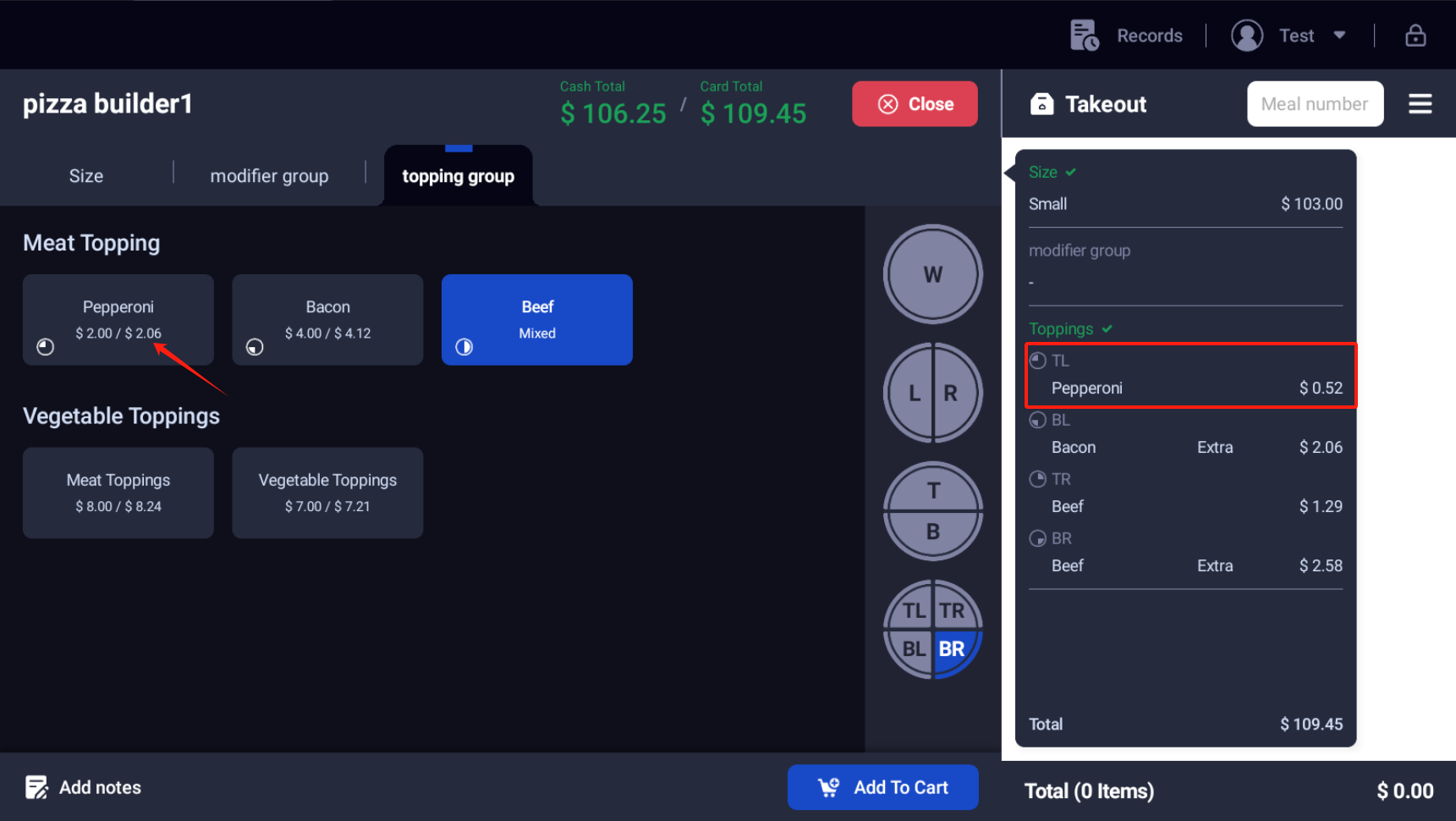
When Charge Each Portion Separately is enabled, customers pay a proportion of the topping price based on the zone selected — 50% for a half pizza, 25% for a quarter pizza.
For example, Pepperoni (Small) has dual prices: cash price $2.00 and card price $2.06 (cash + 3%). When a customer selects Pepperoni on a quarter zone (e.g., TL) only, the system charges 25% of the card price: $2.06 × 0.25 = $0.52.
Charge The Highest-Priced Portion Example:
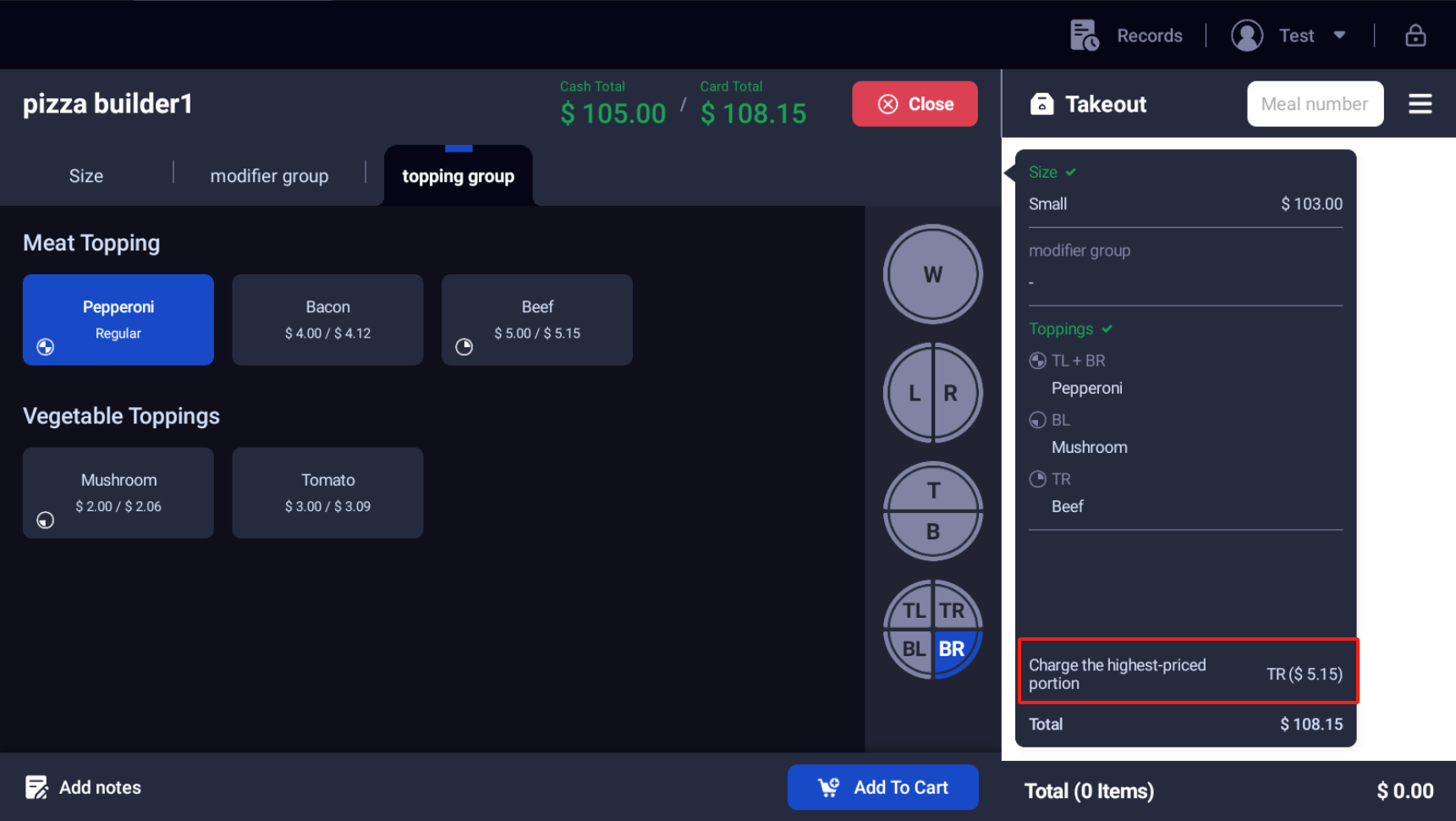
When Charge The Highest-Priced Portion is enabled, the system compares the topping prices across all four quarters (TL, TR, BL, BR) and charges the highest-priced quarter's total topping price (instead of charging each quarter proportionally).
For example, using Pepperoni (Small, card price $2.06) as one of the toppings:
- TL: Pepperoni (2.06) = 2.06
- TR: Beef (5.15) = 5.15
- BL: Mushroom (2.06) = 2.06
- BR: Pepperoni (2.06) = 2.06
The system charges the highest quarter's total: $5.15 as the topping price for the entire pizza.
4. Configure Quantity Settings
Set up portion multipliers. The quantity setting determines how much of a topping is used and affects the topping price accordingly.
| Quantity | Price Multiplier Example |
|---|---|
| Light | 0.5x |
| Normal | 1x |
| Extra | 2x |
Double-click the selected topping to display the Quantity Level settings, where you can adjust how the topping price changes based on the selected quantity.
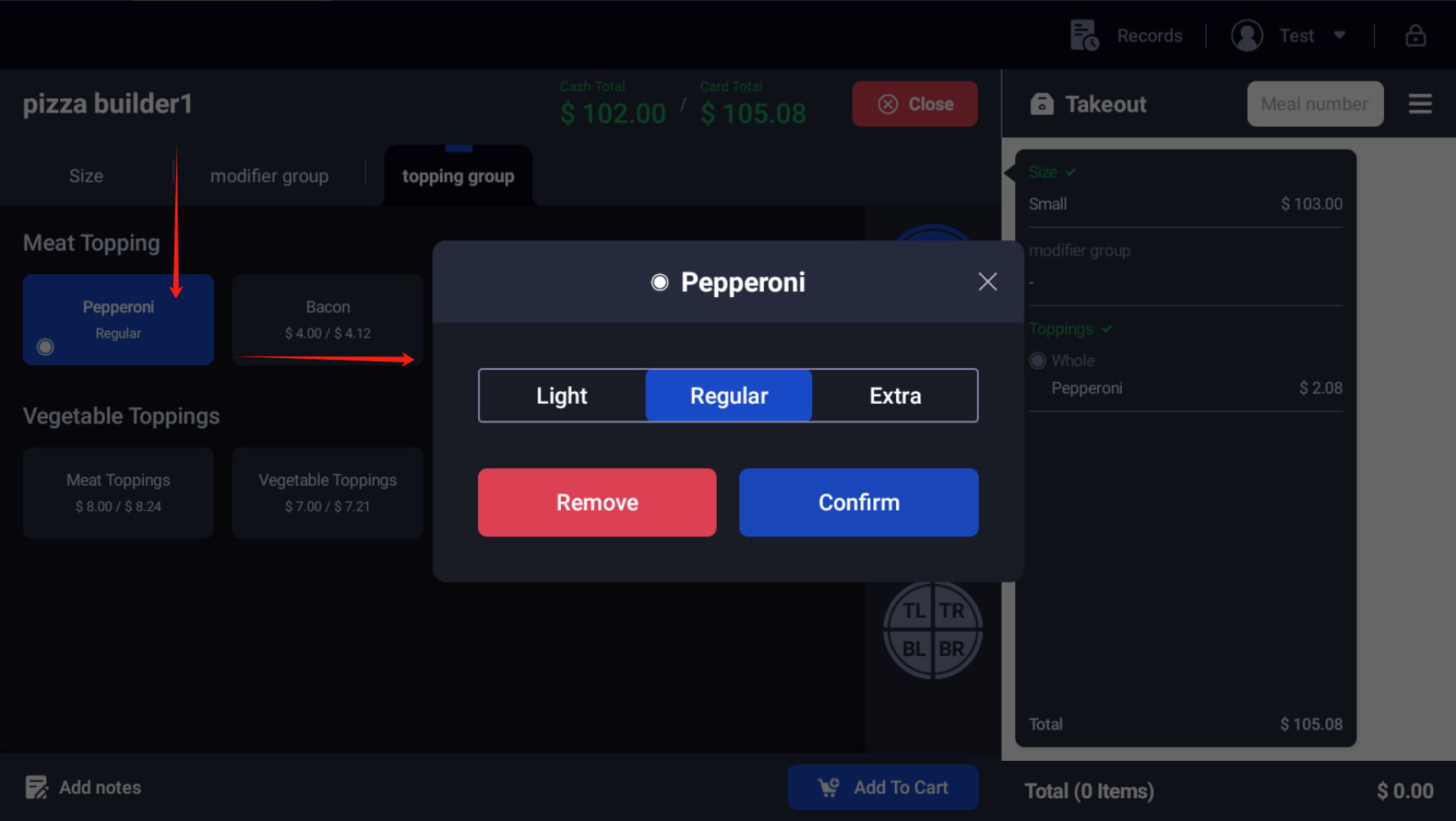
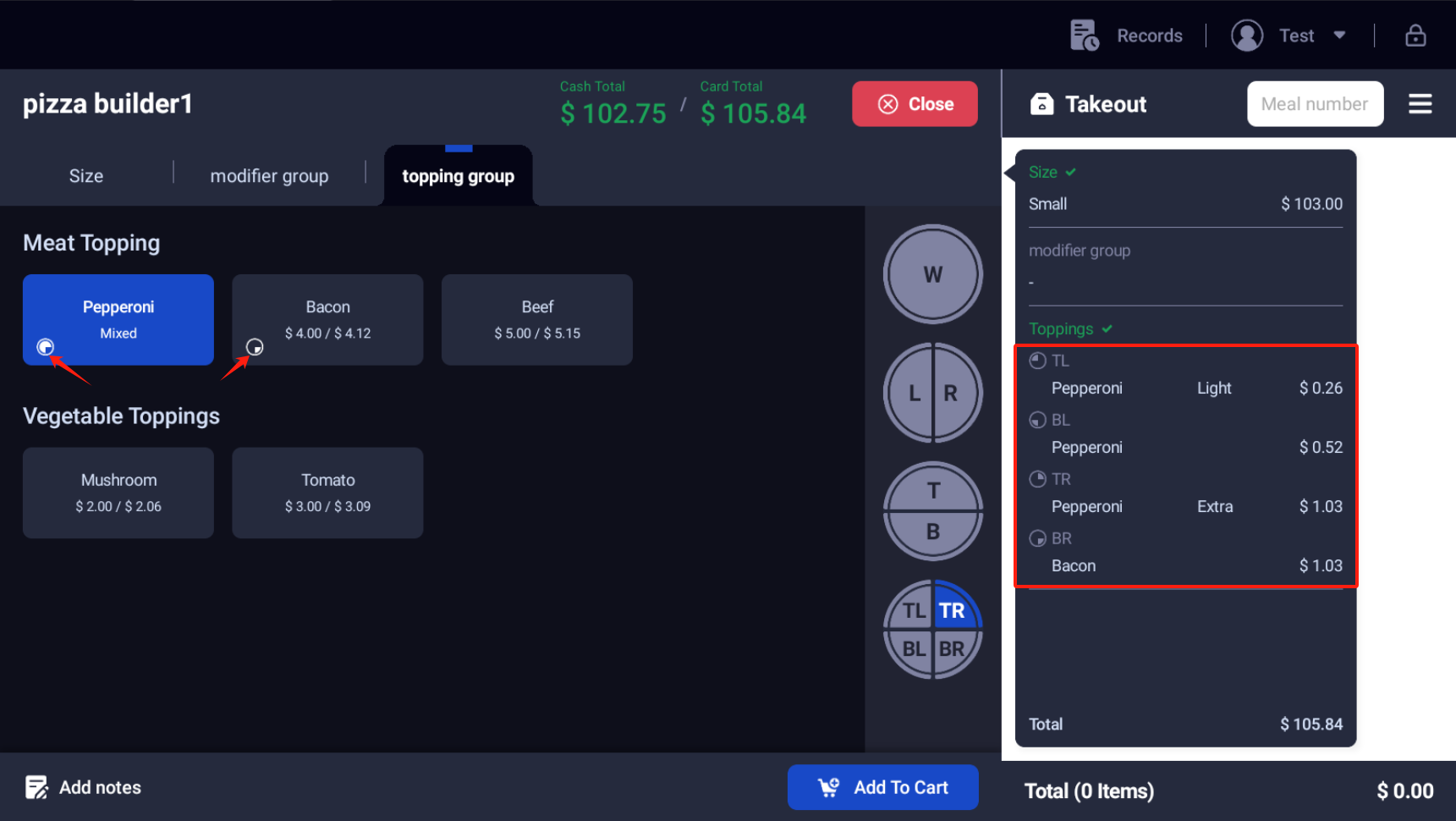
Example using Pepperoni and Bacon (Quarter Zone):
Using Pepperoni (Small, card price $2.06) and Bacon (Small, card price $4.12) on a quarter zone (25%) as an example, with Charge Each Portion Separately pricing:
- TL — Light Pepperoni: $2.06 × 0.25 × 0.5 = $0.26
- TR — Normal Pepperoni: $2.06 × 0.25 × 1 = $0.52
- BL — Extra Pepperoni: $2.06 × 0.25 × 2 = $1.03
- BR — Normal Bacon: $4.12 × 0.25 × 1 = $1.03
5. Set Free Topping Rules (Optional)
If offering promotional free toppings:
- Enable free topping rules
- Set the number of free toppings (N)
- Choose to waive the cheapest or most expensive N toppings
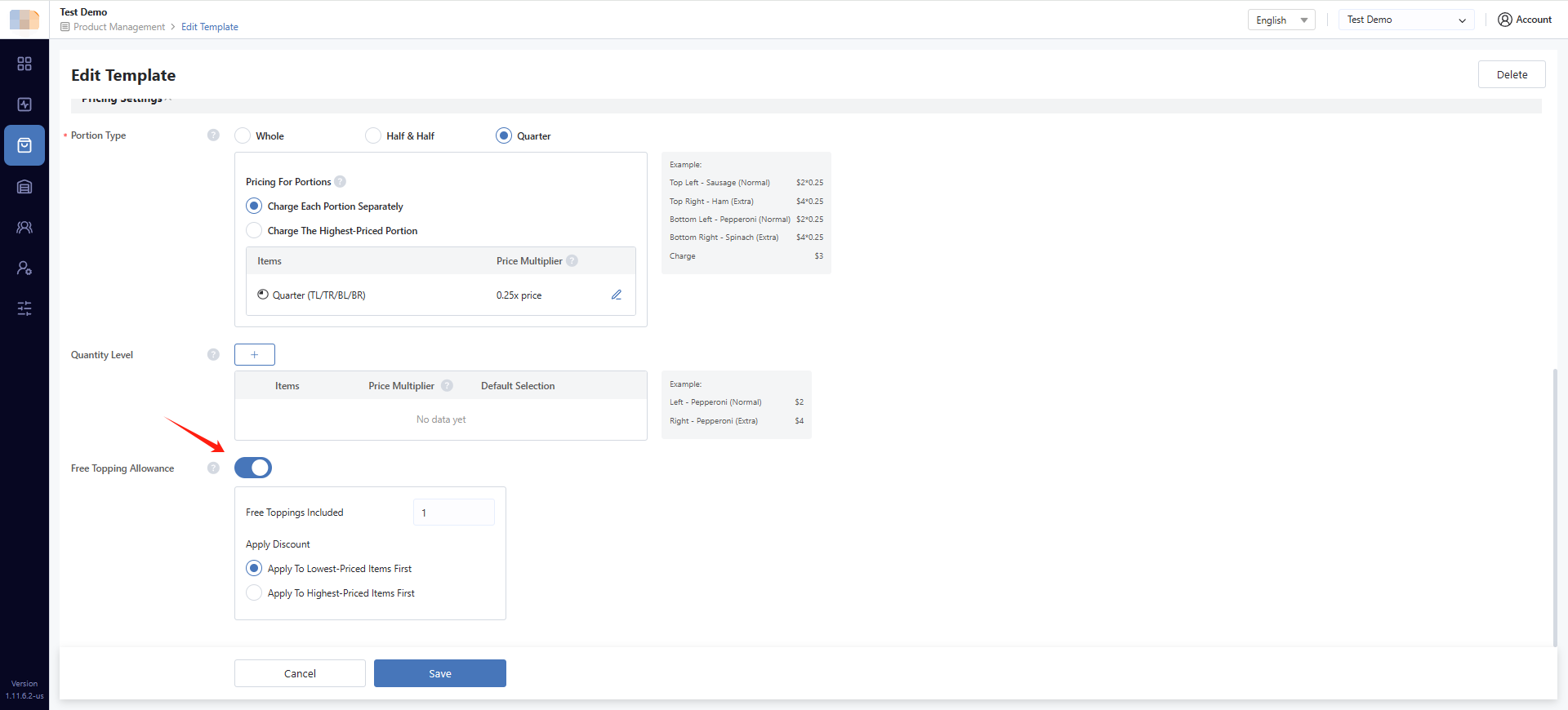
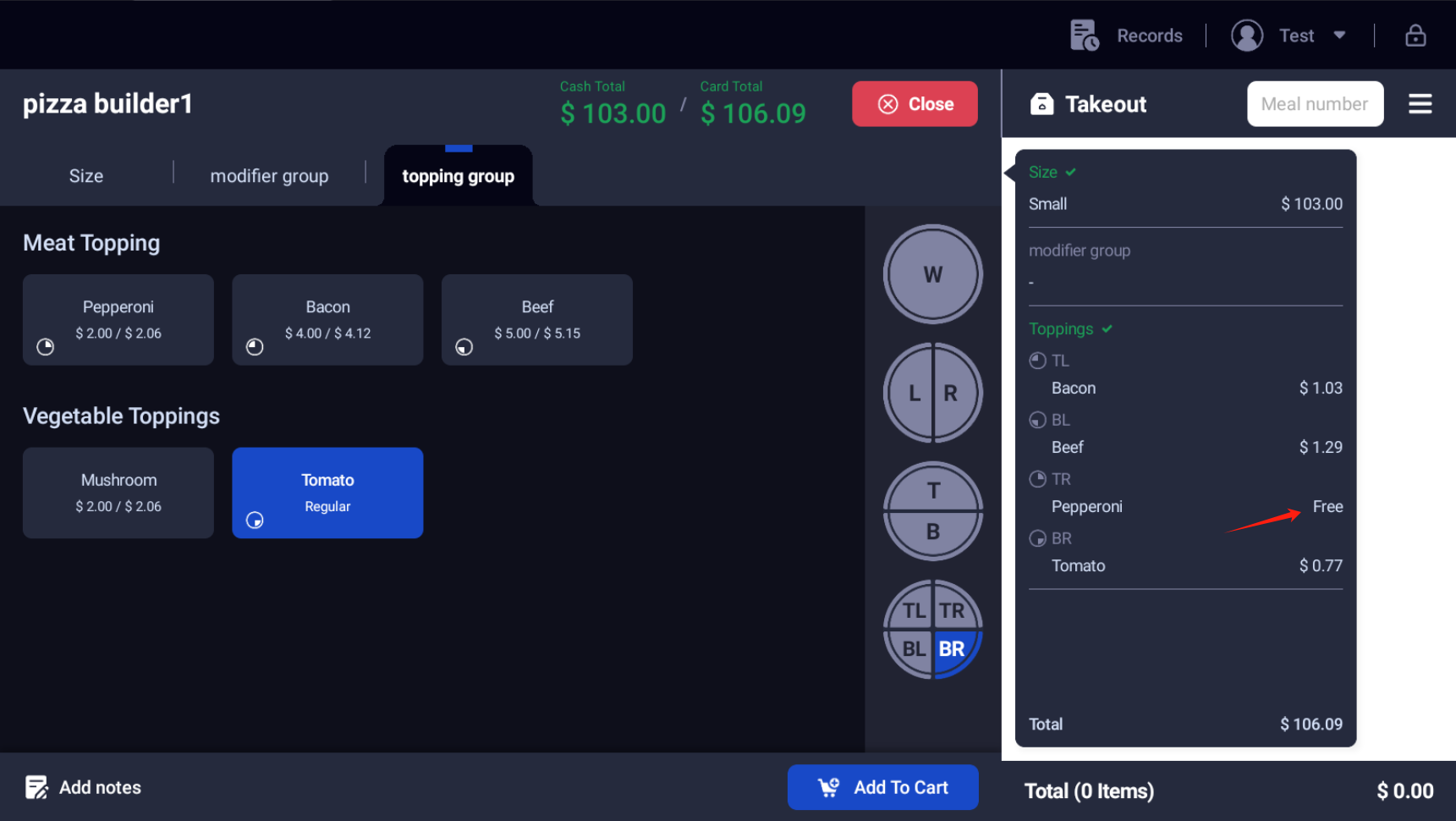
Example using Pepperoni (Quarter Zone):
TR — Normal Pepperoni: $2.06 × 0.25 × 1 = $0.52
Based on the rules set earlier, $0.52 is the lowest of the four prices, so it will be displayed as Free.
6. Set Maximum Topping Limits
Configure maximum toppings per pizza and per topping group to prevent unlimited additions.
Step 5: Create Pizza Product and Apply Template
- Navigate to Menu → Product Management → Items in the Back Office.
- Click on Add New Product.
- Select the Pizza Builder Product Type, create a new pizza product (e.g., "Build Your Own Pizza").
- Select the product category.
- Apply the Pizza Builder Template.
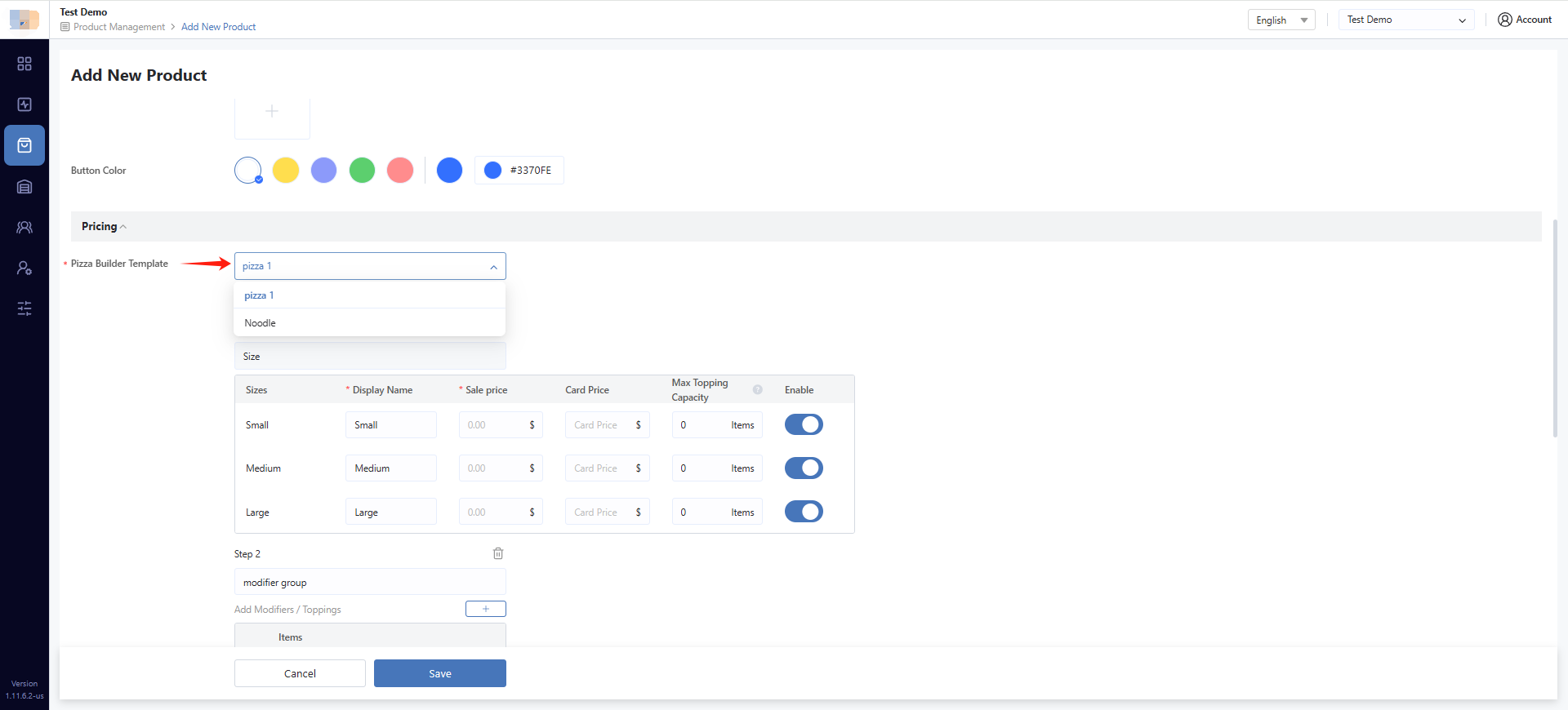
- Set base prices for each size.
- Verify that Modifier/Add-on/Topping steps are correctly imported.
- Save and publish the product.
How Pizza Builder Works
Zone System
Pizza Builder supports the following zones:
| Zone | Meaning |
|---|---|
| Whole | Entire pizza |
| Left | Left half |
| Right | Right half |
| TL / TR / BL / BR | Quarter pizza sections |
Important: The system's minimum storage unit is Half and Quarter. "Whole" is calculated as Left + Right, or as four Quarters. This allows KDS, printing, receipts, and order history to accurately reproduce specific zones.
Pricing Calculations
Calculation order:
- Use the topping price for the selected pizza size.
- Apply the zone portion percentage, if using proportional pricing.
- Apply the quantity multiplier, if the topping is Light, Normal, or Extra.
- Apply free topping rules or highest-half pricing based on the template setting.
Example Setup:
- Size: Small, base price $10
- Modifiers: Thick Crust, Tomato Sauce (no charge)
- Left: Sausage $2, Bacon $4
- Right: Beef $5 with Extra quantity (5 × 2 = 10), Mushroom $2
Scenario 1: No Half-and-Half, No Free Toppings
Final Price = Size Price + All Topping Prices
= 10 + 2 + 4 + (5 × 2) + 2
= $28
Scenario 2: No Half-and-Half, 2 Free Toppings (Most Expensive)
Topping Total = 2 + 4 + 10 + 2 = 18
Free = 10 + 4 = 14
Final Price = 10 + (18 - 14)
= $14
Scenario 3: Half-and-Half with Proportional Pricing, No Free Toppings
Left and Right each 50%:
Left = (2 + 4) × 0.5 = 3
Right = (10 + 2) × 0.5 = 6
Final Price = 10 + 3 + 6
= $19
Scenario 4: Half-and-Half with Proportional Pricing, Free Most Expensive
Left/Right Topping Total (after proportion) = 3 + 6 = 9
Free = (4 + 10) × 0.5 = 7
Final Price = 10 + (9 - 7)
= $12
Scenario 5: Half-and-Half with Highest-Half Pricing, No Free Toppings
Left = 2 + 4 = 6
Right = 10 + 2 = 12
Final Price = 10 + max(6, 12)
= $22
Scenario 6: Half-and-Half with Highest-Half Pricing, Free Most Expensive
Left = 2 + 4 - 4 = 2
Right = 10 + 2 - 10 = 2
Final Price = 10 + max(2, 2)
= $12
Note: When using highest-half pricing with free toppings, if both halves have equal prices after deductions, that equal value is used.
Scenario 7: Quarter Pizza with Proportional Pricing
Each quarter is 25%:
TL = 2 × 0.25 = 0.5
TR = 10 × 0.25 = 2.5
BL = 4 × 0.25 = 1
BR = 2 × 0.25 = 0.5
Final Price = 10 + 0.5 + 2.5 + 1 + 0.5
= $14.50
Managing Your Pizza Builder
Syncing Template Updates to Products
When you update a template, associated products need to be synchronized.
| Template Change | Product Page Prompt |
|---|---|
| New Size added without any associated Toppings | Product page prompts to sync and complete pricing for new size |
| New Size added without completed Topping pricing | Product page should not prompt for sync directly |
| New Size added with completed Topping pricing | Product page shows prompt to review and sync |
Sync Process:
- The system will list affected Toppings (all selected by default).
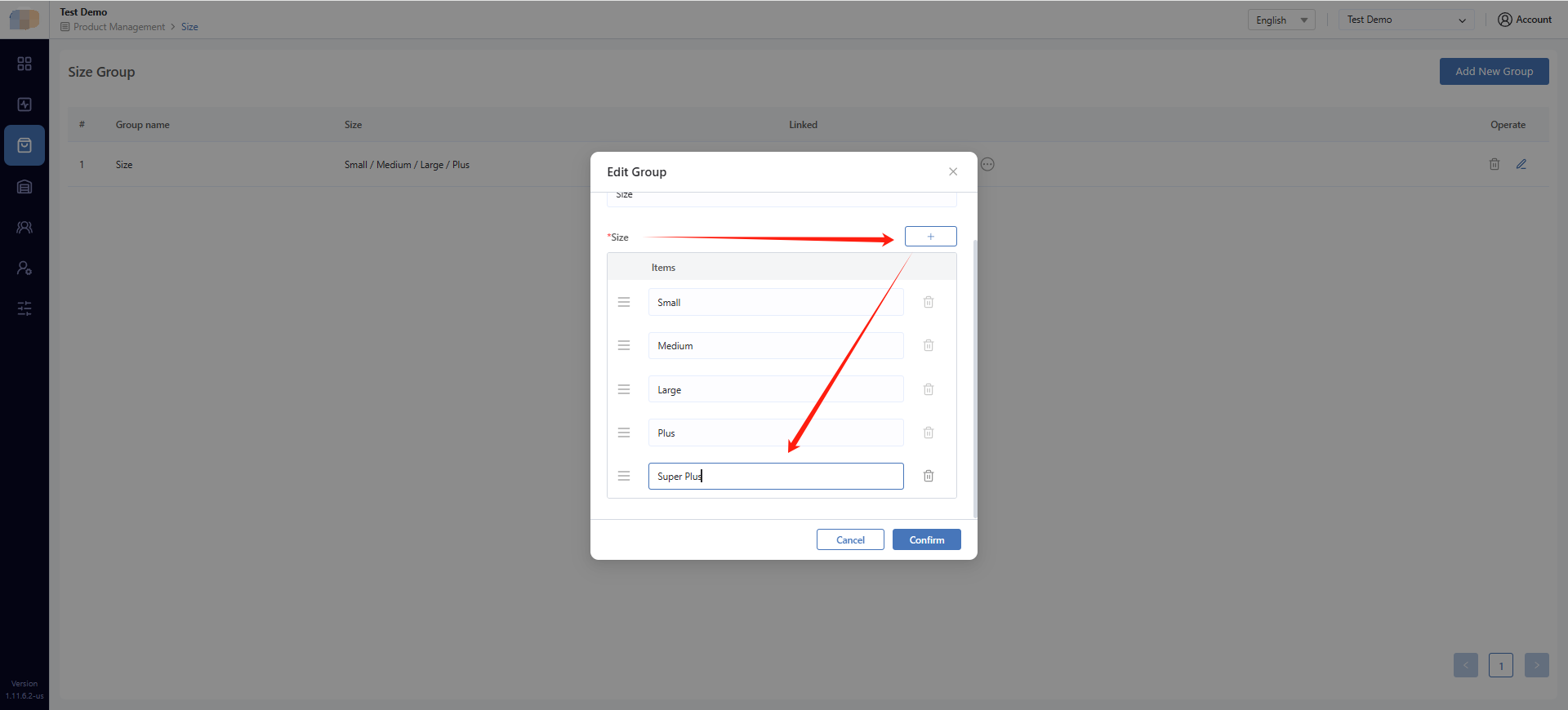
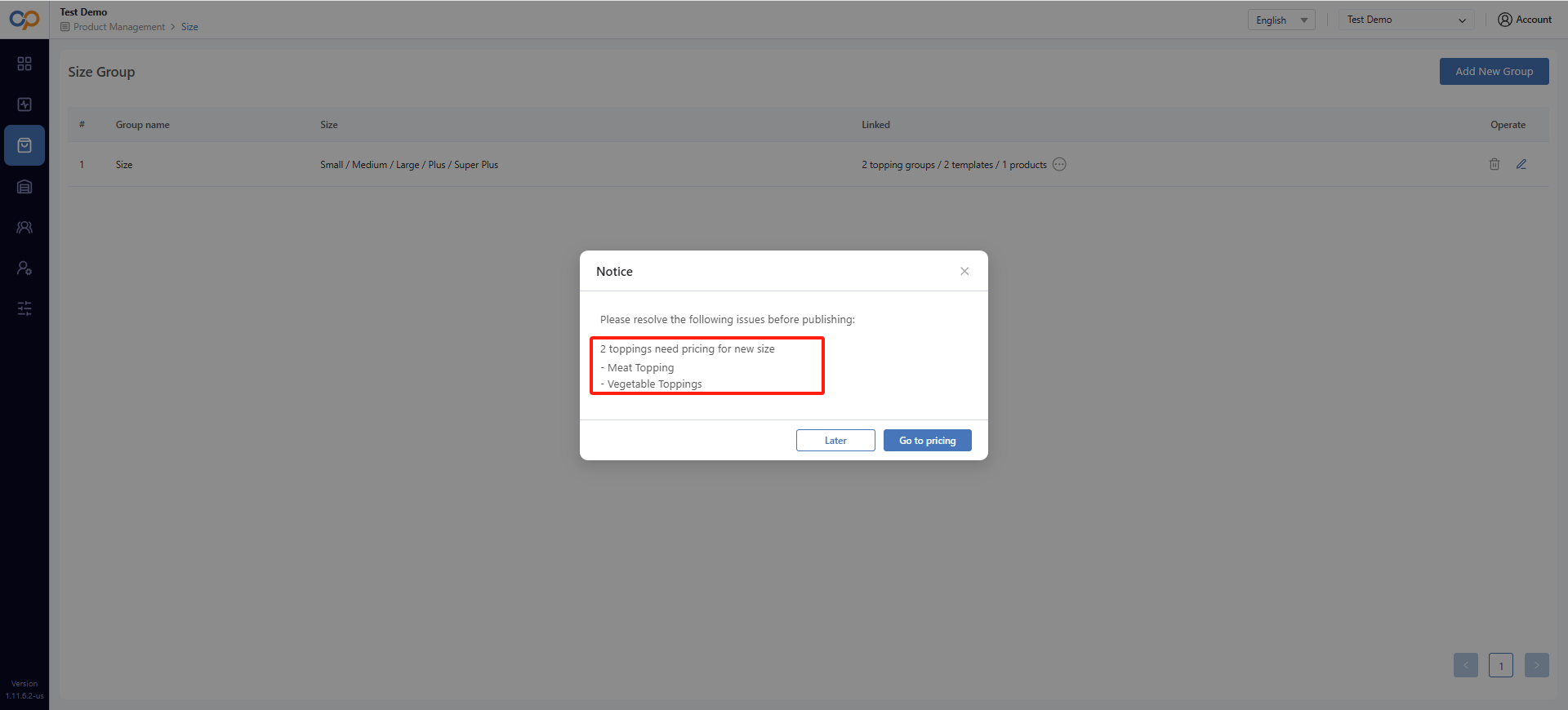
- Choose which Toppings should apply the new size and modify the prices as needed.
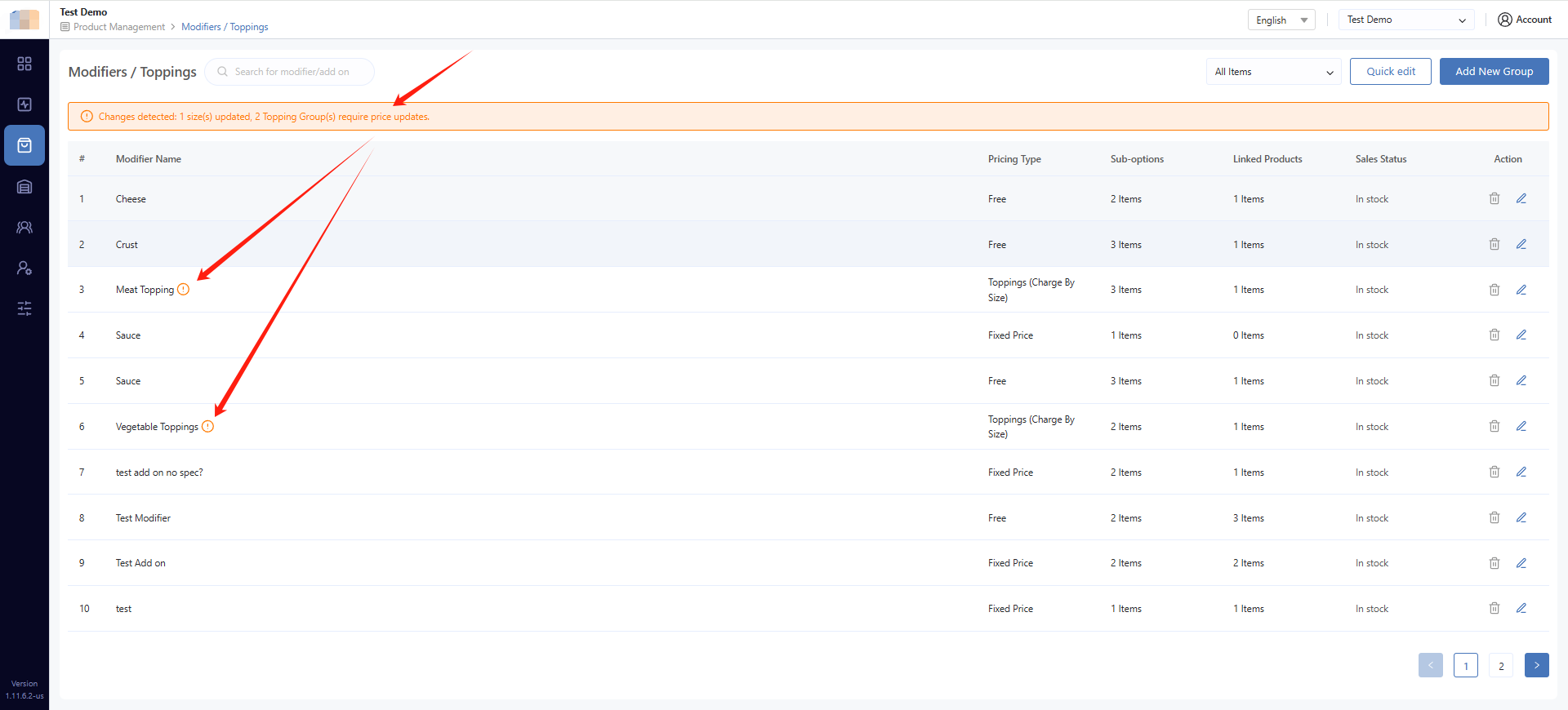
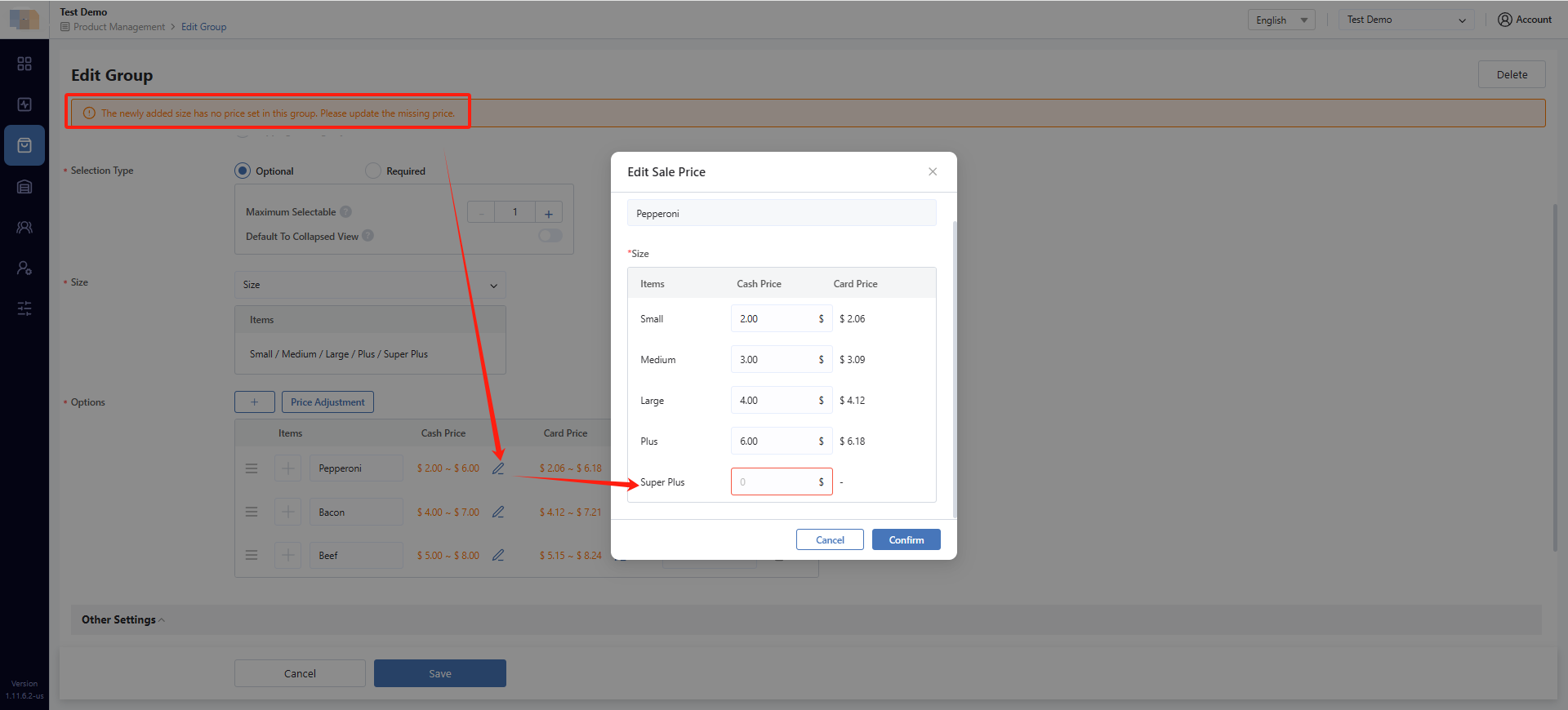
- After completing Topping prices for the new size, you can update the associated template to support the new size by going to Edit Template and syncing the changes.
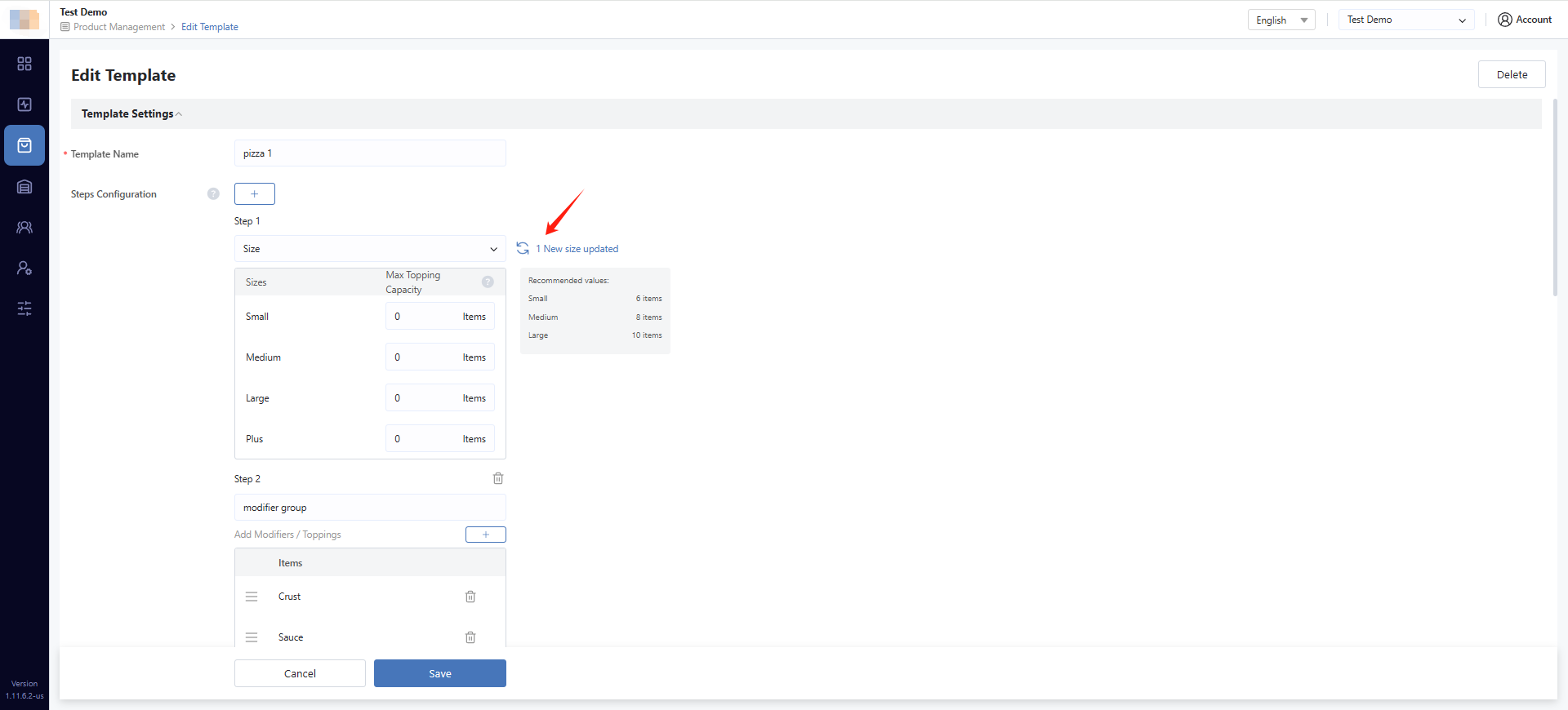
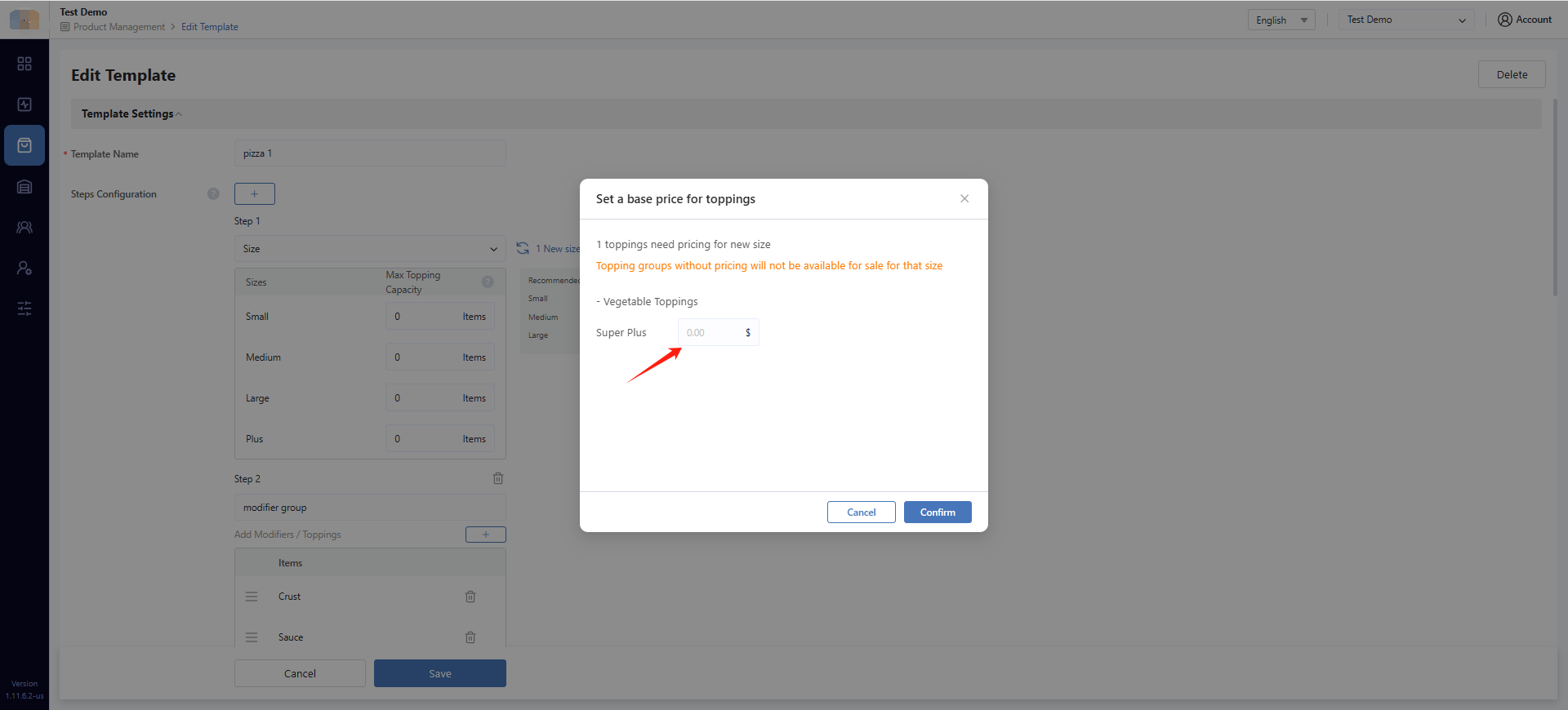
- After modifying the template, navigate to Menu → Product Management → Items in the Back Office, find each associated product and manually reload the template to apply the changes.
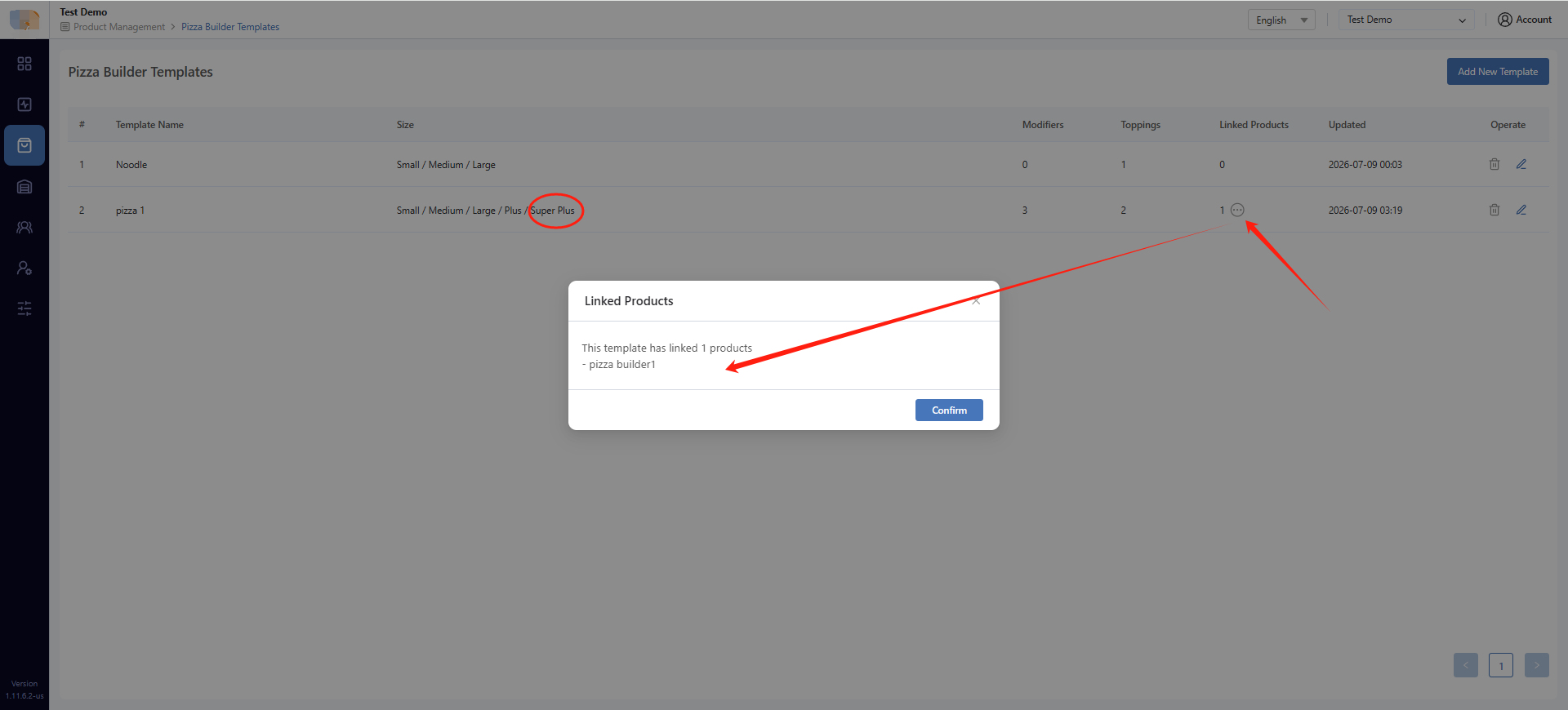
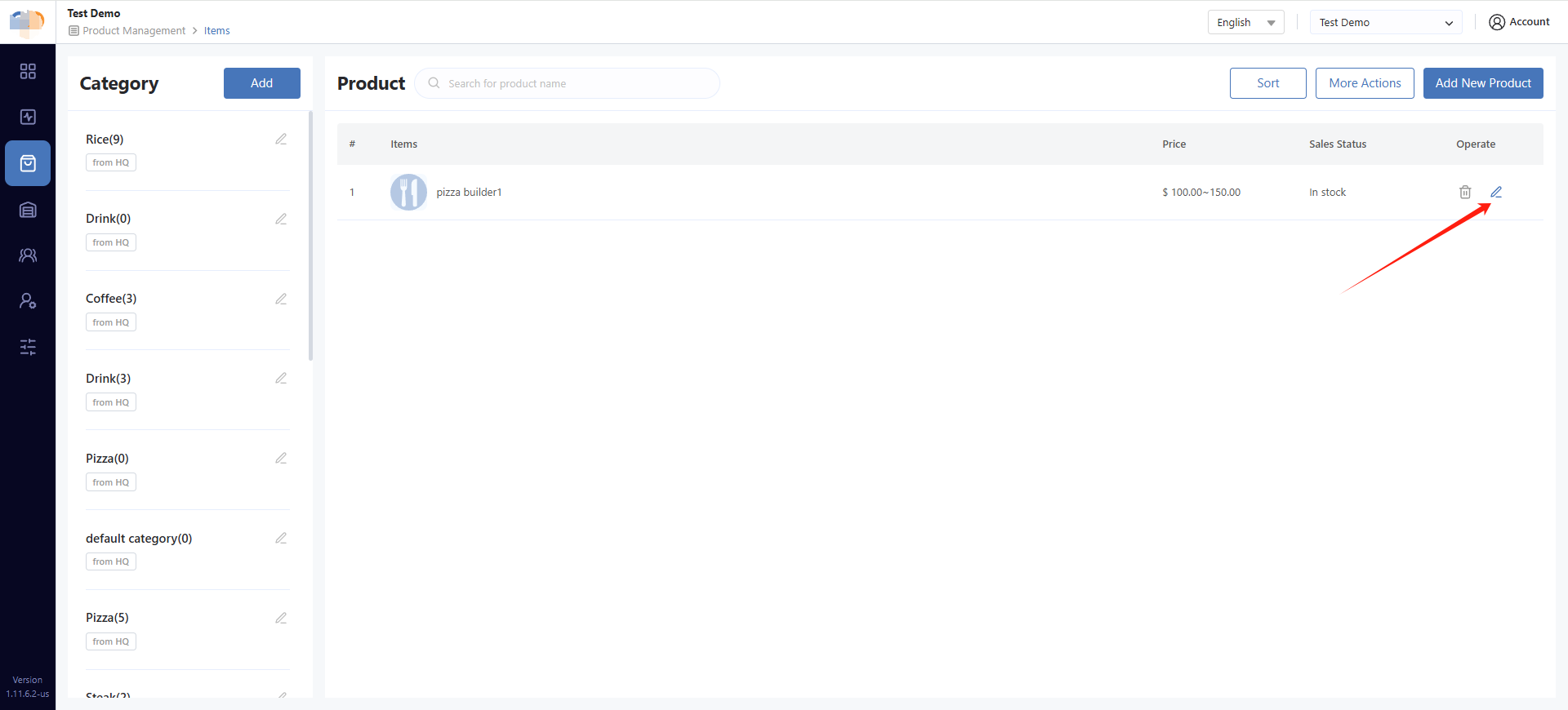
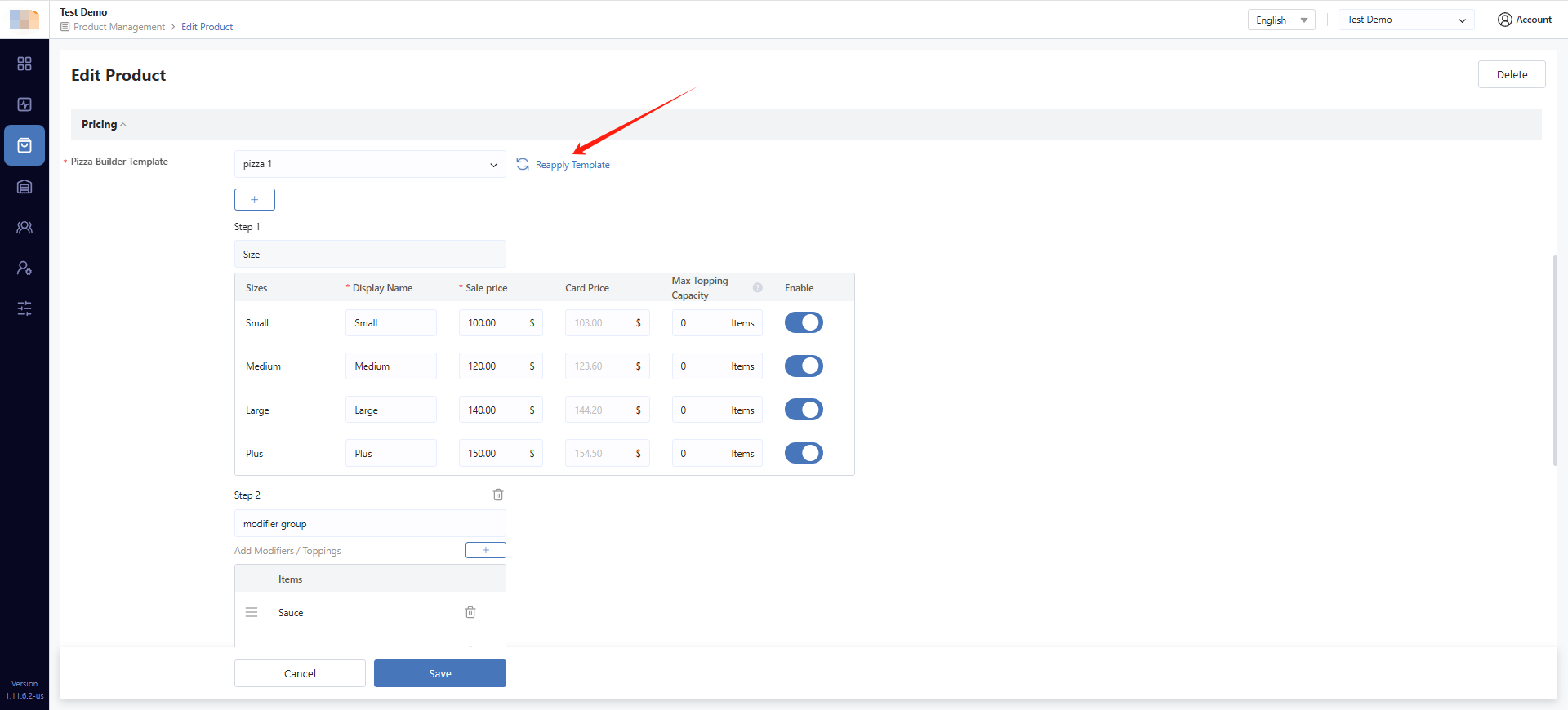
Complete price of this new size for this product.
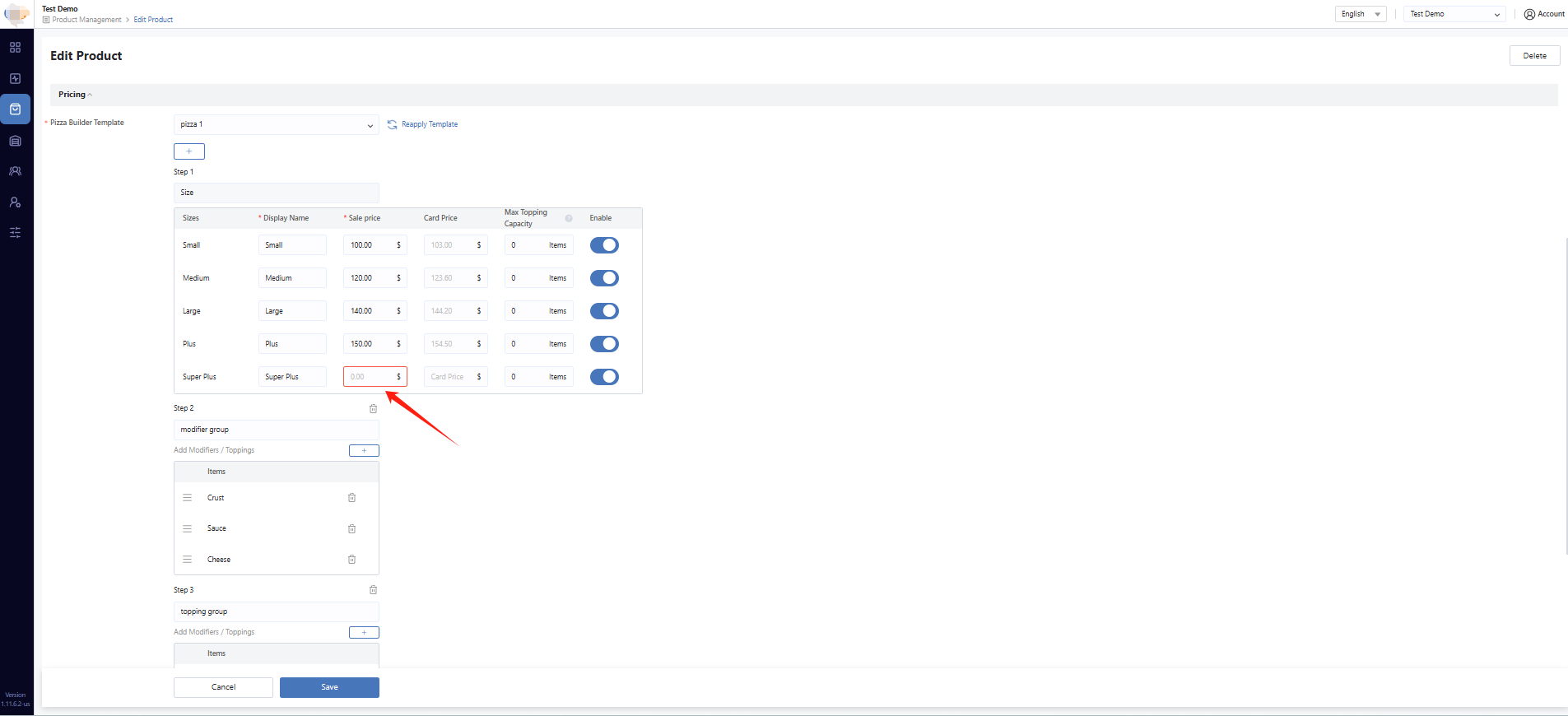
Important: Sizes without completed pricing will not be displayed to customers.
Order Flow (POS / Online Ordering)
When customers or cashiers order a pizza:
- Select the pizza product
- Choose the size
- Select base Modifiers/Add-ons (e.g., crust, sauce)
- Select topping zone: Whole, Left, Right, or Quarter
- Select toppings
- Choose quantity (Light, Normal, Extra)
- Review the price
- Add to cart
Note: When an order is submitted, the system saves an order snapshot recording the selected Size, Modifier, Topping, zone, quantity, price, and notes at that time. Even if templates or prices change later, historical orders, refunds, receipt reprints, KDS, and CDS will use the original order details.
Print, KDS, CDS, and Receipt Display
Pizza Builder orders display the following information:
- Pizza name
- Size
- Modifier/Add-on selections
- Topping names
- Topping zone (Whole / Left / Right / TL, etc.)
- Quantity (e.g., Extra)
- Special instructions
Recommended Display Format:
Build Your Own Pizza - Smal
  + Thick Crust
  + Tomato Sauce
  + Left
    L Sausage, Bacon
  + Right
    L Extra Beef
    L Mushroom
⚠️ Warning: After upgrading to version 4.4.7, you must reset or update print templates. Otherwise, Pizza Builder details may not display correctly.
Troubleshooting Common Issues
Issue: Why do I need to create a template first instead of configuring directly in the product?
- Solution: Pizza Builder rules are complex, including sizes, toppings, zones, quantities, free rules, and pricing methods. Templates can be reused across multiple pizza products, reducing repetitive configuration work.
Issue: Does Kiosk support Pizza Builder?
- Solution: The current version 4.4.7 does not support Kiosk. Support is planned for a future release.
Issue: Will modifying a template change historical order prices?
- Solution: No. Pizza Builder saves an order snapshot at the time of ordering. Historical orders, refunds, receipt reprints, KDS, and CDS all use the order details from the time of purchase.
Issue: Why is a new Size not showing to customers?
- Solution: This usually means the Size has not completed product pricing or Topping pricing configuration. Sizes without completed pricing will not be displayed to customers.
Issue: How are Whole toppings calculated when using highest-half pricing?
- Solution: The system splits Whole toppings back into Left and Right sides for comparison. Whole toppings are counted in both Left and Right calculations before determining which side has the higher price.
Issue: Maximum topping limit is preventing additions
- Solution: This is by design. Configure your maximum topping limits in the template settings. You can adjust:
- Overall maximum toppings per pizza
- Maximum toppings per topping group
Issue: Print/receipt not showing Pizza Builder details correctly
- Solution: After upgrading to version 4.4.7, reset or update your print templates to ensure Pizza Builder details display properly.
Conclusion
Pizza Builder provides pizza shops with a powerful and flexible way to offer customizable pizzas while maintaining consistent pricing rules across all sales channels. By using the template-based approach, you can efficiently manage complex pizza configurations and apply them across multiple products.
For additional assistance with Pizza Builder setup or troubleshooting, please contact the software provider for support.