Deliverect Integration
Deliverect Integration
Deliverect is a food delivery aggregation platform that connects multiple third-party delivery services, such as Uber Eats, DoorDash, and Grubhub, to your restaurant's POS system.
With Deliverect integration, you can manage orders from connected delivery platforms in one centralized location, reduce manual entry, and avoid switching between multiple delivery tablets.
Before You Start
Before setting up Deliverect, make sure the following requirements are ready:
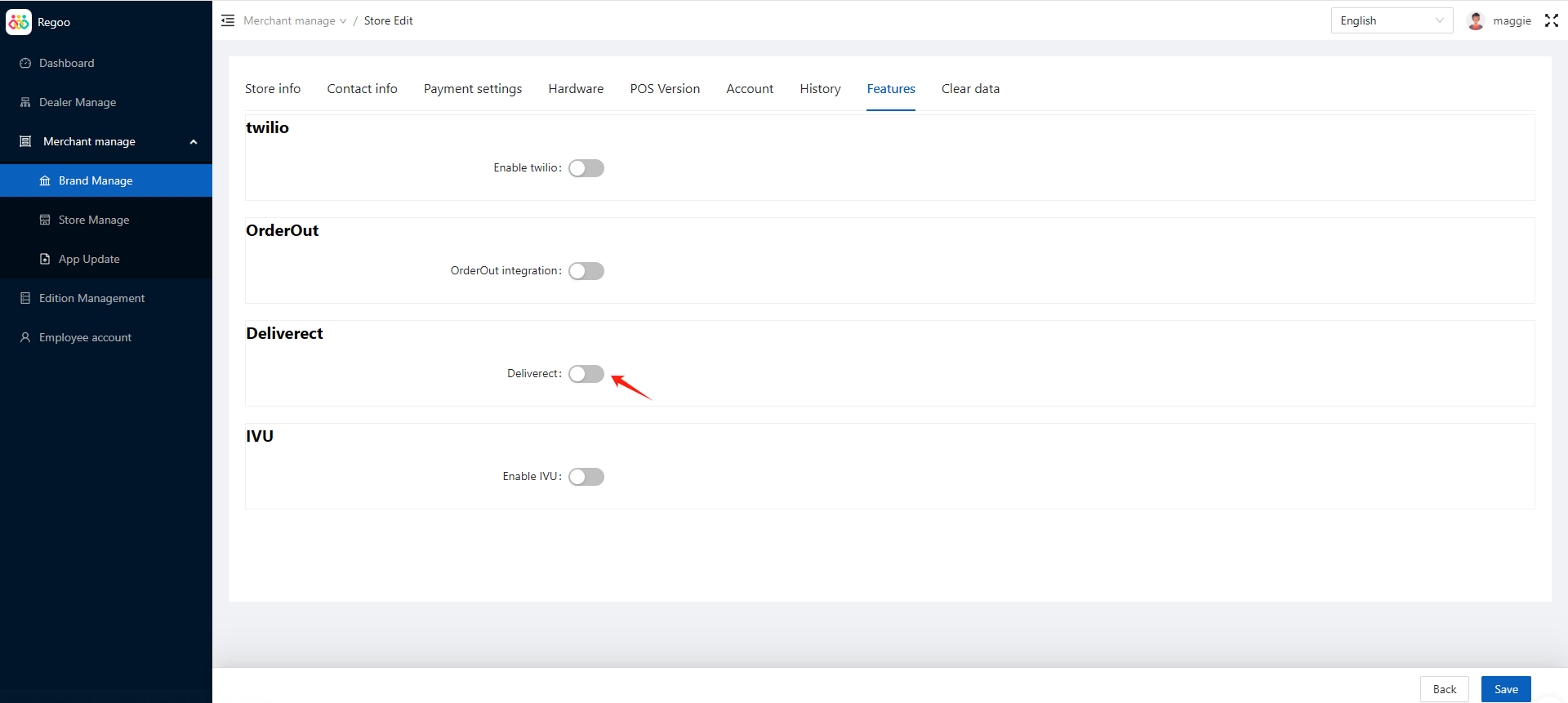
- Deliverect has been enabled for your OrderPin account by your software service provider.
- You have access to OrderPin Backoffice with permission to edit store settings.
- You have received the Client ID and Client Secret from Deliverect.
- Your OrderPin POS tablet is running version 4.4.5 or above.
- OrderOut is disabled if you plan to use Deliverect.
Important: Deliverect and OrderOut cannot be enabled at the same time
Deliverect and OrderOut are mutually exclusive delivery aggregation options. You can only enable one of them at a time.
If OrderOut is currently enabled and you want to switch to Deliverect, disable OrderOut first, then enable Deliverect.
How to Set Up Deliverect
Step 1: Enable Deliverect in Backoffice
- Log in to Backoffice.
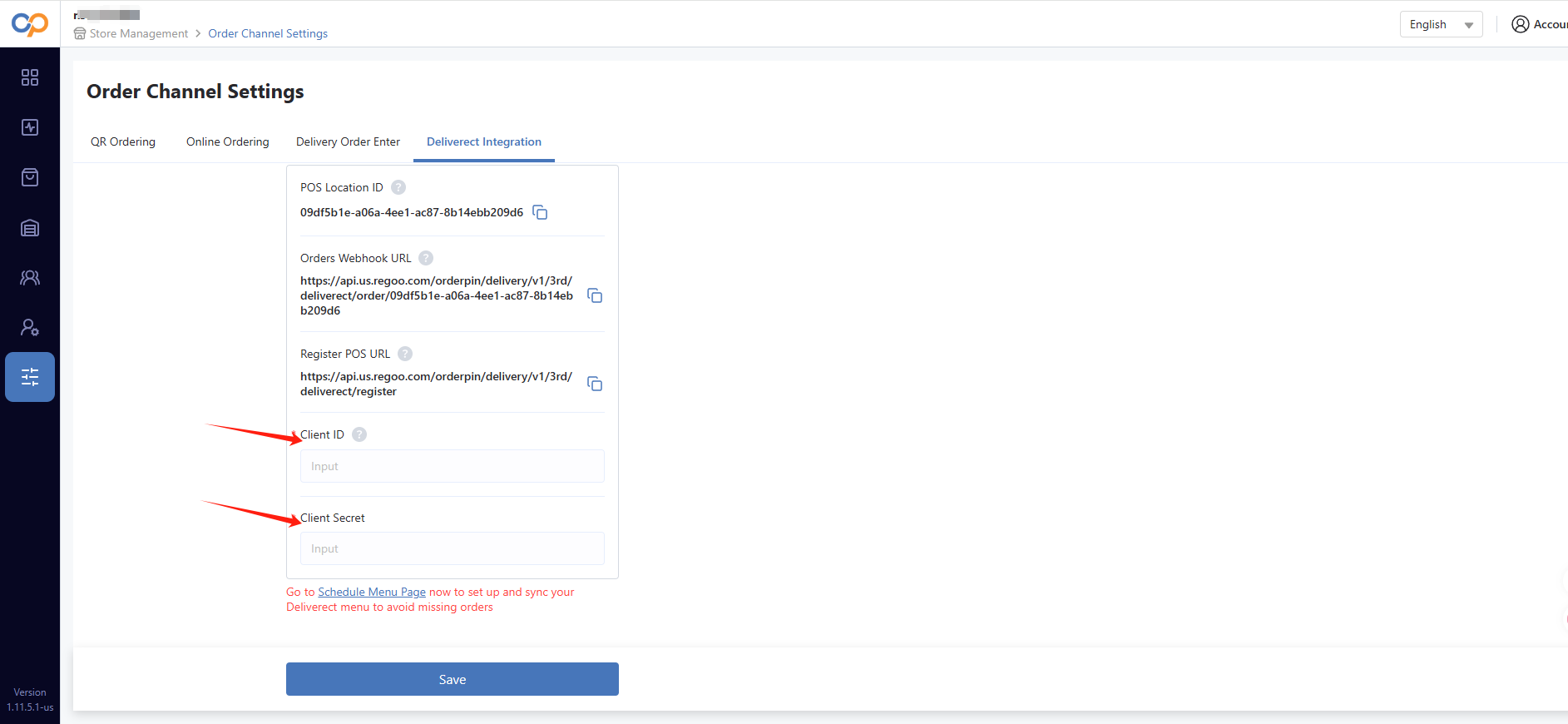
- Go to Settings > Store Management > Order Channel Settings.
- Select Deliverect Integration.
- Turn on the Deliverect switch.
Step 2: Enter Deliverect Credentials
After Deliverect is enabled, enter the API credentials provided by Deliverect:
- Client ID: Enter the Client ID provided by Deliverect.
- Client Secret: Enter the Client Secret provided by Deliverect.
If you do not have these credentials, contact your Deliverect account manager or Deliverect support.
Step 3: Save and Verify the Connection
- Click Save.
- The system will verify the connection using the Client ID and Client Secret.
- When the credentials are valid, the system will show a successful connection confirmation.
If the connection fails, check whether the Client ID and Client Secret were entered correctly. If the credentials are correct but the connection still fails, contact your POS software provider or Deliverect account manager.
How to Sync Your Menu
After Deliverect is connected successfully, sync your menu so that menu items can be sent to Deliverect and then distributed to connected delivery platforms.
Menu Sync Limitations
The following item types are not supported in Deliverect menu sync and will be excluded:
| Unsupported item type | Description |
|---|---|
| Open Price Items | Items with variable or custom pricing |
| Weight-Based Items | Items priced by weight |
| Combos | Combo or bundle items |
If your restaurant uses these item types, adjust the menu structure before syncing to Deliverect.
Sync the Deliverect Menu
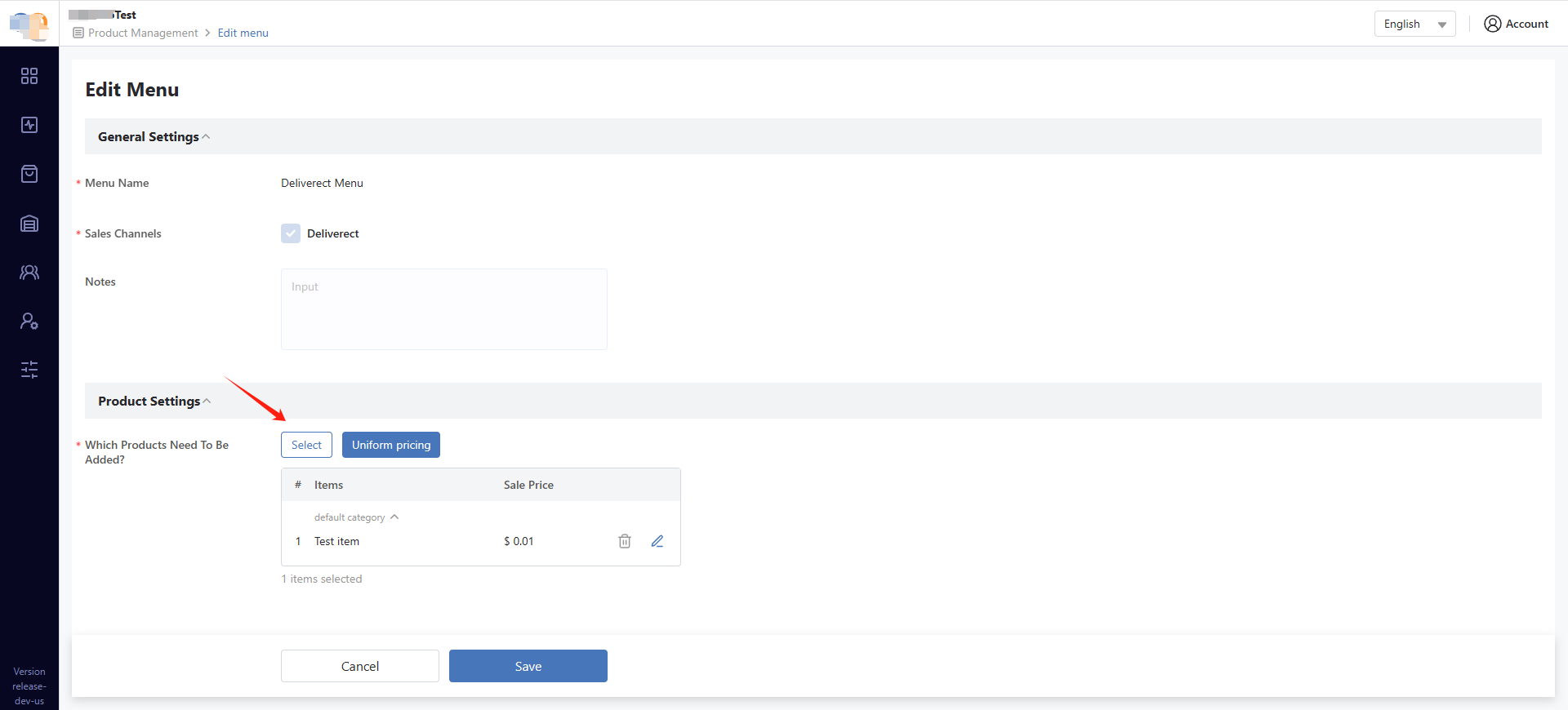
- Go to Menu > Product Management > Schedule Menu.
- Select Deliverect Menu.
- Click the Edit icon to edit the Deliverect menu.
- Select products by category or by product. Modifiers and add-ons will be included.
- Confirm the fixed-price items that should be available for delivery.
- Click Sync Menu.
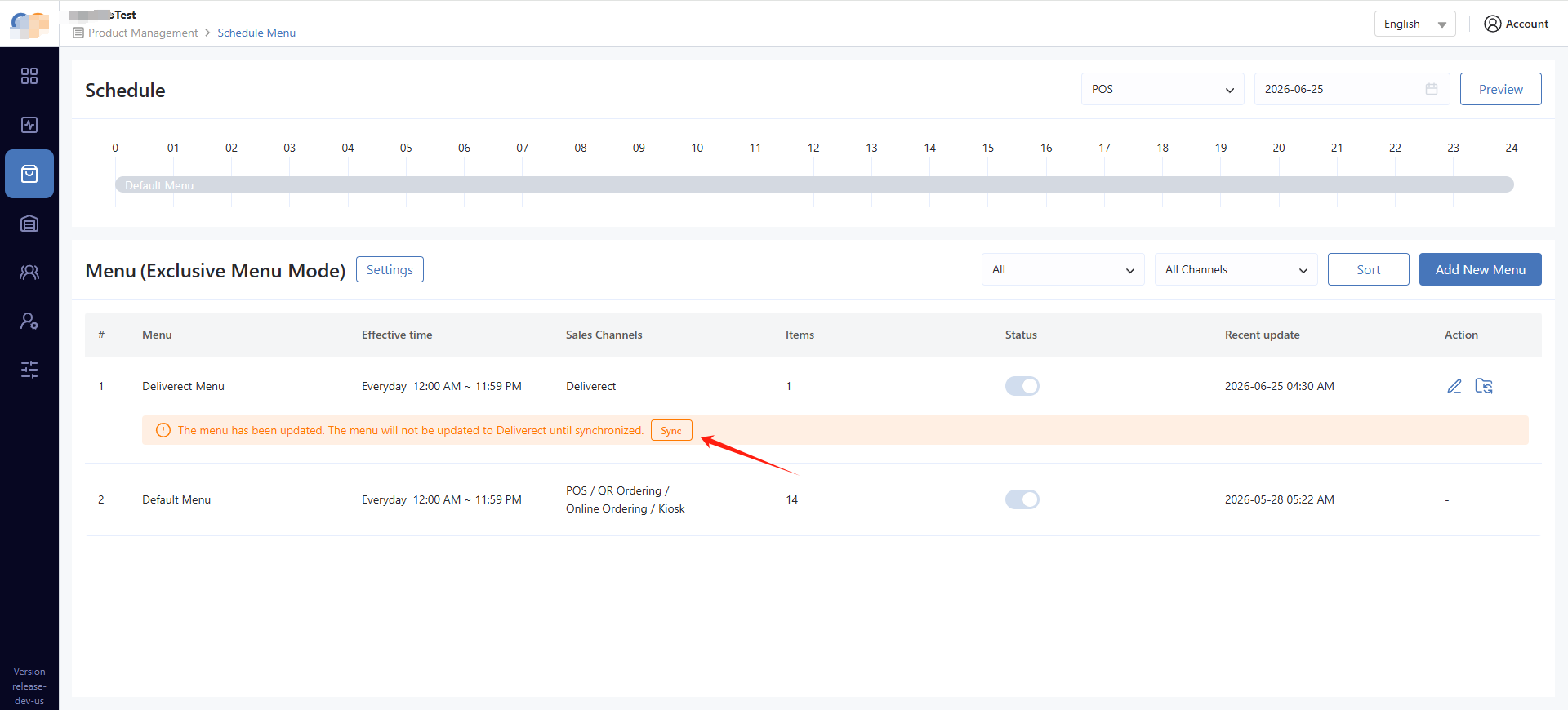
- Wait for the synchronization to complete. This may take a few minutes depending on the menu size.
- When the sync is complete, the system will show a successful menu sync confirmation.
Sync the menu again whenever you make major changes to products, prices, modifiers, add-ons, or availability.
How to Verify Order Receiving
To confirm that Deliverect is working correctly, place a test order from a Deliverect-connected delivery platform or wait for a live order.
What Happens When an Order Is Received
- When a customer places an order through a Deliverect-connected platform, OrderPin POS receives the order notification.
- The order appears in Order Center under the corresponding delivery platform tab, such as Uber Eats.
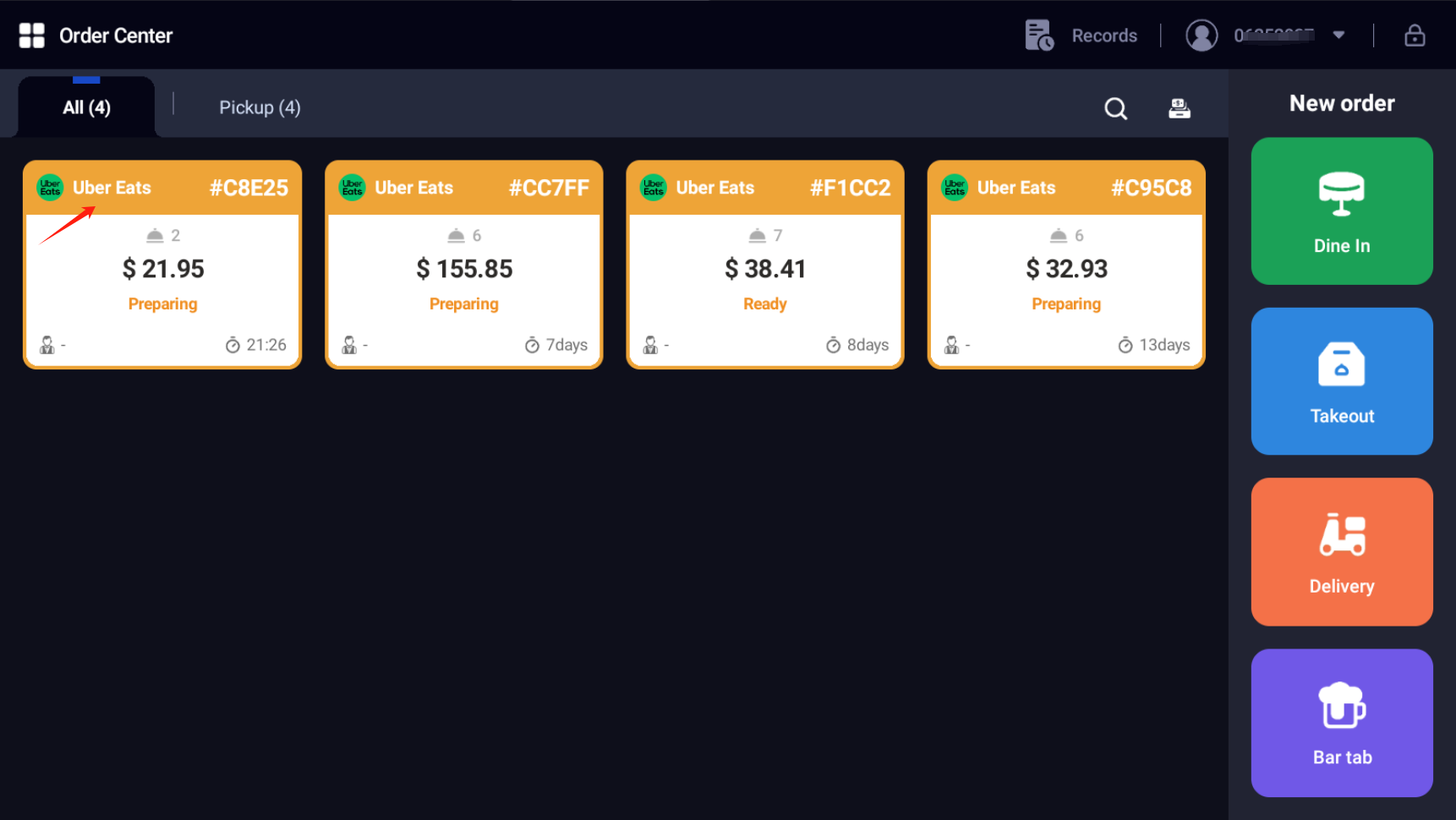
When the order appears in Order Center, it confirms that the Deliverect connection is receiving orders successfully. The order will then be sent to the kitchen display system (KDS) or printer based on your store settings.
Check the Order Details
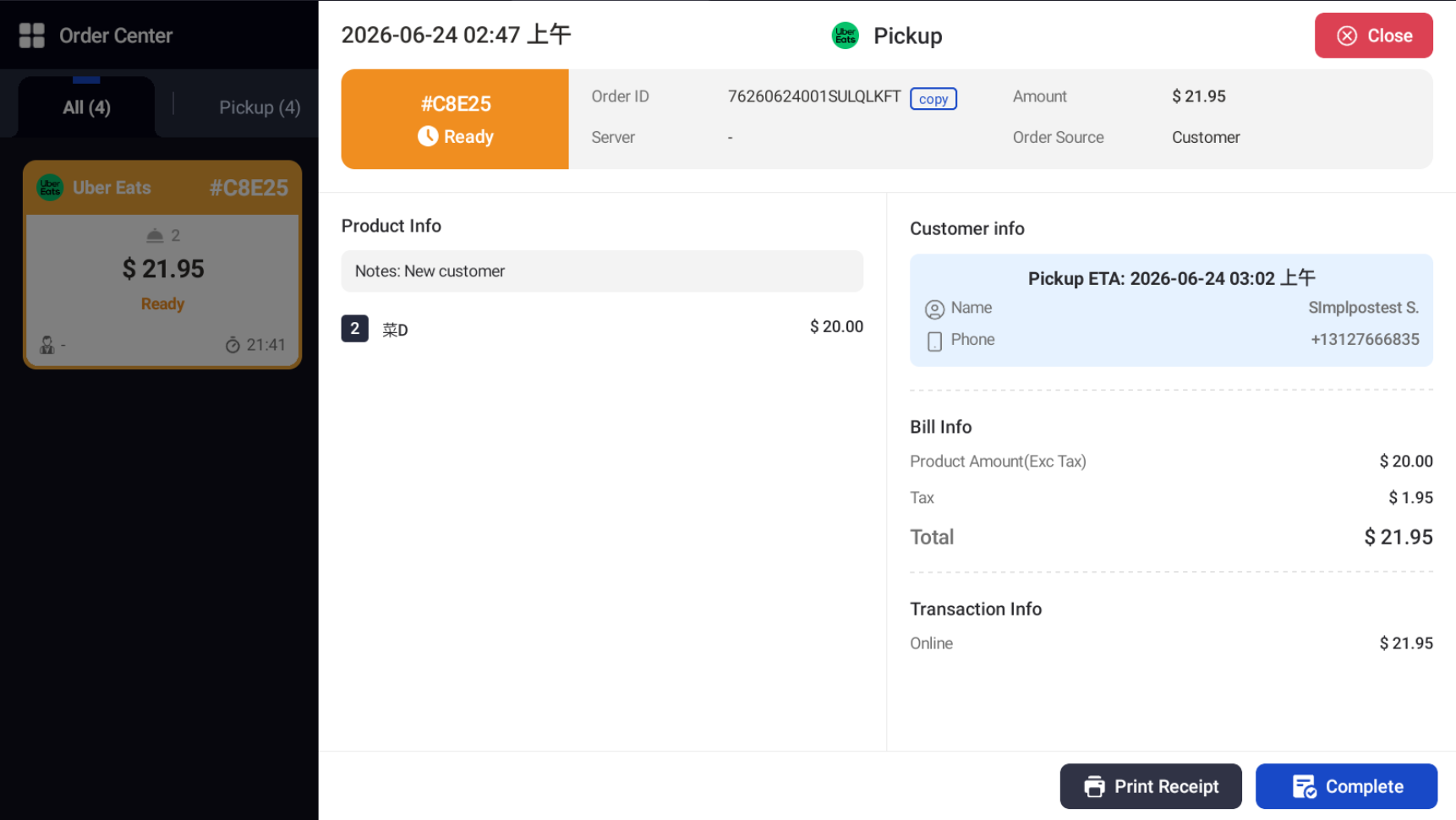
Open the order and confirm that the following information is correct:
- Customer name
- Estimated delivery or pickup time
- Ordered items, quantities, modifiers, and add-ons
- Order total and payment status
- Delivery platform source, such as Uber Eats or DoorDash
Disable Deliverect
If you need to disable Deliverect for a store:
- Go to Settings > Store Management > Order Channel Settings > Deliverect Integration.
- Turn off the Deliverect switch.
- Confirm the action when prompted.
Troubleshooting
| Issue | Possible Cause | What to Check |
|---|---|---|
| Unable to connect Deliverect | The Client ID or Client Secret is incorrect | Re-enter the credentials and save again |
| Menu is not syncing | Deliverect connection is inactive | Check whether Deliverect is enabled and connected |
| Some menu items are missing after sync | The items are not supported by Deliverect menu sync | Check whether the missing items are open price items, weight-based items, or combos |
| Orders are not appearing in POS | Tablet version is too low or the connection is not active | Confirm the tablet is on version 4.4.5 or above and Deliverect is connected |
| Order details look incorrect | Menu or modifier information may not be up to date | Sync the Deliverect menu again and place another test order |
If the issue is still not resolved, contact your POS software provider or your Deliverect account manager for additional support.