
Combo
What is a Combo Product?
A combo product is a special product type that bundles multiple individual items together and sells them as a single unit. With the combo feature, merchants can flexibly create various product bundles to meet different ordering scenarios — from promotional lunch deals to value meal packages — helping increase average order value and drive revenue.
Important Notes Before Creating Combos
Item type Limitations
The following item types are excluded from combo selection:
| Unsupported item type | Description |
|---|---|
| Open Price Items | Items with variable or custom pricing |
| Weight-Based Items | Items priced by weight |
If your restaurant uses these item types, adjust the item before editing the combo.
Supported Platforms
| Module | Support Status |
|---|---|
| Back Office | Configuration required |
| Tablet POS | Supported |
| Online Ordering | Supported |
| Kiosk | Supported |
| Mobile Phone | not Supported |
| KDS / CDS | Supported |
Tax Handling for Combos
The combo's tax settings take priority over individual product tax settings:
- If the combo is set as Tax-Free: The entire combo is tax-free, even if individual products inside are normally taxable
- If the combo is set as Taxable: The entire combo is taxable, even if individual products inside are normally tax-free
- If the combo is linked to a specific Tax Type: Only that tax type is applied to the combo, regardless of what tax types the individual products have
Important: Always configure your tax types first before assigning them to combos.
How to Create a Combo Product
Step 1: Access the Combo Creation Interface
- Log in to your OrderPin Backoffice with your credentials
- Navigate to Menu → Product Management → Items, click on Add New Product
- Select the Combo Product Type.
Step 2: Configure Combo Groups
After entering the combo creation interface, you will need to set up groups:
- Add groups for the combo product (up to 10 groups supported)
- You can create either fixed combos where the product combination is predetermined, or customizable combos where customers can freely choose or swap items within preset options here.
- Fixed Items — The products in this group are locked; customers cannot change them
- Optional Items — Customers can choose from available options within this group
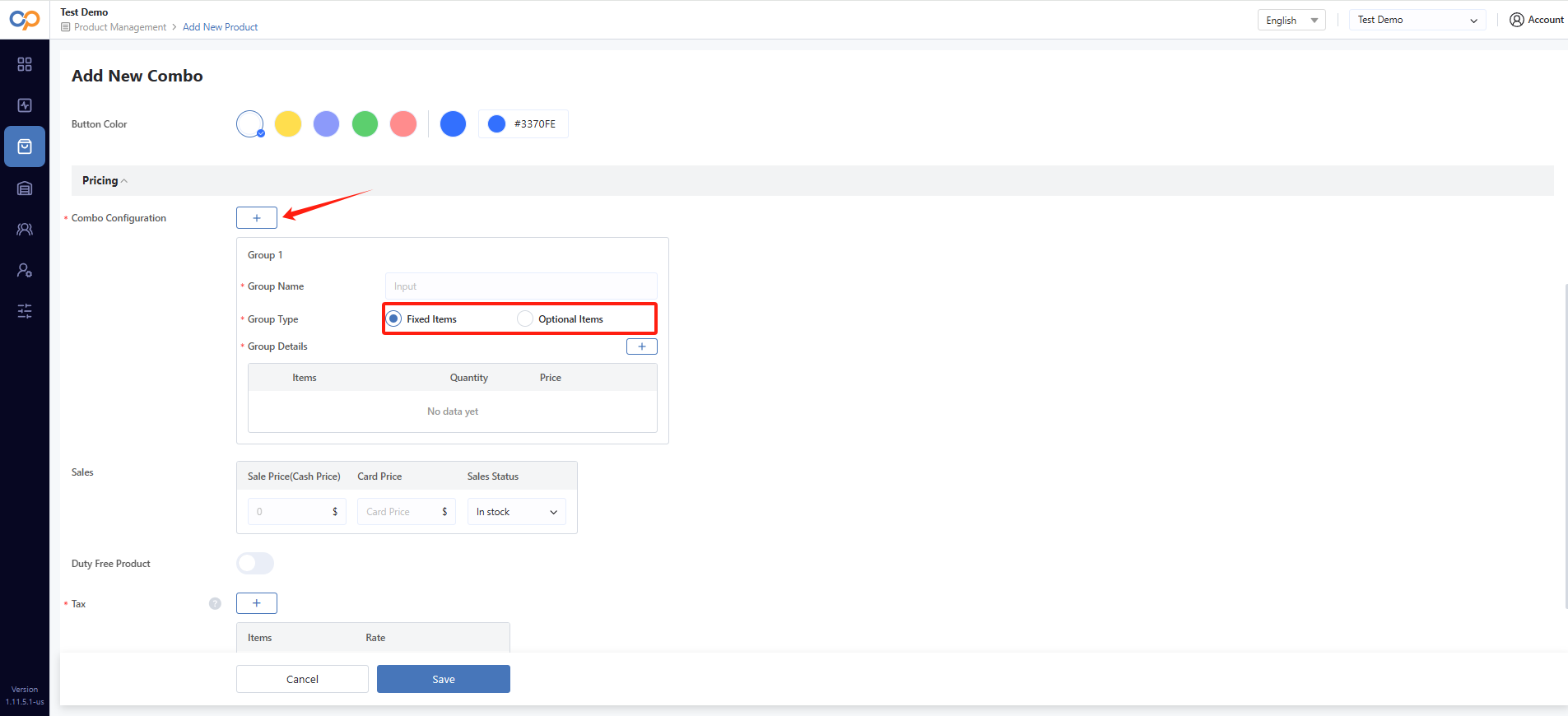
- Select the products for each group.
When a product is selected as part of the combo, its corresponding modifiers and add-ons are automatically included — no need to select them separately
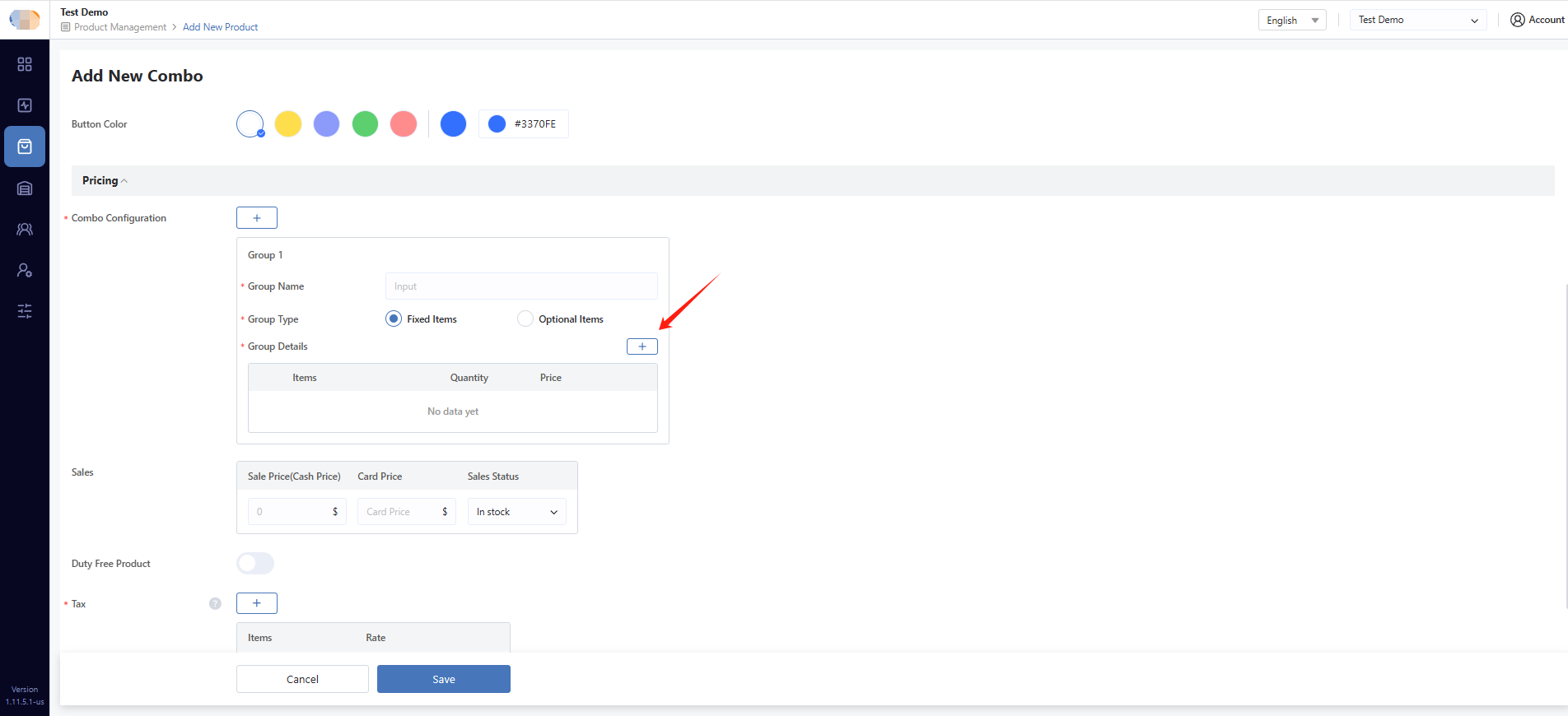
- Click Confirm to save your selections
- You can adjust the display order of both groups and products within groups. This order determines how customers see the options when ordering.
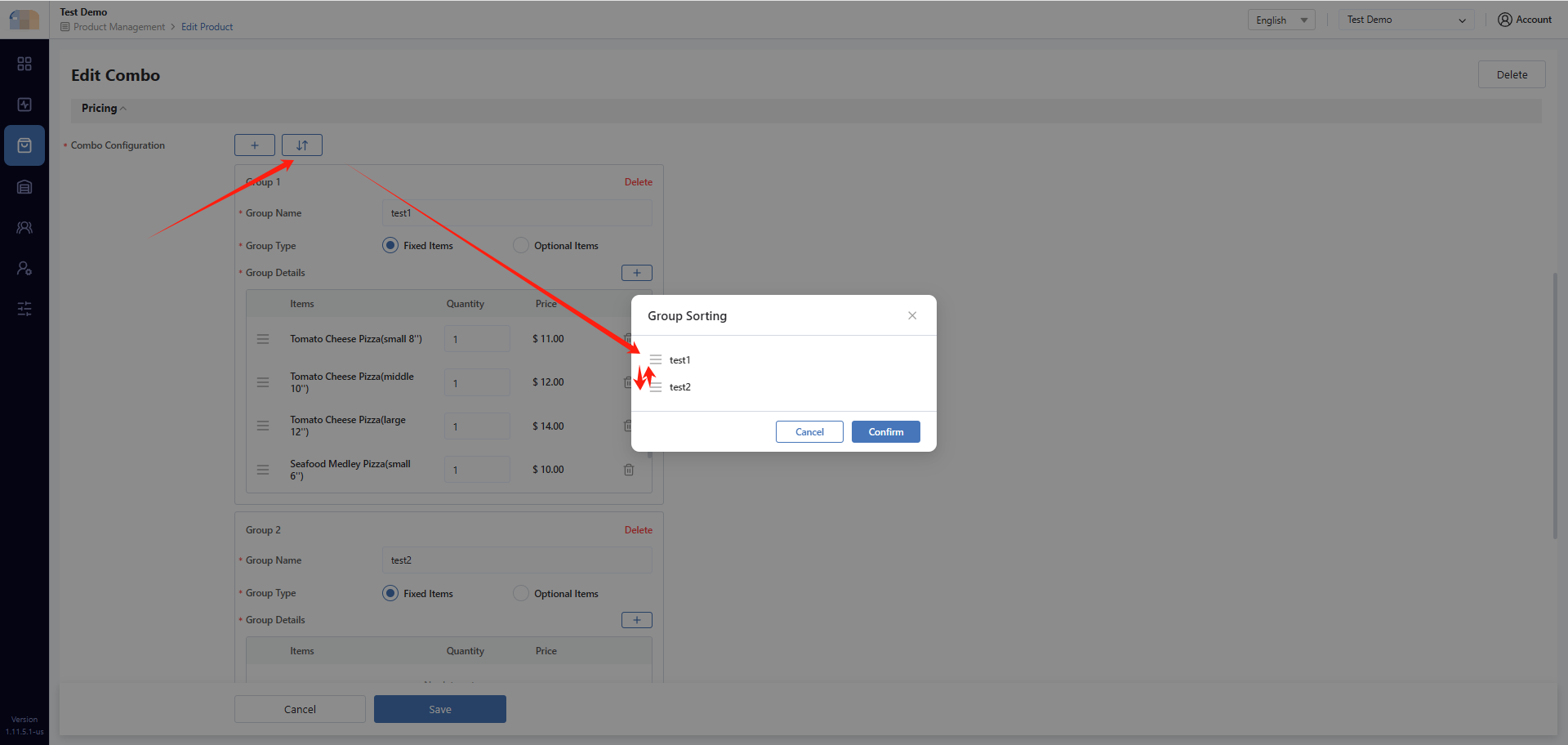
Step 3: Configure Optional Items Group Options
For customizable groups, you have additional configuration options:
- Options (Selection Count): Set how many products customers can select from a group (e.g., "Choose 1 out of 5" or "Choose 2 out of 5")
- Allow Duplicates: Enable this if customers should be allowed to select multiple identical items (e.g., choosing 2 of the same pizza in a "Choose 2 out of 5" group)
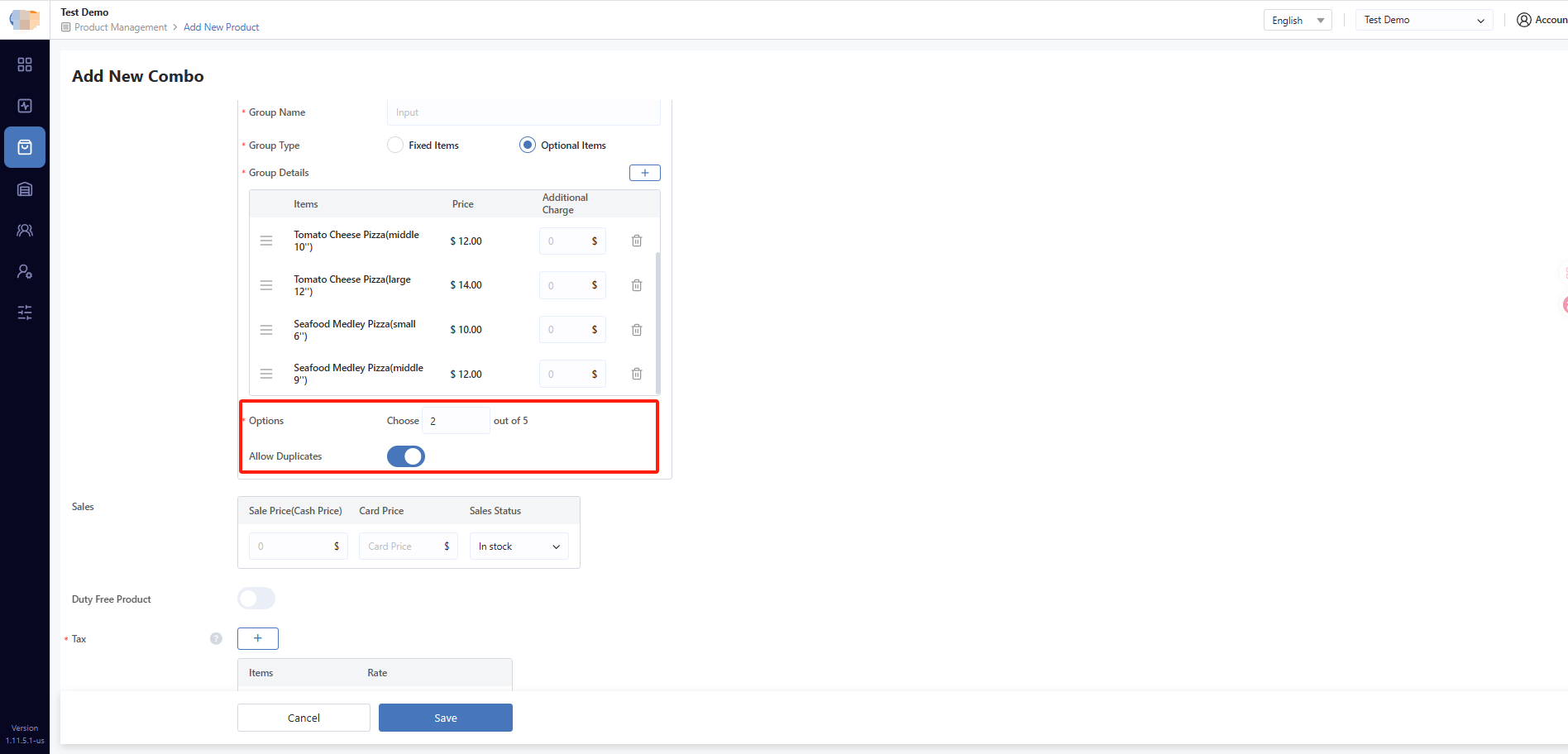
Step 4: Set Pricing and Status
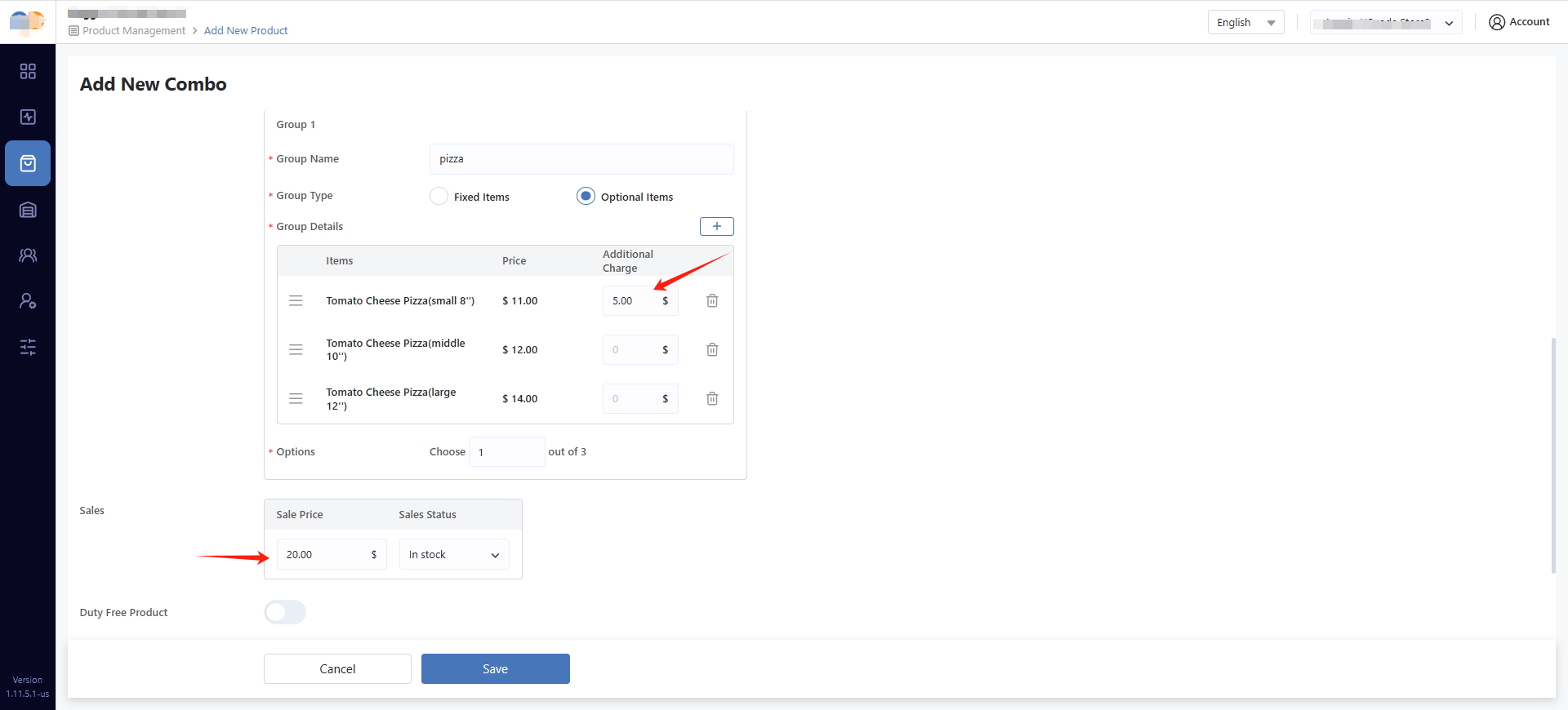
- Additional Charge: Add extra charges for specific products within
Optional Items groups (e.g., a premium item costs an additional $2.50) - Set the Combo Price (if dual pricing is enabled, set both Cash Price and Card Price)
- Set the Sales Status:
- In stock (default): The combo is available for purchase
- Out of stock today: The combo is visible to customers but cannot be added to cart today
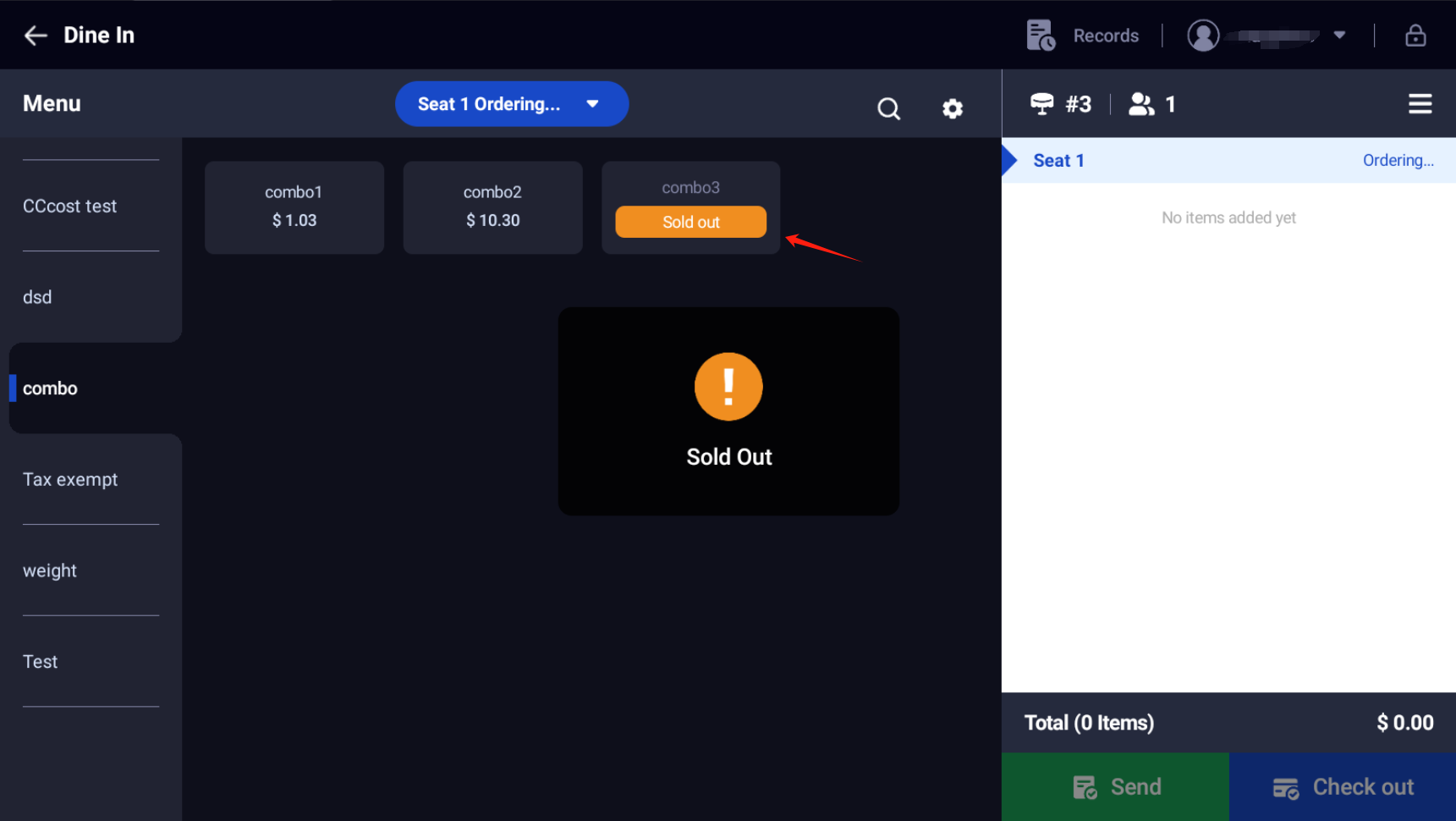
- Delisted: The combo is invisible to customers
-
Set the Tax for the combo (tax must be configured first — go to Settings →Payment & Fee → Fee Settings → Tax)
For detailed tax configuration, refer to the Managing Tax Settings guide.
-
Click Save to complete the creation
How to Edit a Combo Product
Editing a combo product follows a similar process to editing a regular product:
- Log in to your Backoffice
- Navigate to Menu → Product Management → Items
- Locate the combo product you want to edit (combo products are marked with a "Combo" label next to the product name)
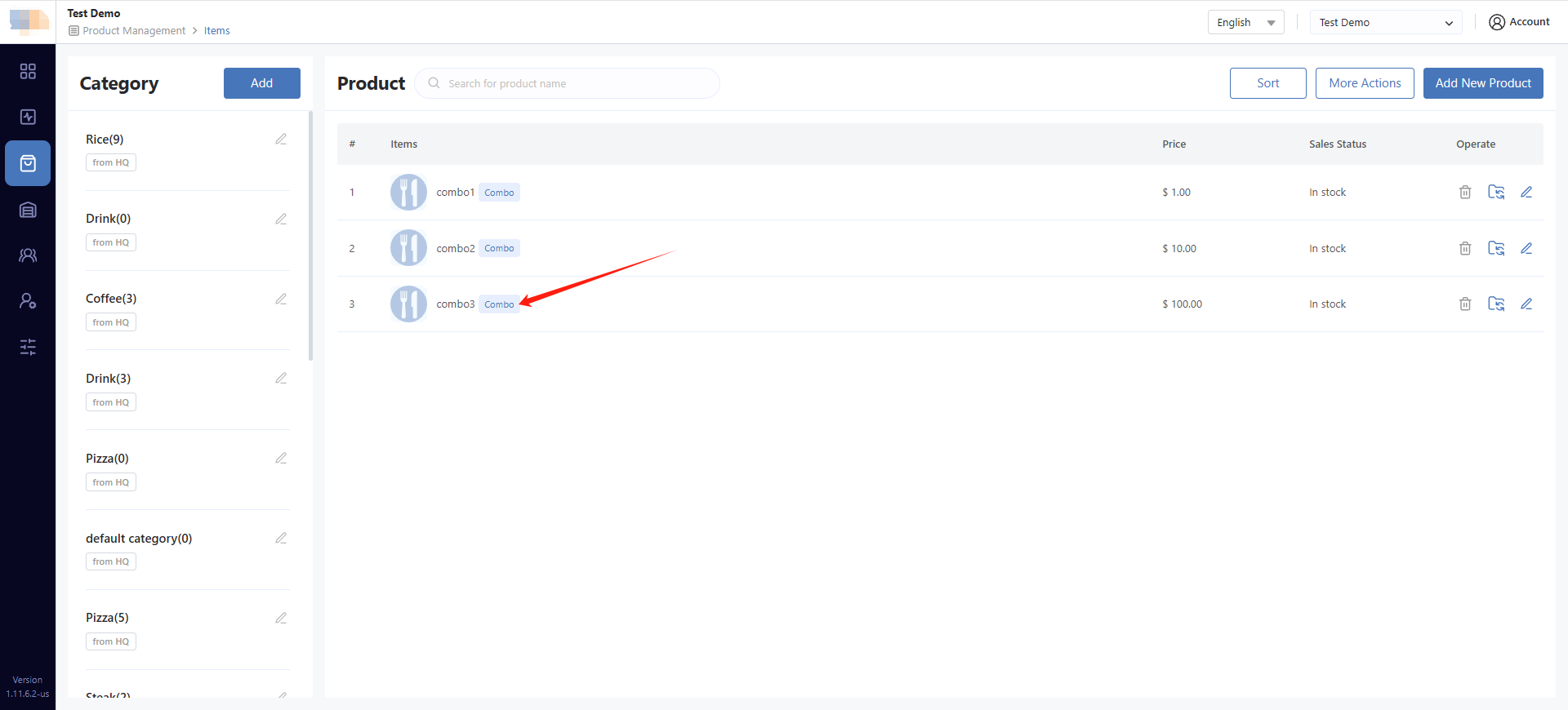
- Click the Edit icon to enter the combo editing interface
- Make your desired changes
- Click Save to apply the changes
How Combo Pricing Works
Fixed Combo Pricing
| Component | Description |
|---|---|
| Combo Price | The base price you set for the combo |
| Add-on Total | Sum of all add-on prices selected by the customer |
| Final Price | Combo Price + Add-on Total |
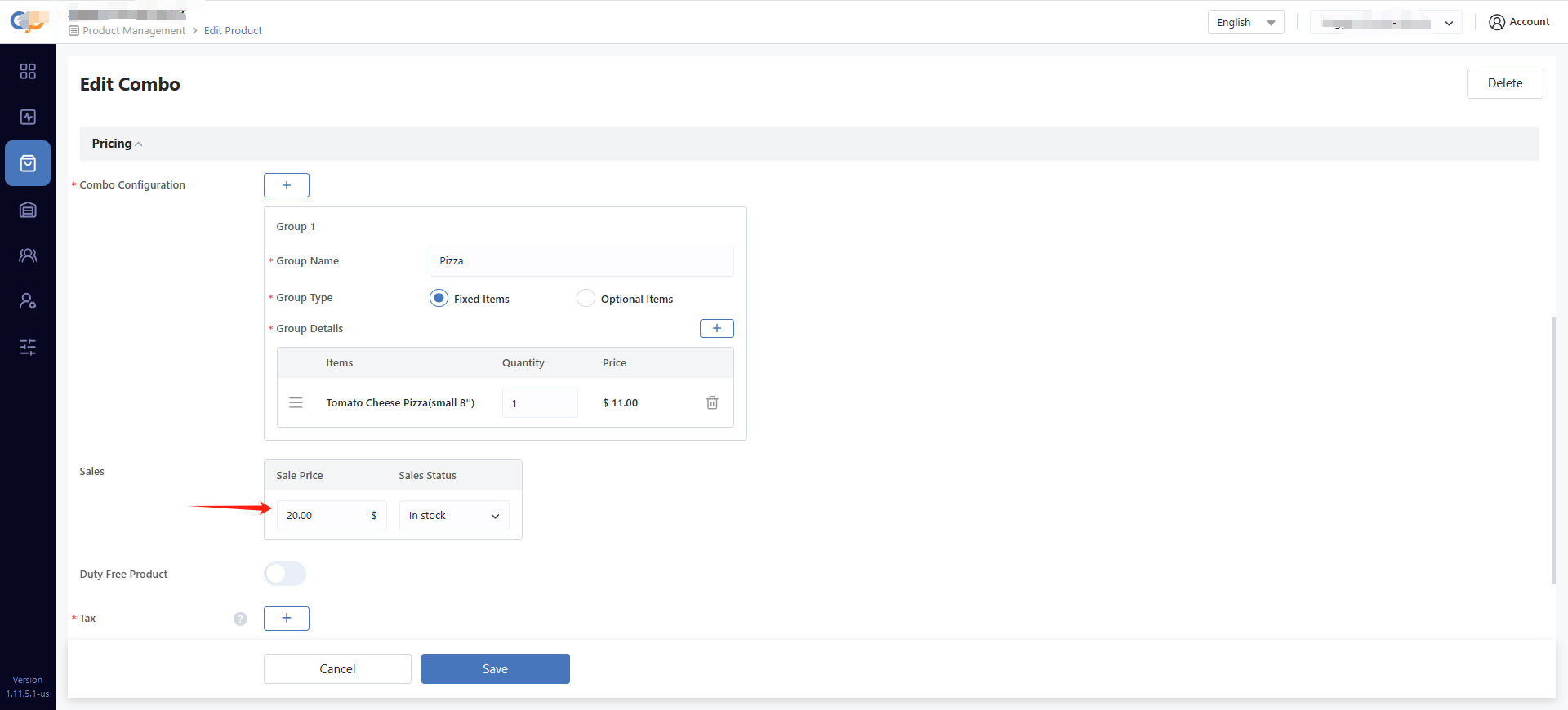
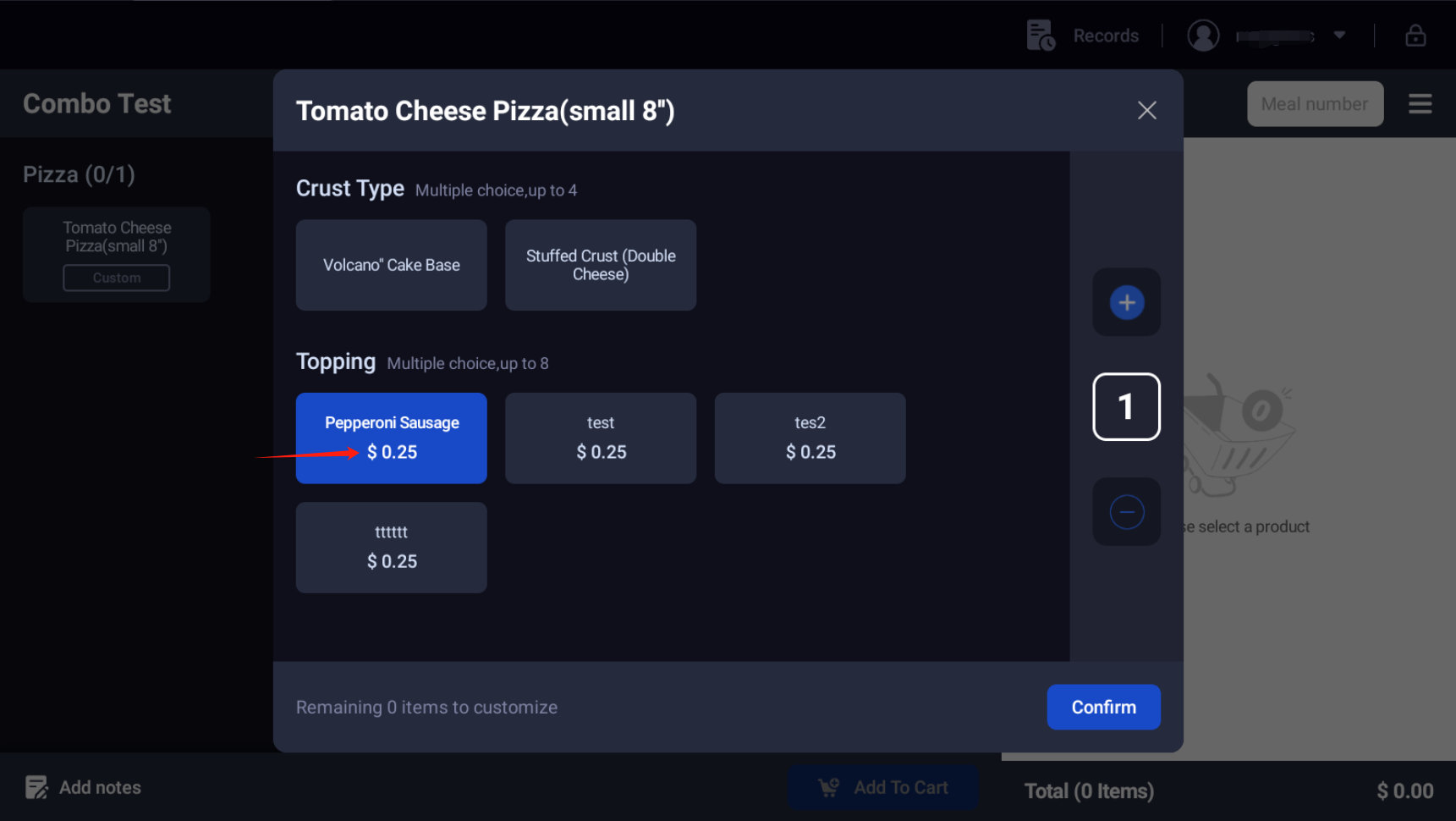
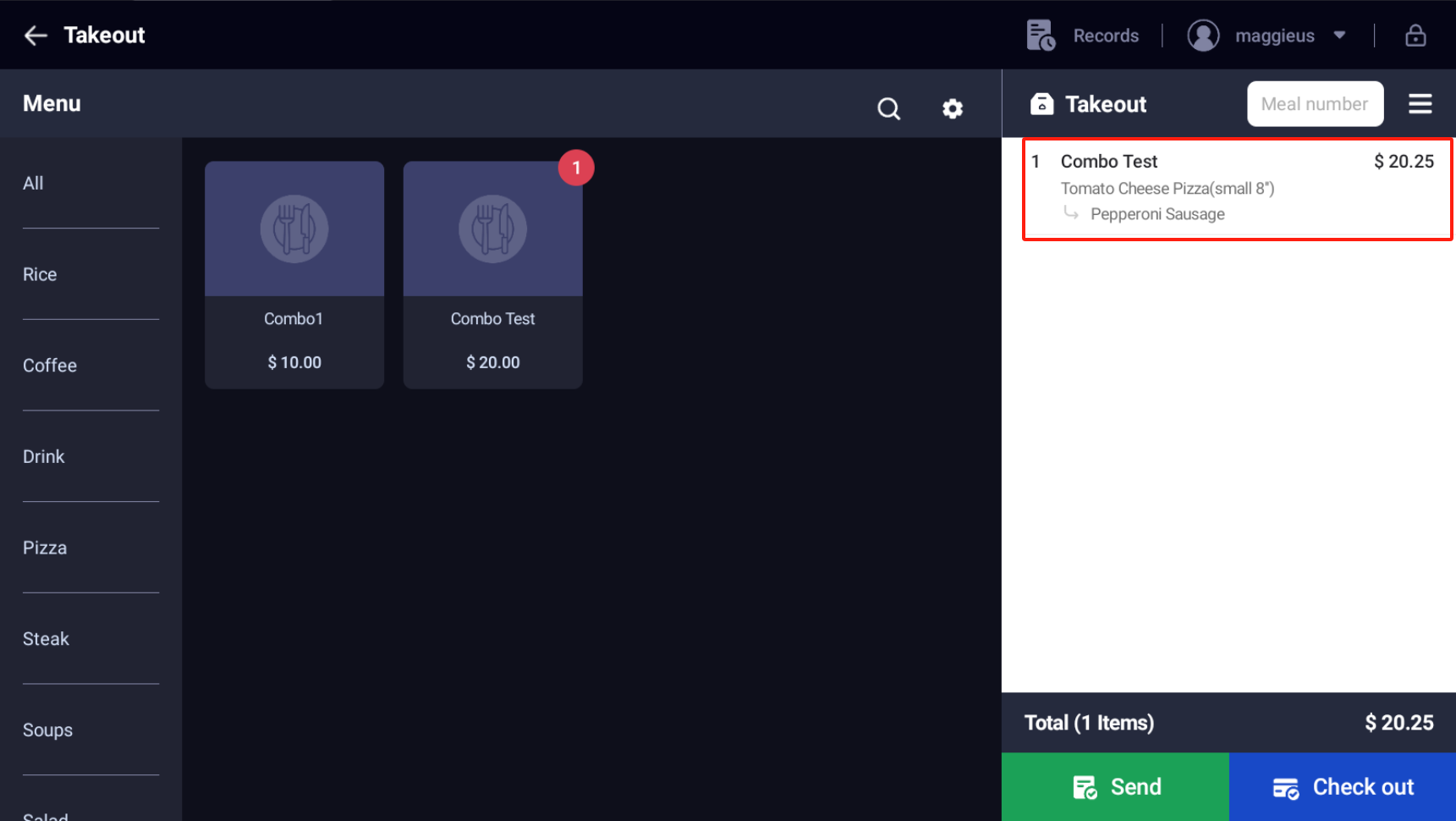
Combo Price = $20, Add-on Total = $0.25, Final Price = 20 + 0.25 = $20.25
Customizable Combo Pricing
| Component | Description |
|---|---|
| Combo Price | The base price you set for the combo |
| Additional Charge Amount | Extra charges for premium items selected in Optional Items groups |
| Add-on Total | Sum of all add-on prices selected by the customer |
| Final Price | Combo Price + Additional Charge Amount + Add-on Total |
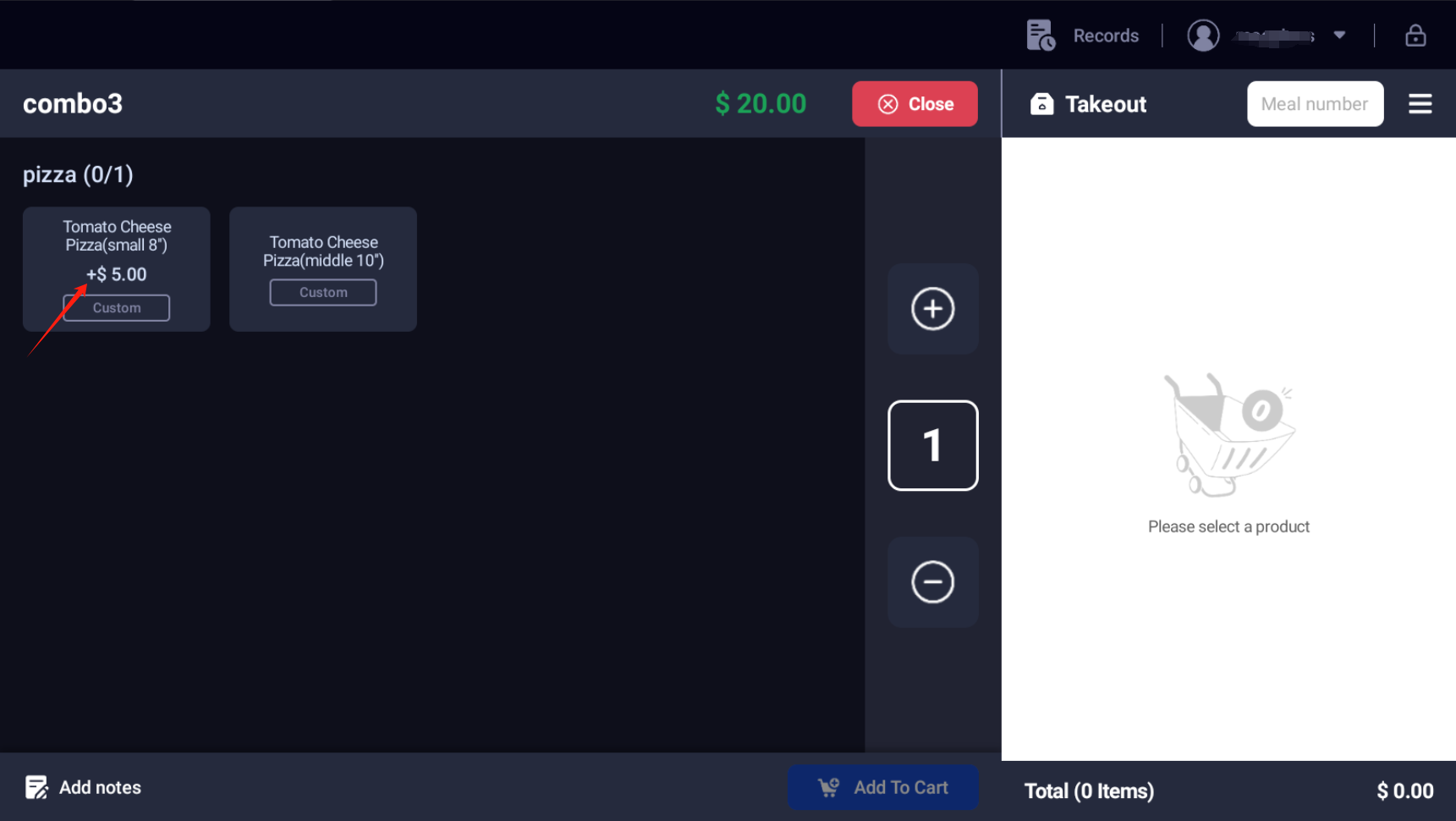
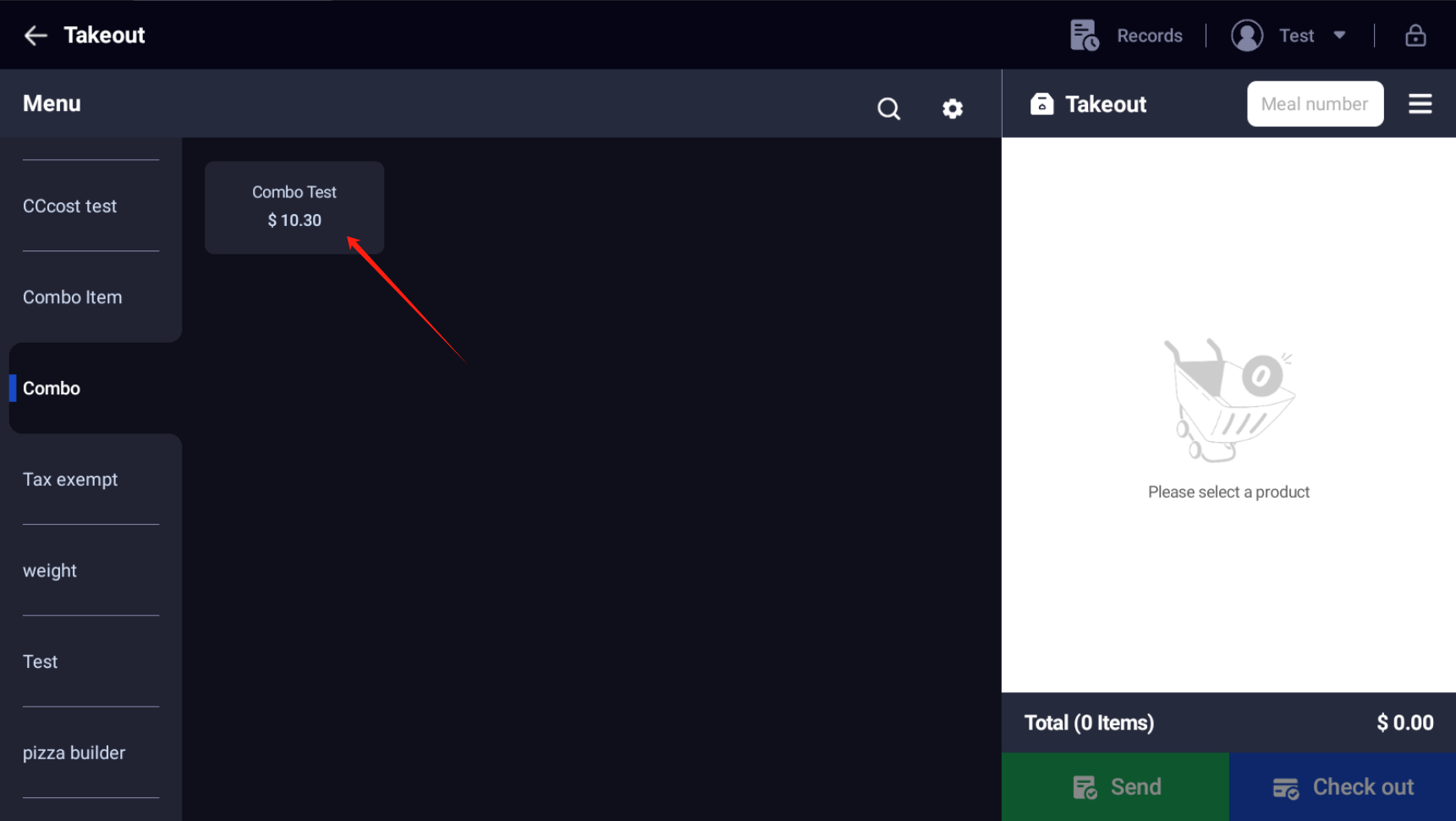
It will show +$5.00 for pizza that need Additional Charge:
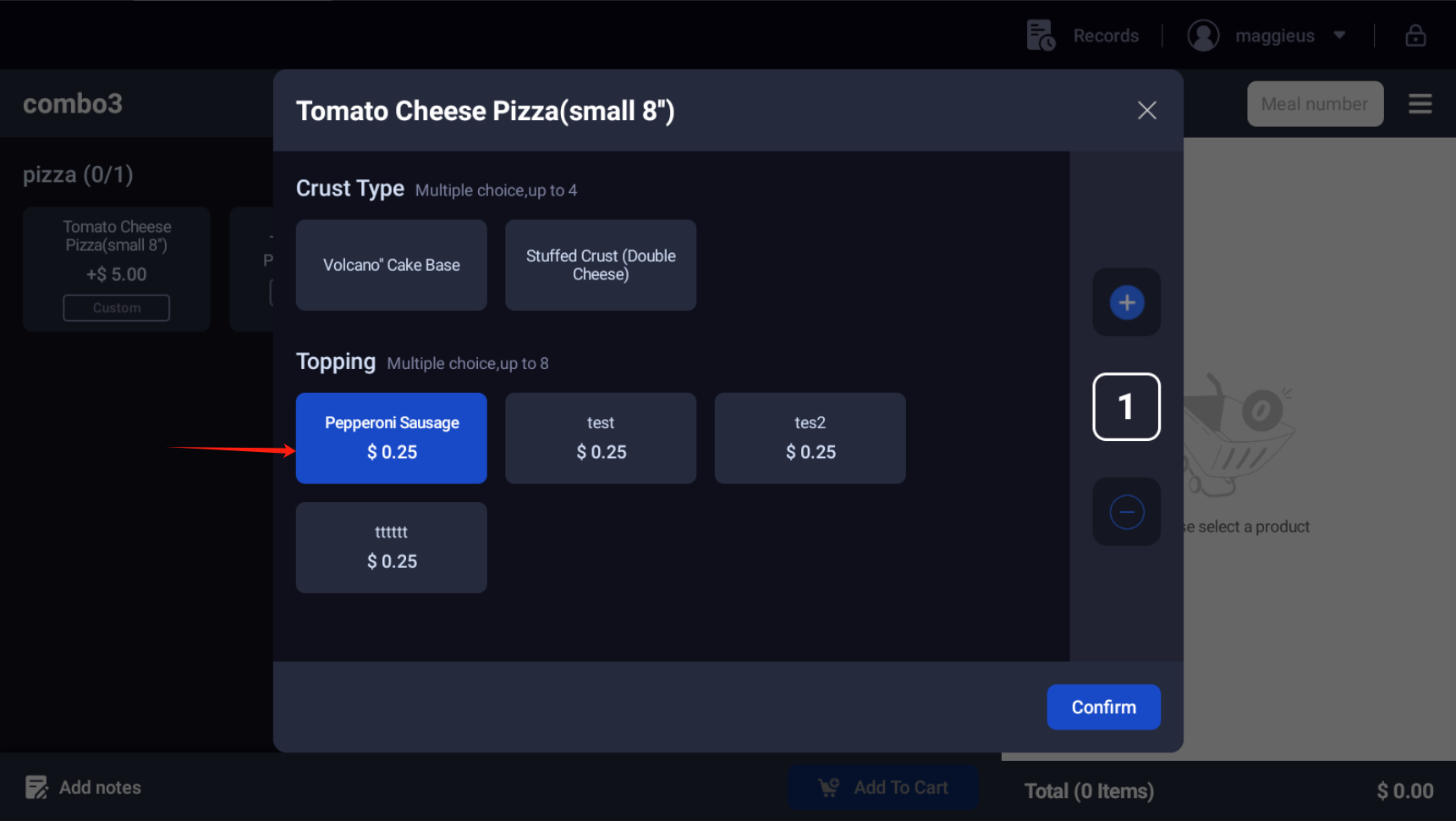
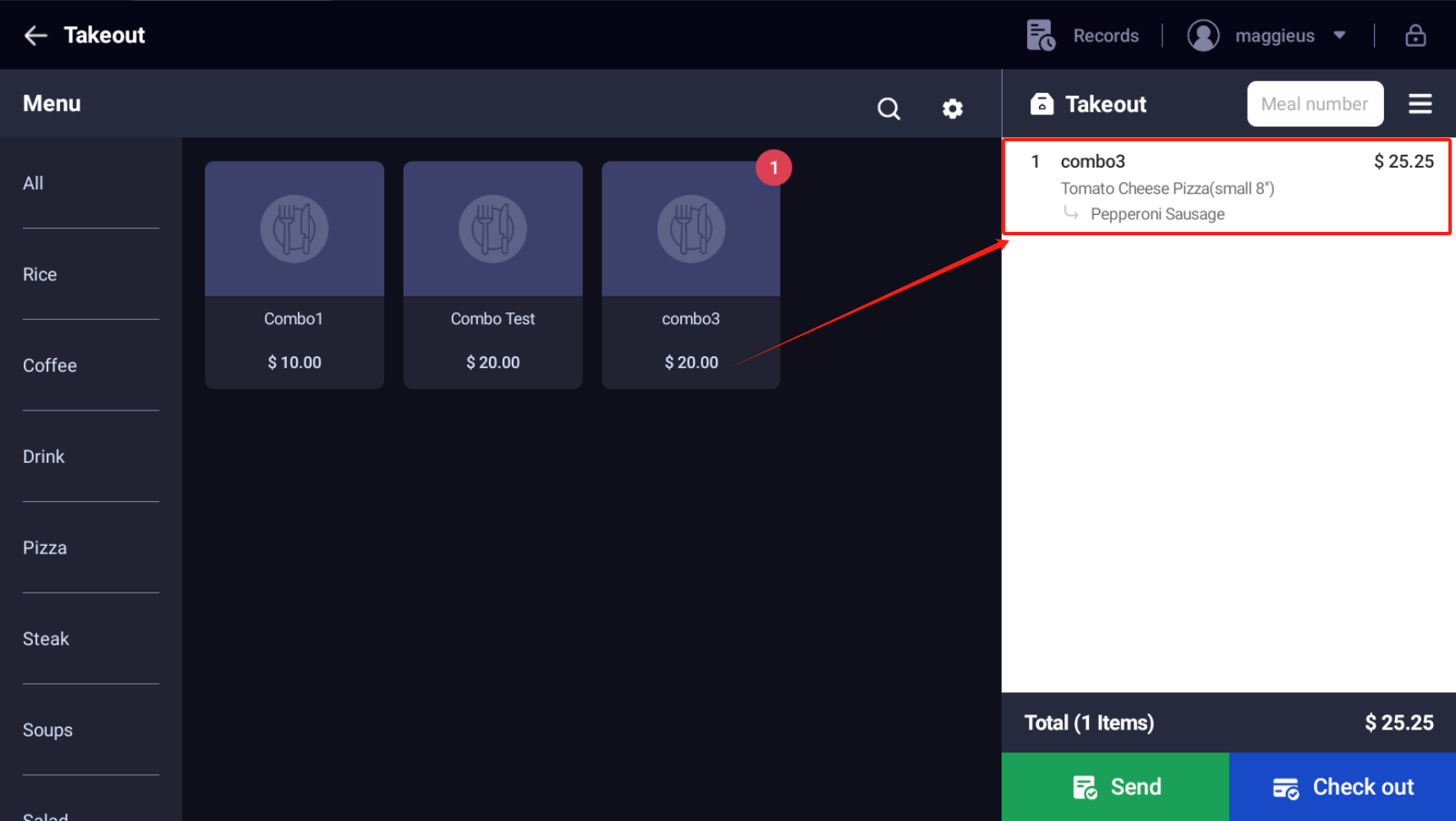
Combo Price = $20, Additional Charge Amount = $5, Add-on Total = $0.25, Final Price = 20 + 0.25 = $25.25
Managing Your Combos
Combo Restrictions
When working with combos, please note the following restrictions:
- Product Deletion: A product or stock item that is currently bound to any combo cannot be directly deleted. When you attempt to delete such a product, the system will display an error message: "Dishes linked by combo product, cannot delete"
- Creating Menus: Combo products cannot be selected when adding items to a new menu
- Modifier/Add-on Binding: Combo products cannot be bound to modifiers or add-ons (they won't appear in the binding popup)
- Batch Price Changes: Combo prices cannot be modified through the batch price update feature
- Coupon Conditions: Combo products cannot be selected when creating coupons with "Applicable Products" conditions
Note: These restrictions exist because combos have their own pricing and configuration logic that operates independently from regular product settings.
Distributing Combos from HQ to Stores
Combos created at the HQ (headquarters) level can be distributed to individual stores:
- When syncing a menu that contains combos, the combo products are included in the sync
- The individual items inside the combo are also automatically synced to the target store
- In the product list, combos appear with a "Combo" label, just like any other product
Example: If HQ syncs Menu A containing Combo B (which includes Item C), then Item C will also be synced to the store along with Combo B.
Syncing Combo Prices to Different Menus
When syncing combo prices to different menus (e.g., Lunch Menu vs. Dinner Menu):
- The system displays the combo's current price from the default menu
- When you select a target menu, the price field becomes editable and is pre-filled with the default menu price
- If dual pricing is enabled, both Cash Price and Card Price are shown and can be set independently for each menu
How Item Status Affects Combos
Fixed Group: Item Status Change
When you set an item to Delisted or Out of stock today, and that item belongs to a fixed group inside a combo, the system will automatically update the combo's status:
- Item set to Out of stock today → The entire combo becomes Sold out and is visible but cannot be purchased
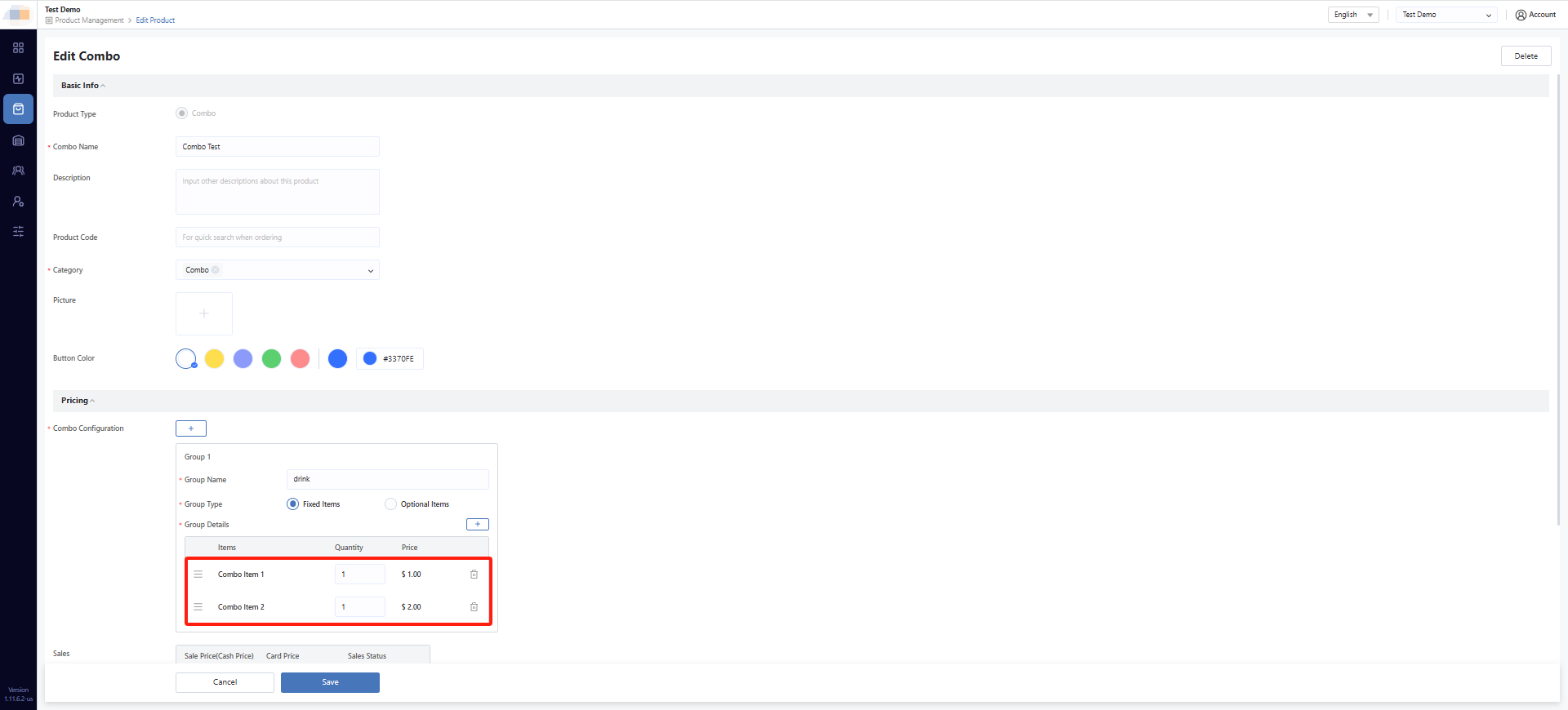
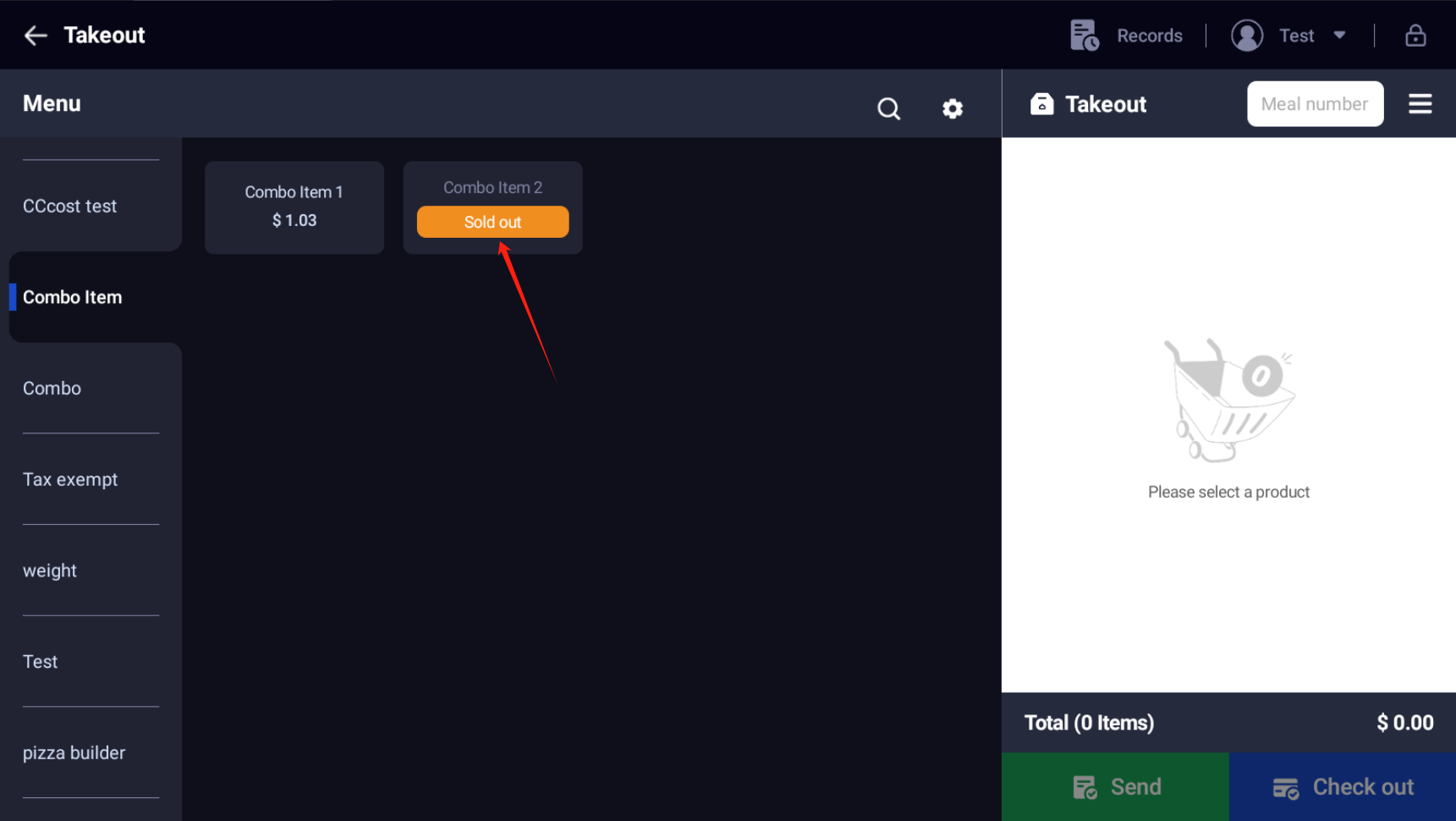
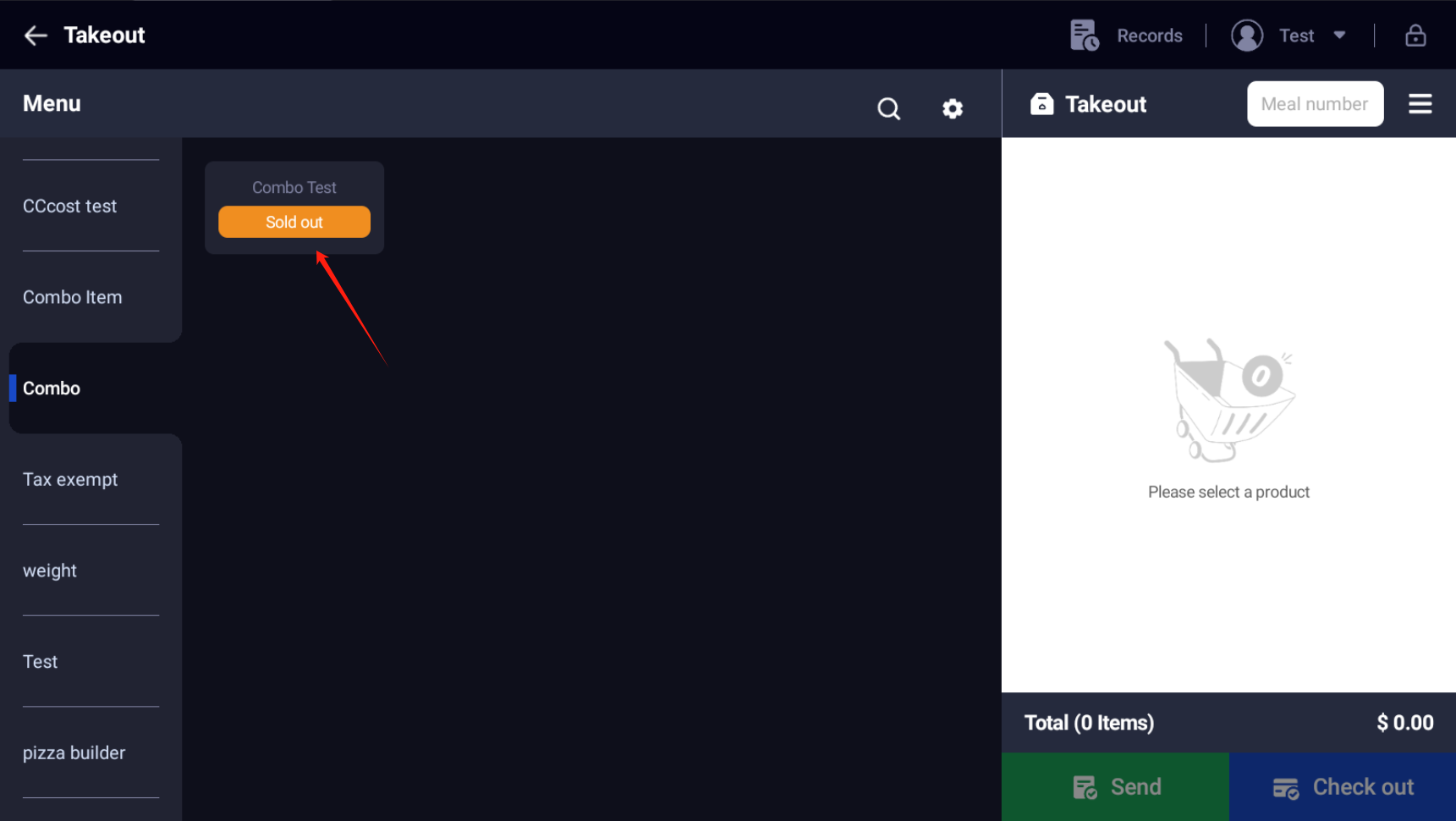
- Item set to Delisted → The entire combo becomes Delisted and is hidden from all ordering channels
⚠️ Warning: This behavior is automatic. A single delisted or out-of-stock item in a fixed group will take the entire combo offline.
Customizable Group: Item Status Change
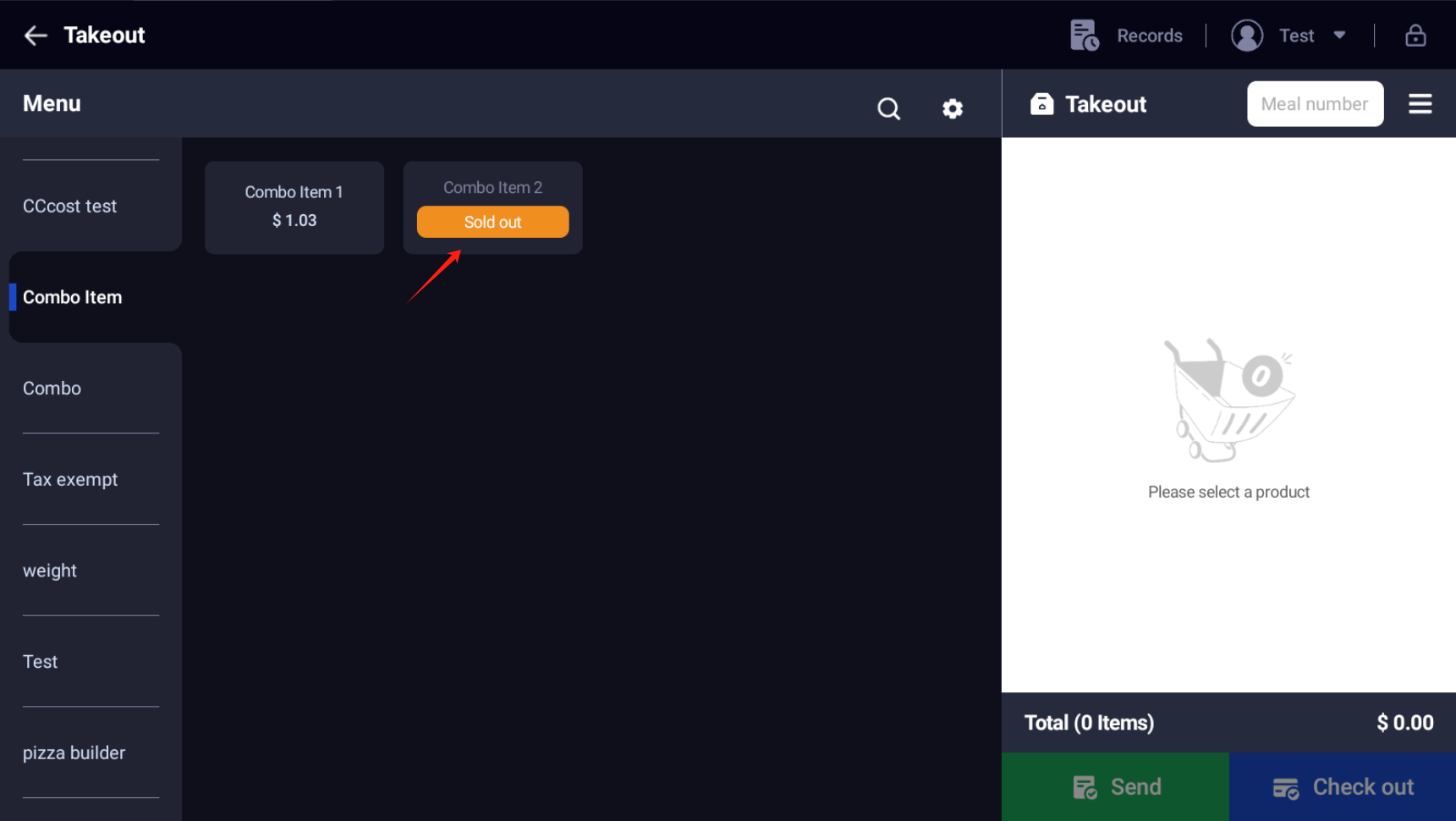
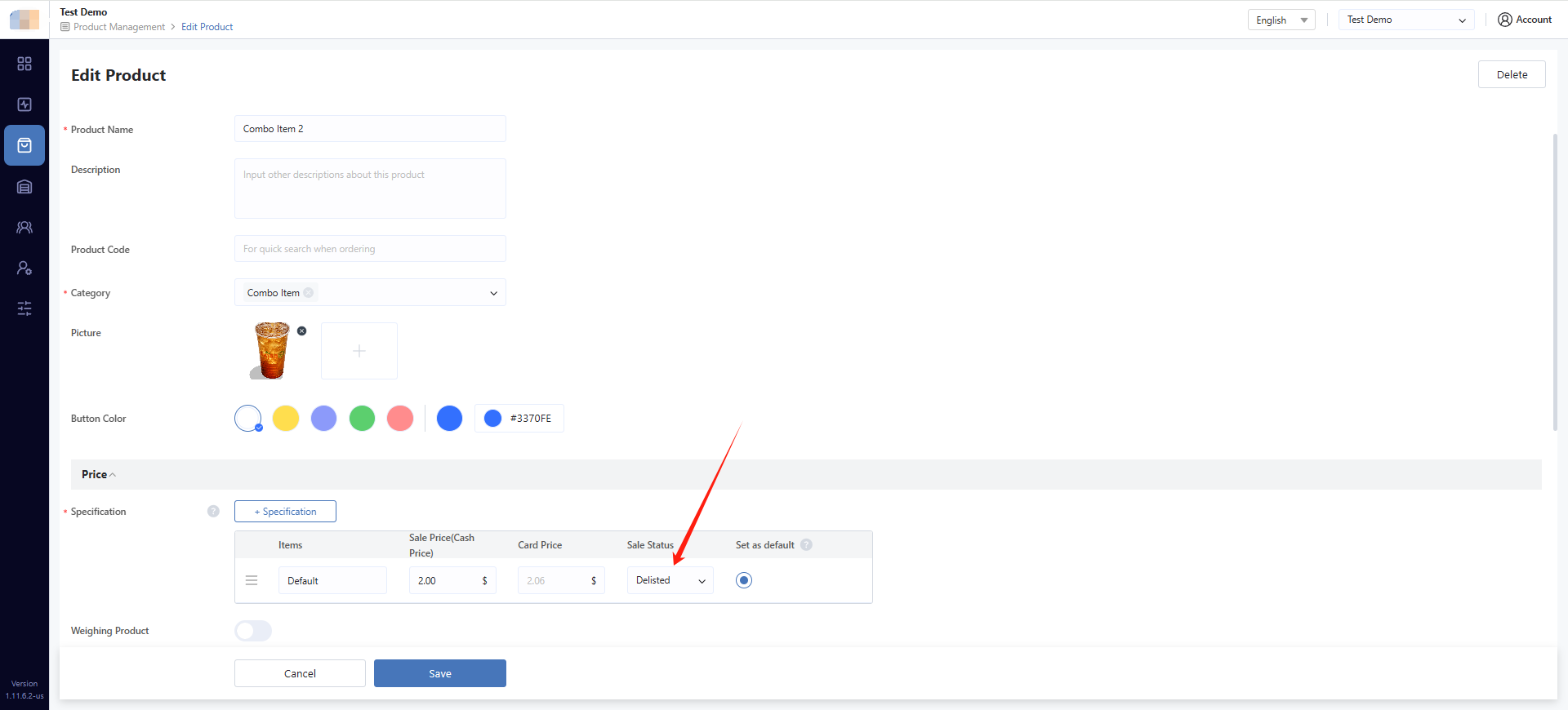
When you set an item to Delisted or Out of stock today, and that item belongs to a customizable group inside a combo, the combo's status is not affected:
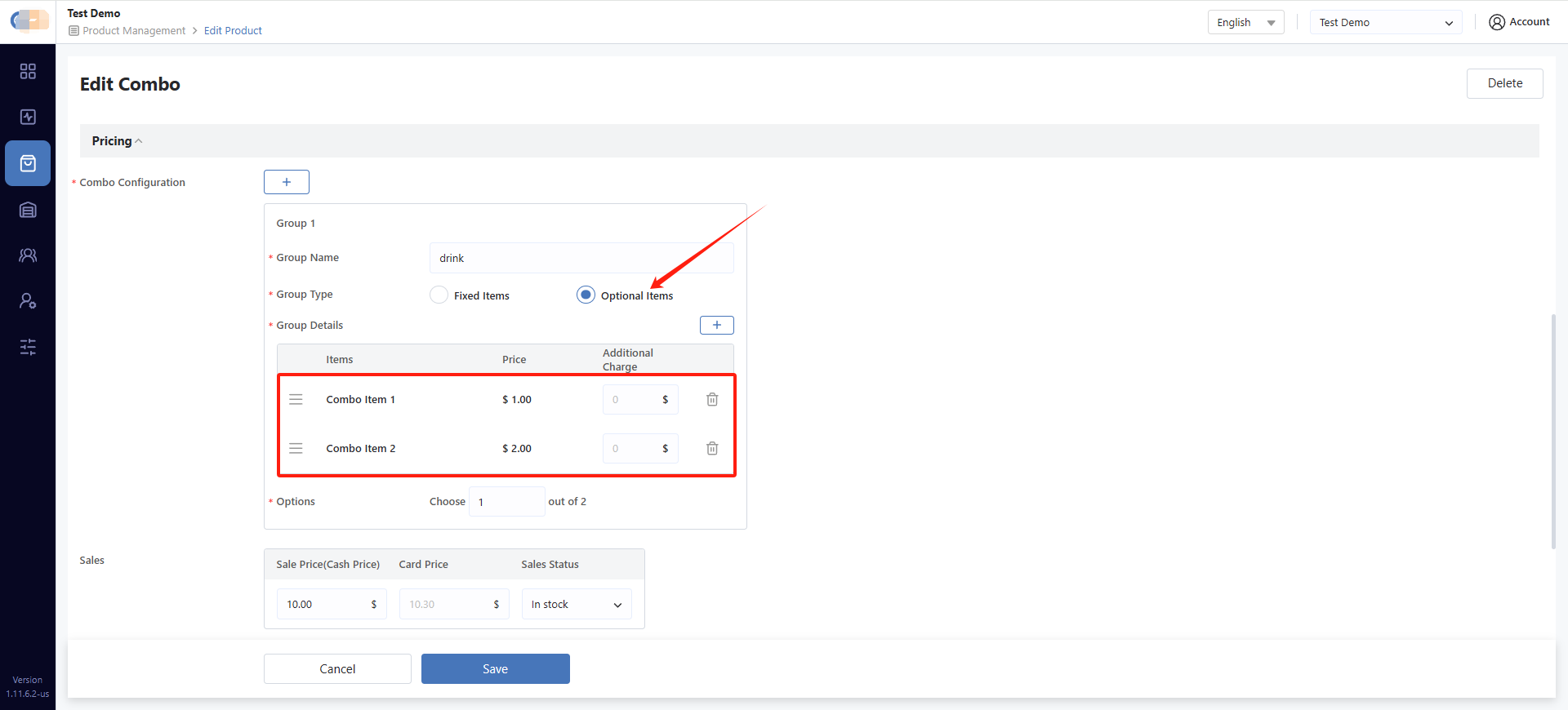
- Item set to Out of stock today → The item appears in the popup but is marked as Sold out, and the combo remains available
- Item set to Delisted → The item is hidden from the selection popup, but the combo remains available
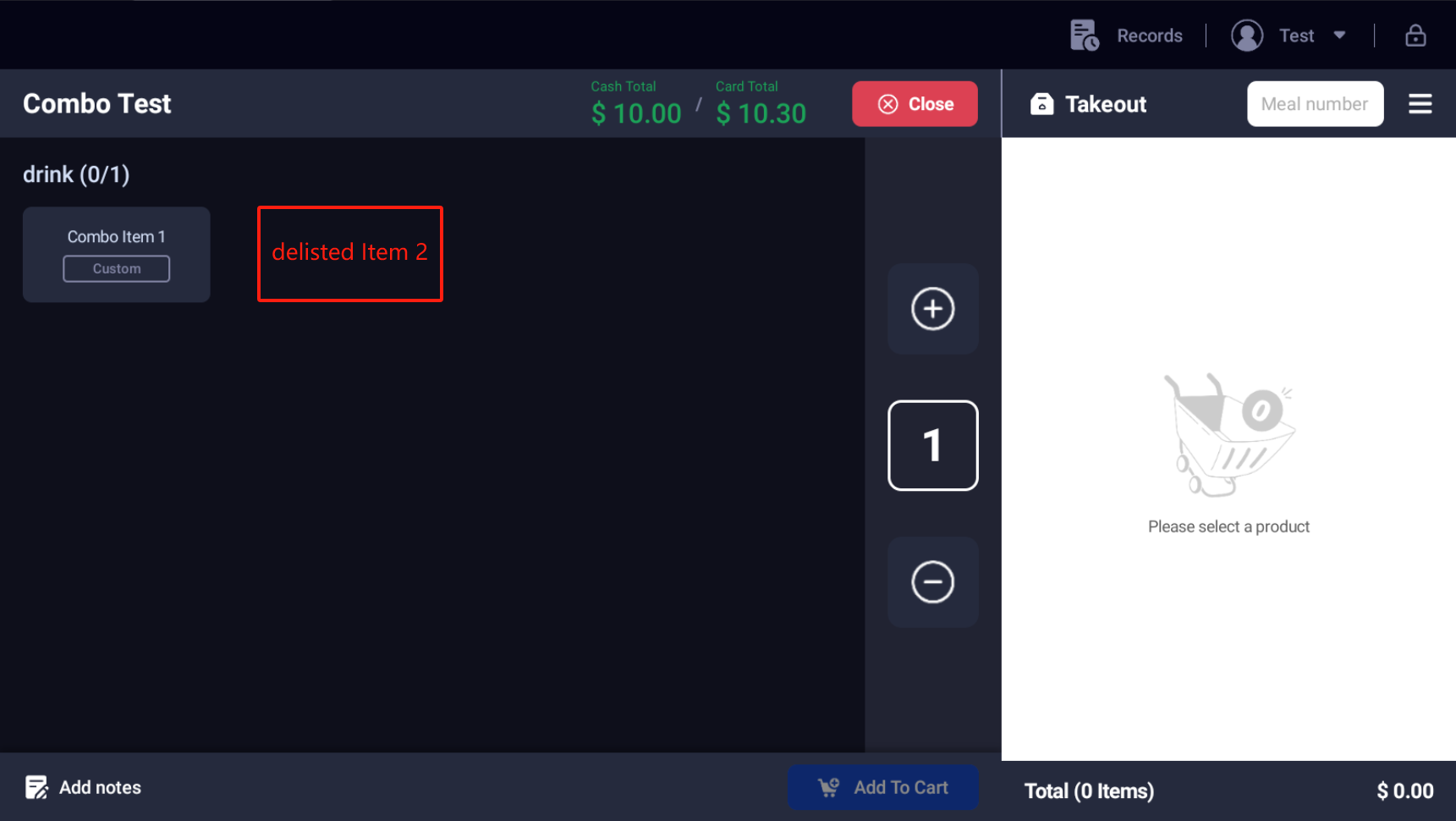
Re-"In stock" an Item Does Not Auto-"In stock" the Combo
Item delisting or going out of stock will automatically take the combo offline, but Re-"In stock" an item will not automatically restore the combo. You must manually set the combo status back to In stock.
Example: A combo's fixed group contains only Cola. When you delist Cola, the combo is automatically set to Delisted. Later, when you re-"In stock" Cola, the combo remains Delisted — you need to manually re-enable it.
Note: If multiple items affect the same combo simultaneously, the Delisted status takes priority over Out of stock today. For example, if Item A is set to Delisted and Item B is set to Out of stock today, and both are in the same combo's fixed group, the combo will be set to Delisted.
How Inventory Works with Combos
Automatic Inventory Deduction
When a combo is sold, the system automatically deducts the inventory of all individual items contained within the combo. The combo itself does not have its own inventory — it relies entirely on the inventory of its component items.
Inventory Return on Refund
When processing a refund for a combo with inventory return enabled:
- The system restores the inventory of each item inside the combo
- The refund is recorded against the combo itself, not the individual items within it
Linked Sales Status and Freeze Inventory
If you have enabled "Link Sales Status" or "Freeze Inventory" features:
- Selling a combo will deduct or freeze the inventory of the items linked to the SKUs inside the combo
- This ensures accurate stock tracking across your entire operation
Tip: Make sure all products inside your combos have proper inventory settings configured before enabling combo sales.
Troubleshooting Common Issues
Issue: Unable to Delete a Product That's Inside a Combo
- Solution: First remove the product from all combos it belongs to, then try deleting it again.
Issue: Combo Is Not Showing in the Product List
- Solution: Check if any product inside the combo's fixed group has been set to "Delisted." If so, the entire combo will be hidden. Restore the product's status and then manually re-enable the combo.
Issue: Combo Shows as Sold Out Unexpectedly
- Solution: Check the inventory status of products inside the combo's fixed group. If any item is sold out (manually or due to stock depletion), the combo will automatically show as sold out.
Issue: Cannot Add a Product to a Combo
- Solution: Ensure the product is not a weighted product, tax-free product, or open price product, as these types are not supported inside combos.
Issue: Combo Price Not Updating via Batch Edit
- Solution: Combo prices cannot be changed through batch operations. Edit each combo individually to update its price.
Conclusion
Combo products provide a powerful way to bundle items together, drive upselling, and simplify the ordering experience for your customers. By supporting both fixed and customizable combo types, along with automatic inventory management, smart pricing, and KDS integration, the POS system gives you full control over your combo strategy. Whether you're running a single store or managing a chain of locations, combos can help you increase average ticket size and create compelling offers that keep customers coming back.
For additional support or questions about combo products, please contact the software provider or your account manager.