Version Update Push
1. Overview
This feature enables the system to push new version installation packages to eligible app users, ensuring prompt updates. It enhances user experience by providing timely access to the latest features and critical security patches.
Target Audience: Partners/Merchants configuring updates.
Support Scope: Configuration guidance and troubleshooting for update pushes.
2. Prerequisites
Before configuring an update push, verify the following:
- Minimum Version Requirement: The target app must be on version 4.3.3 or higher.
- Note: Users with versions below 4.3.3 cannot receive push updates and must contact their service provider for manual installation.
- New Version Validity: The new version number (e.g., 5.1.0) must be strictly higher than the currently installed version.
3. Configuration Guide
3.1. APK Hosting Setup
The installation package (APK) must be hosted on a server accessible to the client devices.
Option A: Private Server (Recommended)
- Place the
.apkfile in a network-accessible directory on your server. - Ensure backend permissions and push certificates are correctly configured.
Option B: Cloud Storage (e.g., Dropbox)
If a dedicated server is unavailable, use a service like Dropbox.
- Critical Step: You must modify the shareable link to ensure direct downloading.
- Original Link:
.../file.apk?rlkey=...&dl=0 - Modified Link:
.../file.apk?rlkey=...&dl=1 - Why: Changing
dl=0todl=1triggers an immediate download instead of opening a preview page, which is required for the auto-update to function.
- Original Link:
3.2. Partner Portal Configuration
Navigate to Partner Portal > Merchant manage > App Update > Add.
Key Configuration Fields
| Field | Description & Best Practice |
|---|---|
| App Version | Define the range of versions eligible for the update (e.g., 4.3.3 to 5.0.0). |
| Closable pop-up | Recommended: Enable. • Enable: Users can skip the update. • Disable: Force Update. The app is unusable until updated. Use only for critical security fixes. |
| Daily pop-up frequency | If "Closable" is enabled, determines how many times per day the prompt appears before the user updates. |
| Pop-up Text | Customer-facing message (e.g., "Update available! Enjoy new features and better performance."). |
| Action Button | Choose "Update App" to allow in-app downloading. • Download Link: Enter the direct link (from Step 3.1). |
4. End-User Experience
Update Prompt
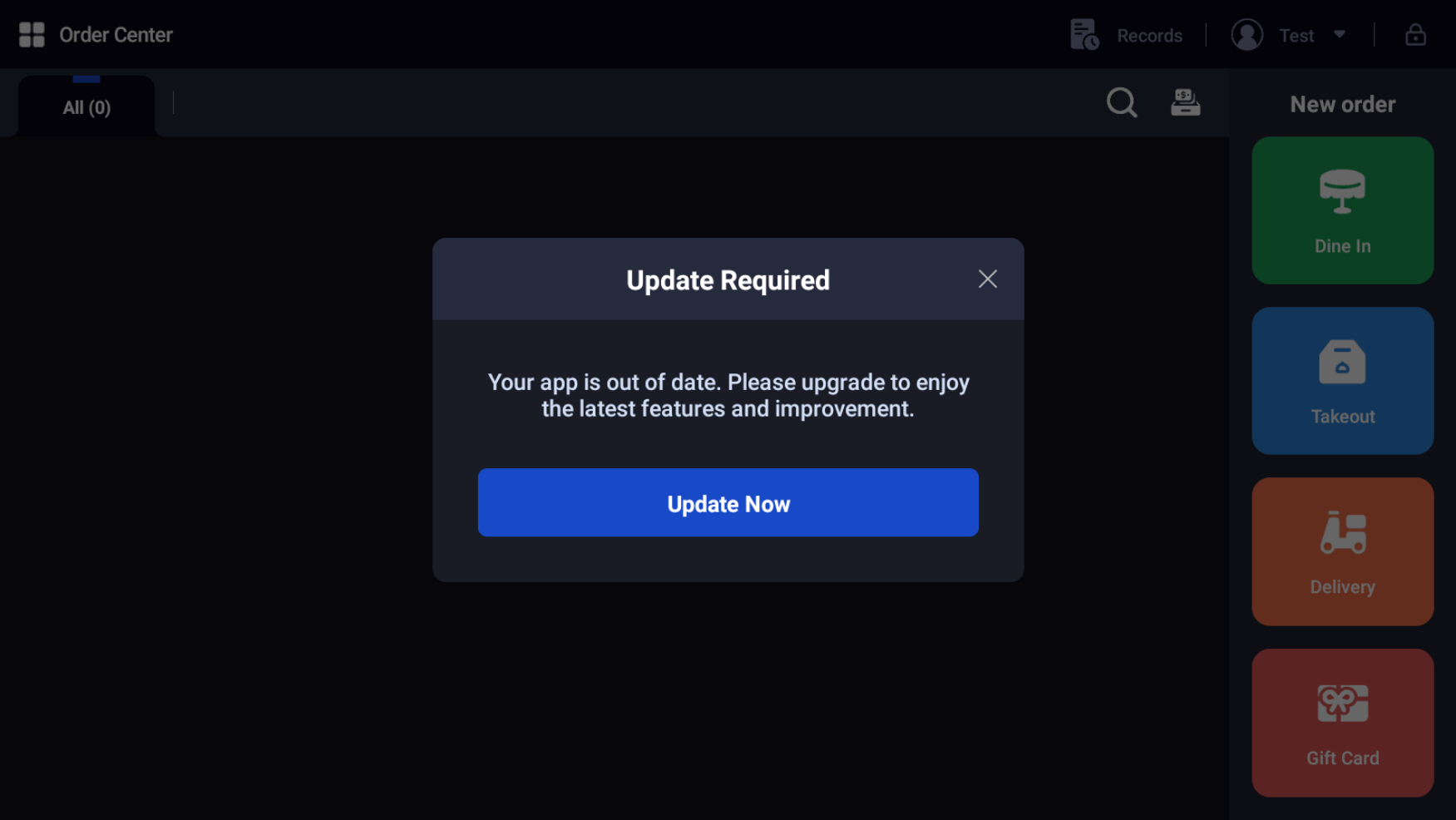
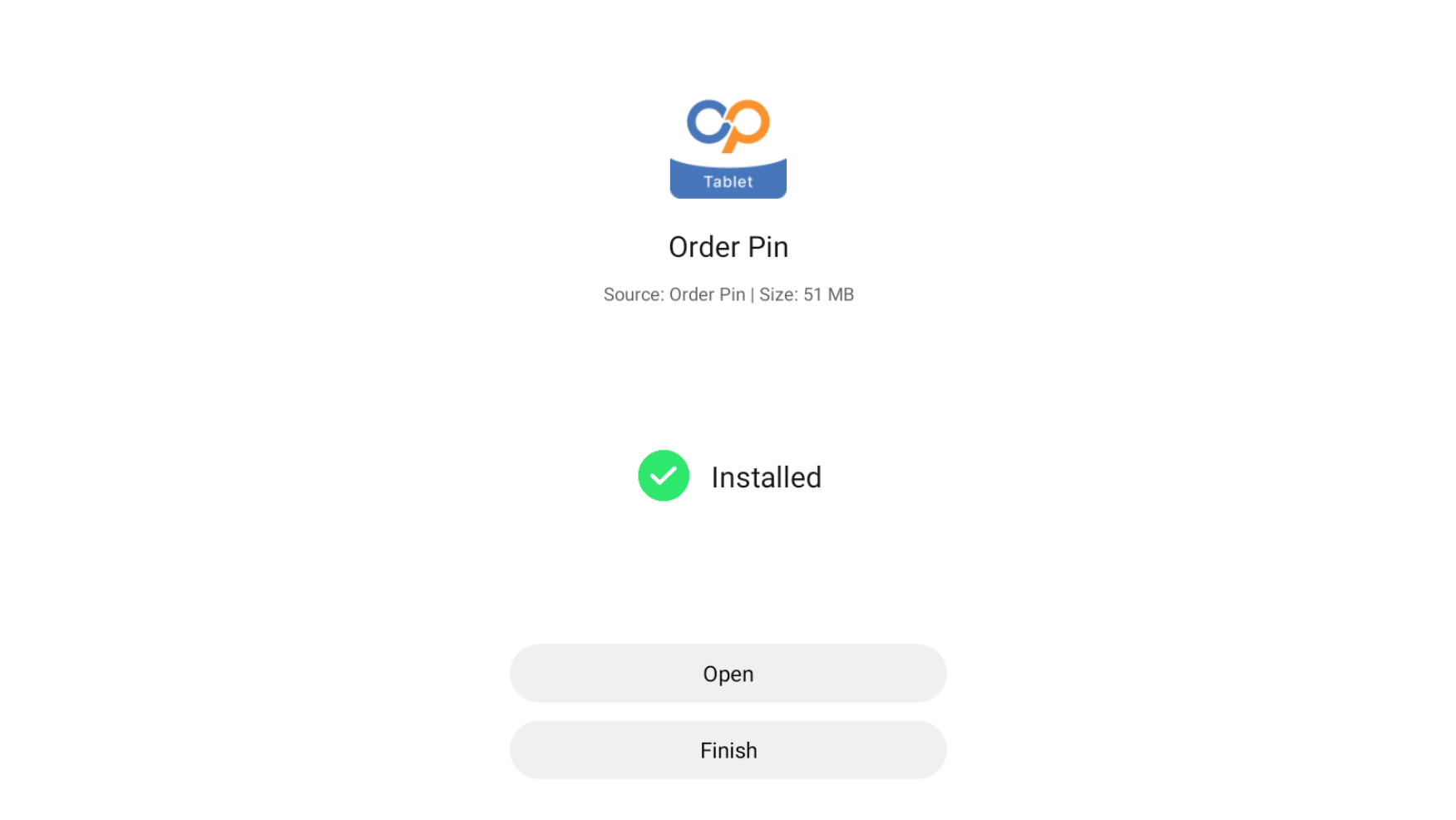
Eligible users will see a prompt dialog displaying release notes upon unlocking their device and entering the app.
Update Process
- Trigger: User clicks "Update Now".
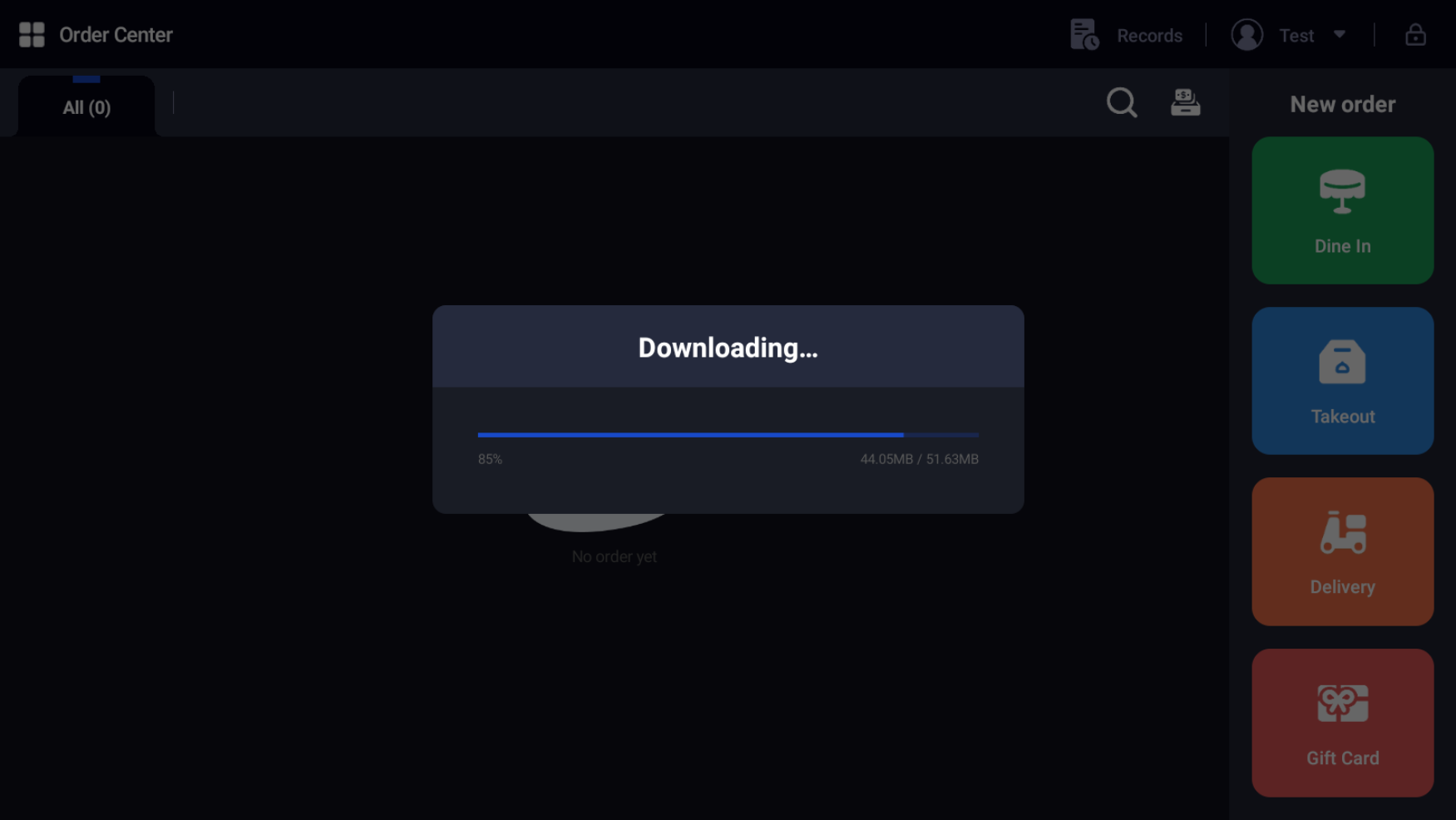
- Download: The package downloads (Wi-Fi recommended).
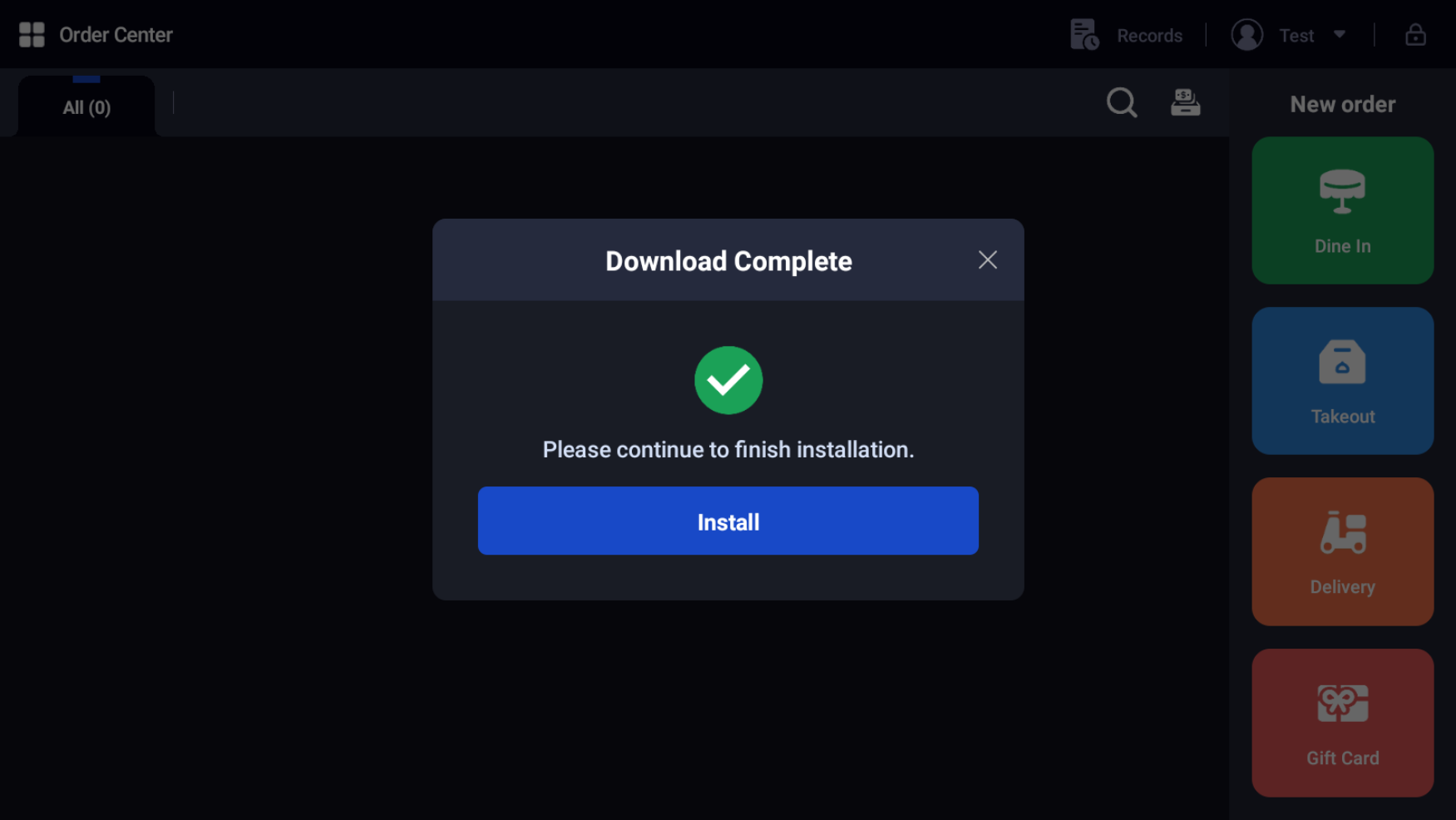
- Installation: System guides the user through installation.
- Completion: App restarts automatically with the new version.
5. FAQ & Troubleshooting
Q: Why isn't a device receiving the update push?
A: Check the following:
- Current Version: Is the device running version 4.3.3 or above?
- Version Range: Does the device's current version fall within the "App Version" range set in the Partner Portal?
- Target Store: Was the correct store selected in the configuration?
Q: The user clicks "Update Now" but the download fails or does nothing.
A: This usually indicates a broken link.
- Check the URL: Ensure the "Download Link" allows direct file access.
- Dropbox Users: Confirm the link ends in
dl=1, notdl=0.
Q: How quickly do settings apply?
A: Changes take effect immediately. To test, lock the device and re-enter the app using the PIN code.
Q: Can we force a user to update?
A: Yes. In the configuration, disable the "Closable pop-up" option. This will prevent the user from dismissing the prompt until the update is performed.
Q: How does the "Skip" logic work?
A: If a user clicks outside the prompt window (and it is closable), the prompt will disappear. It will reappear based on the "Daily pop-up frequency" setting (e.g., the next day or next session).